SSIS Azure Queue Storage Destination
Insert, update or delete Azure Queue Storage messages in bulk from any SSIS data flow.
Azure Queue Storage Destination writes, updates and deletes Azure Queue Storage messages in bulk from SSIS. Map any upstream column to the message text and adjust the time to live when a message is written.
The trial includes Azure Queue Storage Destination and every other PowerPack component
- Data Flow Destination in SSIS
- Runs in your environment
- Also runs in Azure Data Factory
- Fully functional 30-day trial


At a glance
What Azure Queue Storage Destination can do
Azure Queue Storage Destination can be used to write/delete/update data from Azure Queue Storage using SSIS.
Bulk write messages
Write messages to Azure Queue Storage in bulk from any SSIS data flow.
- Map an upstream column (e.g. a JSON document) to
MessageText
Bulk update & delete
Change messages after they are written, or delete them in bulk.
Operation: Insert, Update, Delete or Reload
Message time to live
Adjust TimeToLive when a message is written, and control message visibility.
VisibilityTimeoutin seconds; -1 uses the queue default
Queue picker & mapping
Select the target queue from a dropdown and map columns on the Mappings tab.
QueueNameproperty
Error output
Capture bad rows along with the exact reason of the error.
- Redirect rows on error or truncation from the error handling tab
Azure Storage connection
Connect through the Azure Storage Connection Manager with an account name and access key, a SAS URL or token, a connection string, or the local Azure Storage Emulator.
- Custom Blob, Table and Queue endpoints
- Proxy settings, plus
Timeout,MaxRetryOnErrorandRetryInterval
Logging control
Control how much information is logged during package execution.
LoggingMode: Normal, Medium, Detailed or DebuggingPrefixTimestampadds a timestamp to log messages
SQL Server 2012–2025 & ADF
Runs in your environment on SQL Server 2012–2025 and Azure-SSIS.
- SQL Server 2025, 2022, 2019, 2017, 2016, 2014, 2012 (32/64-bit)
- Azure Data Factory (SSIS IR)
- Design packages in Visual Studio 2017, 2019, 2022, or 2026
- Windows only (64-bit OS): Windows 7–11 or Windows Server 2012–2025
See all features
- Bulk insert (write messages to Azure Queue Storage in bulk)
- Bulk delete from Azure Queue Storage
- Bulk update (change messages once they are written)
- Adjust TimeToLive when a message is written
- Configurable message visibility timeout
- Select the target queue from a dropdown list
- Map upstream columns to the message text on the Mappings tab
- Error output to redirect bad rows on error or truncation
- Connect with access key, SAS URL/token, connection string or the Azure Storage Emulator
- Logging modes (Normal, Medium, Detailed, Debugging) with optional timestamp prefix
Support for SQL Server 2025, 2022, 2019, 2017, 2016, 2014, 2012 (32/64-bit) and Azure Data Factory
SQL Server 2012–2025
How it works
From the toolbox to your first run.
Key steps from the Azure Queue Storage Destination page and help file, with the screens you will see in SSDT.
Create an Azure Storage connection.
Right-click the Connection Managers panel, choose New Connection and pick the ZappySys Azure Storage connection type. Enter your storage account name and access key, or use the developer account for the local storage emulator, then click Test Connection.
- Account key, SAS URL/token or connection string
- Local storage emulator for testing
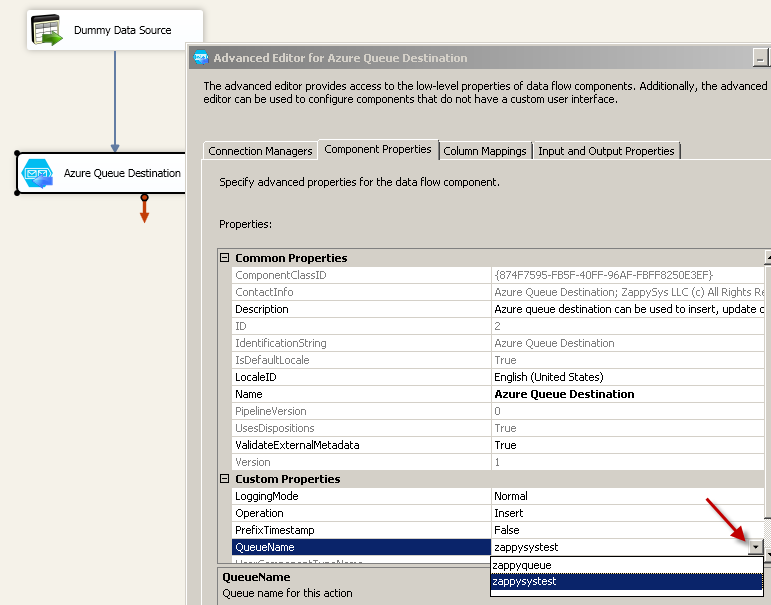
Pick the target queue and what to do with each row.
On the Component Properties tab, select the target queue from the QueueName dropdown and set Operation to Insert, Update, Delete or Reload. VisibilityTimeout sets how long a message stays hidden after it is read (-1 uses the queue default).
- Bulk insert, update or delete
- Queue picked from a dropdown
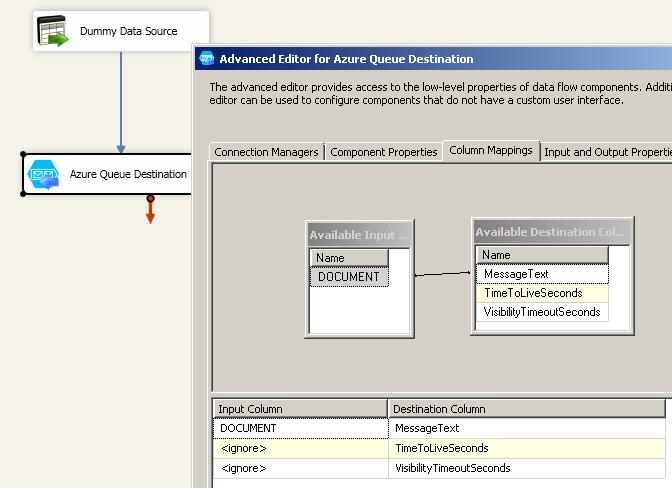
Map upstream columns to message fields.
On the Mappings tab, map an upstream column (for example a JSON document) to MessageText. You can also map TimeToLiveSeconds and VisibilityTimeoutSeconds to set them per message.
MessageTextTimeToLiveSecondsVisibilityTimeoutSeconds
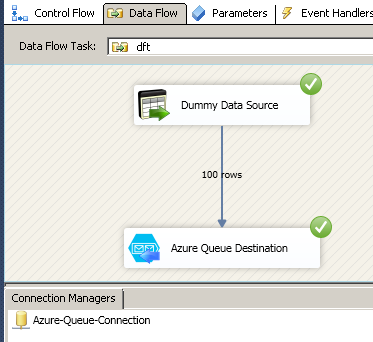
Load the messages and check the queue.
Run the package to push the rows to the queue as messages, then verify the message count in the queue with a client tool such as Microsoft Azure Storage Explorer.
- Error output captures bad rows with the reason
Inside the UI
Key settings, as they appear in SSDT.
Real screens from the Azure Queue Storage Destination product page. Step through them, or open any shot at full size.
Azure Storage Connection UI
Enter the storage account name and access key (or use the developer account for the local emulator), then click Test Connection.
Articles
Worked examples that use Azure Queue Storage Destination.
Compatibility and requirements
Designed to stay inside your SSIS runtime.
- SQL Server 2012 through 2025, 32-bit and 64-bit
- Windows only, 64-bit OS required. SQL Server Express and Web editions do not include SSIS
- Azure Data Factory SSIS Integration Runtime
- Self-hosted: credentials and data stay in your environment (external API calls still reach that service)
- Fully functional 30-day trial of SSIS PowerPack
FAQ
Questions teams ask before they drop Azure Queue Storage Destination on the canvas.
What is Azure Queue Storage Destination?
A Data Flow destination that writes messages to Azure Queue Storage in bulk. It can also update messages after they are written or delete them in bulk, and it lets you adjust the time to live when a message is written.
How do I choose between insert, update and delete?
Set the Operation property on Component Properties to Insert, Update, Delete or Reload, and pick the target queue in QueueName. See the property reference.
Which column becomes the message body?
Whatever you map to MessageText on the Mappings tab, for example a JSON document column. TimeToLiveSeconds and VisibilityTimeoutSeconds can be mapped as well.
What happens to rows that fail?
By default the component fails on any data error or truncation. Attach the error output with RedirectRow on Error and Truncation to capture bad rows along with the exact reason.
Which SQL Server versions can I run it on?
SQL Server 2025, 2022, 2019, 2017, 2016, 2014, and 2012 (32- and 64-bit), plus Azure Data Factory with an SSIS Integration Runtime (packages must target SQL Server 2017). See Compatibility and requirements.
See also
More from SSIS PowerPack.





What customers say
Start your free trial today
Install SSIS PowerPack and drag Azure Queue Storage Destination onto the Data Flow.
Insert, update or delete Azure Queue Storage messages in bulk from any SSIS data flow.
- Data Flow Destination in SSISAzure Queue Storage Destination appears in the toolbox after you install PowerPack.
- Fully functional 30-day trialSSIS PowerPack, running in your environment.
- Live supportHelp during your trial and after purchase.
Open Help FileBrowse all SSIS PowerPack tasks
New purchases may be eligible for refund review within 30 days. See the refund policy.
Talk to an engineer before or during your trial.