SSIS Azure Blob CSV File Destination
Write CSV files to Azure Blob Storage from any SSIS source, with no local staging files.
SSIS Azure Blob Destination for CSV File can be used to write data in CSV file format to Azure Blob Storage. You can automatically split large files by row count or size at runtime. It also supports writing files directly in compressed format such as GZip (*.gz).
The trial includes Azure Blob CSV File Destination and every other PowerPack component
- Data Flow Destination in SSIS
- Runs in your environment
- Also runs in Azure Data Factory
- Fully functional 30-day trial


At a glance
What Azure Blob CSV File Destination can do
SSIS Azure Blob Destination for CSV File can be used to write data in CSV file format to Azure Blob Storage. You can automatically split large files by row count or size at runtime. It also supports writing files directly in compressed format such as GZip (*.gz).
Write CSV to Azure Blob
Create CSV files directly in Azure Blob Storage from any source (e.g. SQL Server, Oracle, MySQL) without creating local files.
- Append to a file (
Append) or overwrite it (OverwriteFileIfExists) DoNotCreateFileIfNoRowsskips the empty file when there are no input rows
Split large files
Automatically split large output into multiple files by row count or file size at runtime.
EnableFileSplitwithFileSplitModeByRowCount or BySizeMaxRowsPerFileorMaxSizePerFile(e.g. 100mb)
Compressed output
Write files directly in compressed format in stream mode.
CompressionType: GZip, Zip or TarGZip- Add the matching extension (e.g. *.gz or *.zip) to the file path
Dynamic file path
Set the target path directly or read it from an SSIS variable, with variable placeholders anywhere in the path.
AccessMode: Direct or Variable (FilePathVariable)- e.g.
myroot/folder/file_{{System::StartTime,yyyyMMdd}}.dat
Delimiters, quotes & header
Control the layout of the generated CSV file.
ColumnDelimiterandRowDelimiteraccept \t, {TAB}, {CRLF} or hex codes such as \xNNFirstRowHasColumnNames,QuotesAroundValueandQuoteCharDateTimeFormatfor date/time columns
Encoding & escape rules
Choose the file encoding and define custom character replacement rules.
Encoding(UTF-8, UTF-16, with or without BOM, and more) orCharacterSet(e.g. ISO-8859-1 or a code page)EnableCustomEscapeSequencewithCustomEscapeSequenceRulekey=value pairs
Azure Storage connection
Connect through the Azure Storage Connection Manager with an account name and access key, a SAS URL or token, a connection string, or the local Azure Storage Emulator.
- Custom Blob, Table and Queue endpoints
- Proxy settings, plus
Timeout,MaxRetryOnErrorandRetryInterval
SQL Server 2012–2025 & ADF
Runs in your environment on SQL Server 2012–2025 and Azure-SSIS.
- SQL Server 2025, 2022, 2019, 2017, 2016, 2014, 2012 (32/64-bit)
- Azure Data Factory (SSIS IR)
- Design packages in Visual Studio 2017, 2019, 2022, or 2026
- Windows only (64-bit OS): Windows 7–11 or Windows Server 2012–2025
Logging control
Control how much information is logged during package execution.
LoggingMode: Normal, Medium, Detailed or DebuggingPrefixTimestampadds a timestamp to log messages
See all features
- Create CSV files directly in Azure Blob from any source (e.g. SQL Server, Oracle, MySQL) without creating local files
- Create compressed files in stream mode (GZip, Zip or TarGZip)
- Split files by row count or file size
- Dynamic file path from a variable or with placeholders such as
{{User::FileName}} - Append to an existing file or overwrite the target file
- Option to skip creating an empty file when there are no input rows
- Custom column and row delimiters, including special keywords and hex codes
- Optional header row and quotes around values
- Custom date/time format for date columns
- Choice of encoding or character set
- Custom escape sequence rules to search and replace characters
- Pick the input columns to write on the Input Columns tab
- Connect with access key, SAS URL/token, connection string or the Azure Storage Emulator
- Logging modes (Normal, Medium, Detailed, Debugging) with optional timestamp prefix
Support for SQL Server 2025, 2022, 2019, 2017, 2016, 2014, 2012 (32/64-bit) and Azure Data Factory
SQL Server 2012–2025
How it works
From the toolbox to your first run.
Key steps from the Azure Blob CSV File Destination page and help file, with the screens you will see in SSDT.
Create an Azure Storage connection.
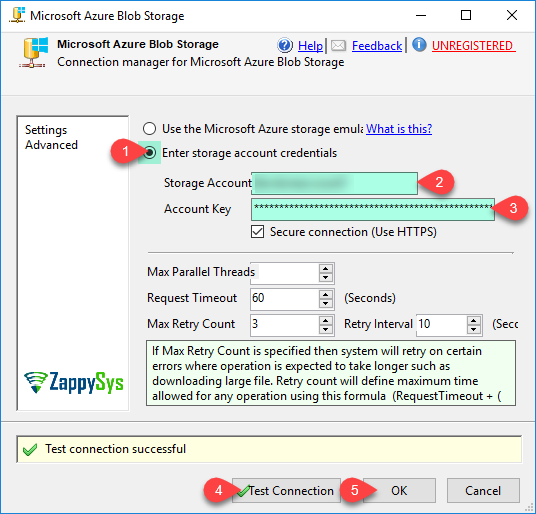
Right-click the Connection Managers panel, choose New Connection, pick ZS-AZURE-STORAGE and enter your storage account credentials (or use the local Azure Storage Emulator). Click Test Connection, then OK.
- Account name and key, SAS URL/token or connection string
- Custom Blob endpoint and proxy settings
- Timeout and retry-on-error settings
Point at the target file and choose how it is written.
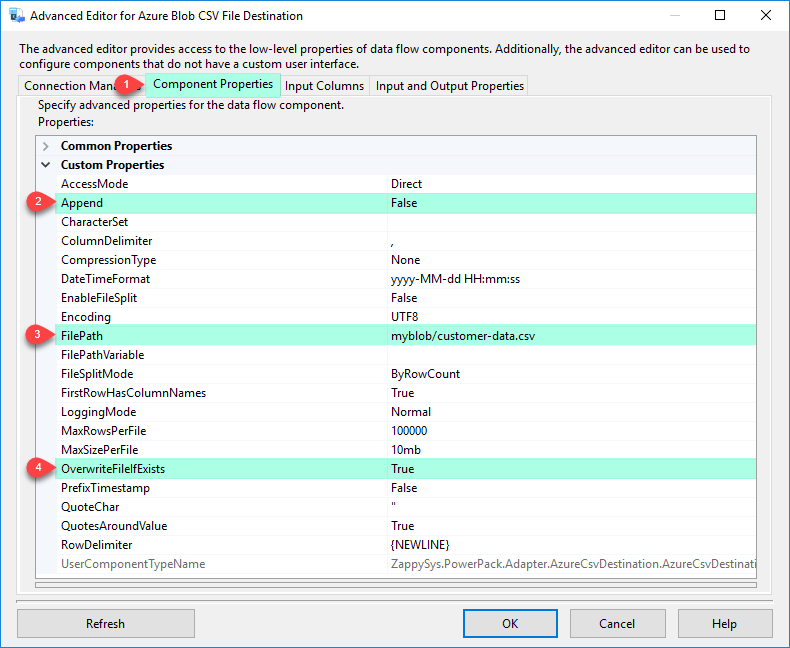
Select the connection on the Connection Managers tab, then on Component Properties enter the FilePath (variable placeholders allowed) and decide whether to append or overwrite. Turn on file splitting or GZip/Zip compression here as well.
AppendorOverwriteFileIfExistsEnableFileSplitby row count or sizeCompressionType: GZip, Zip or TarGZip
Choose which columns land in the CSV file.
On the Input Columns tab, check the columns you want to write. Upstream column names are used as-is in the target file, so rename them in the Data Flow first if needed. Run the package and the file is created in your container.
- Column names come from the upstream component
- Header row on by default (
FirstRowHasColumnNames)

Inside the UI
Key settings, as they appear in SSDT.
Real screens from the Azure Blob CSV File Destination product page. Step through them, or open any shot at full size.
Azure Blob CSV File Destination – Create Azure Storage Connection
Configure the ZS-AZURE-STORAGE connection with your storage account credentials, or use the local Azure Storage Emulator, then click Test Connection.
Articles
Worked examples that use Azure Blob CSV File Destination.
Compatibility and requirements
Designed to stay inside your SSIS runtime.
- SQL Server 2012 through 2025, 32-bit and 64-bit
- Windows only, 64-bit OS required. SQL Server Express and Web editions do not include SSIS
- Azure Data Factory SSIS Integration Runtime
- Self-hosted: credentials and data stay in your environment (external API calls still reach that service)
- Fully functional 30-day trial of SSIS PowerPack
FAQ
Questions teams ask before they drop Azure Blob CSV File Destination on the canvas.
What is Azure Blob CSV File Destination?
A Data Flow destination that writes data in CSV format straight to Azure Blob Storage from any SSIS source (for example SQL Server, Oracle or MySQL) without creating local files. It can split large output into multiple files by row count or size and write GZip, Zip or TarGZip compressed files in stream mode.
How do I split output into multiple files?
Set EnableFileSplit to true and choose a FileSplitMode: ByRowCount with MaxRowsPerFile, or BySize with MaxSizePerFile (e.g. 100mb). See the property reference.
How do I write a compressed (.gz or .zip) file?
Set CompressionType to GZip, Zip or TarGZip. The extension is not added for you, so include it in the file path yourself (e.g. mycontainer/data/orders.csv.gz).
Can the file name change on every run?
Yes. Use variable placeholders anywhere in FilePath, such as myroot/folder/file_{{System::StartTime,yyyyMMdd}}.dat, or set AccessMode to Variable and read the full path from FilePathVariable.
What is the fastest way to move a very large table to Azure Blob?
For very large data ZappySys recommends two steps: export to local split, compressed CSV files with the Export CSV Task, then upload them in parallel with the Azure Blob Storage Task. Use this destination when you need Data Flow transformations before writing. See the step-by-step guide.
Which SQL Server versions can I run it on?
SQL Server 2025, 2022, 2019, 2017, 2016, 2014, and 2012 (32- and 64-bit), plus Azure Data Factory with an SSIS Integration Runtime (packages must target SQL Server 2017). See Compatibility and requirements.
See also
More from SSIS PowerPack.




What customers say
Start your free trial today
Install SSIS PowerPack and drag Azure Blob CSV File Destination onto the Data Flow.
Write CSV files to Azure Blob Storage from any SSIS source, with splitting and compression built in.
- Data Flow Destination in SSISAzure Blob CSV File Destination appears in the toolbox after you install PowerPack.
- Fully functional 30-day trialSSIS PowerPack, running in your environment.
- Live supportHelp during your trial and after purchase.
Open Help FileBrowse all SSIS PowerPack tasks
New purchases may be eligible for refund review within 30 days. See the refund policy.
Talk to an engineer before or during your trial.