SSIS Azure Queue Storage Source
Read messages from Azure Queue Storage into any SSIS data flow, with data preview and a max-rows limit.
SSIS Azure Queue Storage Source reads messages from Azure Queue Storage so you can load them into SQL Server or any other SSIS destination. Pick the queue from a dropdown, preview messages before you run, and limit how many are fetched with Max Rows.
The trial includes Azure Queue Storage Source and every other PowerPack component
- Data Flow Source in SSIS
- Runs in your environment
- Also runs in Azure Data Factory
- Fully functional 30-day trial


At a glance
What Azure Queue Storage Source can do
SSIS Azure Queue Storage Source is a powerful tool that enables you to seamlessly integrate Azure Queue Storage with your SSIS data flows. It provides a user-friendly interface and robust functionality to efficiently read messages from Azure queues and incorporate them into your data processing pipelines.
Read queue messages
Read messages from Azure Queue Storage and load them into any destination, such as SQL Server.
- Select the queue from a dropdown (
QueueName)
Data preview
Preview Azure Queue messages in the component UI before running the package.
Max rows & retries
Control how many messages are fetched from the queue.
MaxRows: keep fetching until the count is reached or the queue is emptyMaxRetryOnNullMessageReceivestops after repeated empty reads
Visibility timeout
After a message is read, it cannot be read again until the visibility timeout ends.
VisibilityTimeoutin seconds; -1 uses the queue default- Set 0 to allow reading the same message without waiting
Error output
Capture bad rows along with the exact reason of the error.
- Redirect rows on error or truncation from the error handling tab
OutputDateAsLocalTimeoutputs UTC dates as local time
Azure Storage connection
Connect through the Azure Storage Connection Manager with an account name and access key, a SAS URL or token, a connection string, or the local Azure Storage Emulator.
- Custom Blob, Table and Queue endpoints
- Proxy settings, plus
Timeout,MaxRetryOnErrorandRetryInterval
Logging control
Control how much information is logged during package execution.
LoggingMode: Normal, Medium, Detailed or DebuggingPrefixTimestampadds a timestamp to log messages
SQL Server 2012–2025 & ADF
Runs in your environment on SQL Server 2012–2025 and Azure-SSIS.
- SQL Server 2025, 2022, 2019, 2017, 2016, 2014, 2012 (32/64-bit)
- Azure Data Factory (SSIS IR)
- Design packages in Visual Studio 2017, 2019, 2022, or 2026
- Windows only (64-bit OS): Windows 7–11 or Windows Server 2012–2025
See all features
- Read messages from Azure Queue Storage
- Data preview in the component UI
- Max rows setting to limit how many messages are fetched
- Retry limit for empty (NULL) message reads
- Configurable message visibility timeout
- Output UTC dates as local time
- Error output to redirect bad rows on error or truncation
- Connect with access key, SAS URL/token, connection string or the Azure Storage Emulator
- Logging modes (Normal, Medium, Detailed, Debugging) with optional timestamp prefix
Support for SQL Server 2025, 2022, 2019, 2017, 2016, 2014, 2012 (32/64-bit) and Azure Data Factory
SQL Server 2012–2025
How it works
From the toolbox to your first run.
Key steps from the Azure Queue Storage Source page and help file, with the screens you will see in SSDT.
Create an Azure Storage connection.
Double-click the source, click New next to Select Connection, enter your storage account name and access key, and click Test Connection to verify the credentials.
- Account key, SAS URL/token or connection string
- Local storage emulator for testing
Select the queue and preview its messages.
Select the queue from the dropdown, set Max Rows (0 reads all messages) and click Preview. Each message comes out with its MessageId, MessageText, PopReceipt and date columns.
MaxRows: 0 = all recordsVisibilityTimeout: -1 uses the queue default- Output UTC date/time as local time
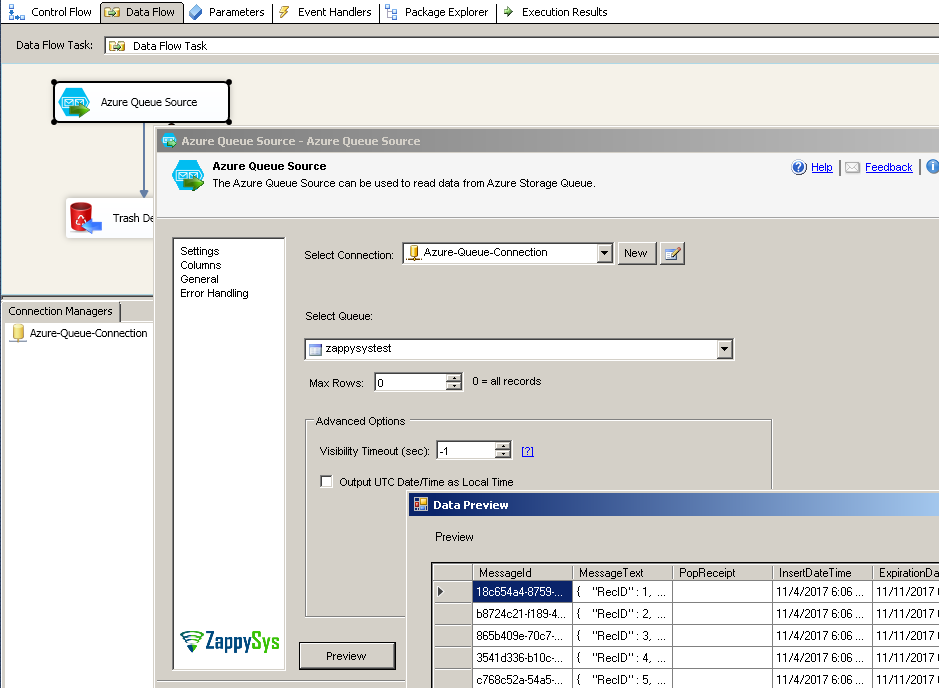
Send the messages to any destination.
Connect the source to a destination such as SQL Server and run the package. After a message is read it cannot be read again until its visibility timeout ends.
- Error output captures bad rows with the reason
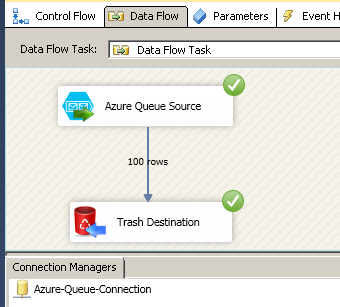
Inside the UI
Key settings, as they appear in SSDT.
Real screens from the Azure Queue Storage Source product page. Step through them, or open any shot at full size.
Create Azure Storage Connection
Click New next to Select Connection, enter the account name and access key, and click Test Connection.
Articles
Worked examples that use Azure Queue Storage Source.
Compatibility and requirements
Designed to stay inside your SSIS runtime.
- SQL Server 2012 through 2025, 32-bit and 64-bit
- Windows only, 64-bit OS required. SQL Server Express and Web editions do not include SSIS
- Azure Data Factory SSIS Integration Runtime
- Self-hosted: credentials and data stay in your environment (external API calls still reach that service)
- Fully functional 30-day trial of SSIS PowerPack
FAQ
Questions teams ask before they drop Azure Queue Storage Source on the canvas.
What is Azure Queue Storage Source?
A Data Flow source that reads messages from Azure Queue Storage so you can load them into SQL Server or any other SSIS destination. It supports data preview and a max-rows limit.
Which columns does it output?
Each message comes out as a row with columns such as MessageId, MessageText, PopReceipt, InsertDateTime and the expiration date, as shown in the preview.
How many messages are read per run?
MaxRows keeps fetching until that many messages are read or the queue returns no message; 0 reads all. MaxRetryOnNullMessageReceive sets how many empty reads are retried before it stops.
Why can’t I read the same message again right away?
After a message is read it stays hidden until the visibility timeout ends. VisibilityTimeout is -1 by default (the queue setting); set 0 to allow reading the same message again without waiting. See the property reference.
Which SQL Server versions can I run it on?
SQL Server 2025, 2022, 2019, 2017, 2016, 2014, and 2012 (32- and 64-bit), plus Azure Data Factory with an SSIS Integration Runtime (packages must target SQL Server 2017). See Compatibility and requirements.
See also
More from SSIS PowerPack.





What customers say
Start your free trial today
Install SSIS PowerPack and drag Azure Queue Storage Source onto the Data Flow.
Read messages from Azure Queue Storage into any SSIS data flow, with data preview and a max-rows limit.
- Data Flow Source in SSISAzure Queue Storage Source appears in the toolbox after you install PowerPack.
- Fully functional 30-day trialSSIS PowerPack, running in your environment.
- Live supportHelp during your trial and after purchase.
Open Help FileBrowse all SSIS PowerPack tasks
New purchases may be eligible for refund review within 30 days. See the refund policy.
Talk to an engineer before or during your trial.