SSIS XML Parser Transform
Parse an XML string column into multiple rows and columns in the Data Flow.
SSIS XML Parser Transform parses an XML string into multiple columns and rows. It is useful when raw XML is stored in a database column or arrives from another source, such as an API response, and you need it as relational data.
The trial includes XML Parser Transform and every other PowerPack component
- Data Flow Transform in SSIS
- Runs in your environment
- Also runs in Azure Data Factory
- Fully functional 30-day trial


At a glance
What XML Parser Transform can do
SSIS XML Parser Transform parses an XML string into multiple columns and rows. It is useful when raw XML is stored in a database column or arrives from another source, such as an API response, and you need it as relational data.
XML string to rows & columns
Parse an XML string stored in a database column or coming from another source into multiple columns and rows.
- De-normalize nested XML into a flat structure
OutputAllUpstreamColumnskeeps the other input columns- Pick the column, enter sample XML for metadata and preview
Filter & nested rows
Use a filter expression to extract nested data and turn one node into multiple rows.
- Example:
$.Customer.Orders[*]; regular expressions allowed in filters IncludeParentColumnswith optionalParentColumnPrefixIncludeParentColumnsWhenChildMissingworks like a LEFT OUTER JOIN
Array handling & flattening
Control how repeating elements are treated and flatten arrays into columns.
ElementsToTreatAsArrayforces elements to be treated as arraysEnableArrayFlatteningwithMaxArrayItemsToFlattenMaxLevelsToScanandExcludedProperties
Pivot & array transforms
Convert columns to rows, or reshape two-dimensional arrays and key/value data.
EnablePivotoutputsPivot_Name/Pivot_Value, plus optionalPivot_PathArrayTransformationType: 2-dimensional arrays, Key/Value to Columns and more
Search & replace before parsing
Replace unwanted characters or custom escape sequences in the document text before it is parsed.
EnableCustomReplacewithSearchFor/ReplaceWith- Add
--regexor--regex-icfor regular expression search with group placeholders
Empty & blank value handling
Decide what happens with empty input documents, blank values and missing properties.
EmptyInputProcessingMode: skip, output NULL, throw error or use a custom value- Treat blank numbers, booleans and dates as NULL
ThrowErrorIfPropertyMissing
Data types, encoding & culture
Control how column types and lengths are detected and how the text is read.
MetaDataScanMode: Auto, Strict, Guess2x-10x, all string, MAX length or BLOBEncoding/CharacterSetandCulturefor number formatsMaxRowslimits how many records are fetched
SQL Server 2012–2025 & ADF
Runs in your environment on SQL Server 2012–2025 and Azure-SSIS.
- SQL Server 2025, 2022, 2019, 2017, 2016, 2014, 2012 (32/64-bit)
- Azure Data Factory (SSIS IR)
- Design packages in Visual Studio 2017, 2019, 2022, or 2026
- Windows only (64-bit OS): Windows 7–11 or Windows Server 2012–2025
Raw output & XML to JSON
Pass whole documents downstream as raw text instead of parsing them into columns.
OutputRawDocumentwithConvertFormatto convert raw XML to JSON- Parse command line standard output (e.g.
cmd:>curl -k http://httpbin.org/get) EnablePerformanceModefor memory optimized parsing
See all features
- Parse source XML String/Documents into multiple columns/rows
- Sample XML document defines the output columns
- Ability to de-normalize nested XML data into flat structure
- Support for expression to extract nested data and convert single node into multiple rows (e.g.
$.Customer.Orders[*]) - Option to parse output from command line Standard Output Stream (e.g.
cmd:>curl -k http://httpbin.org/get) - Allow Regular Expression in Filter
- Include parent columns, with LEFT OUTER JOIN style output when children are missing
- Deep array flattening and
ElementsToTreatAsArray - Pivot columns to rows (
Pivot_Name/Pivot_Value) and 2-dimensional array transformations - Custom search / replace (including regex) before parsing
- Handle empty input and treat blank number, bool or date values as NULL
- Metadata scan modes, encoding, character set and culture options
- Output raw XML documents, optionally converted to JSON
- Include all upstream columns in the output
- Memory optimized performance mode
Support for SQL Server 2025, 2022, 2019, 2017, 2016, 2014, 2012 (32/64-bit) and Azure Data Factory
SQL Server 2012–2025
How it works
From the toolbox to your first run.
Key steps from the XML Parser Transform page and help file, with the screens you will see in SSDT.
Turn an XML column into rows you can load anywhere.
Connect any upstream source, such as an OLE DB Source reading a table, to the XML Parser Transform. One input row can produce many output rows, which you can send to a CSV file or a database table such as SQL Server or MySQL.
- De-normalize nested XML into a flat structure
OutputAllUpstreamColumnskeeps the other input columns- Settings, Columns, General and Error Handling pages in the editor
Pick the column, give a sample, set the filter.
Select the input XML column and paste a sample XML document; the sample is used to detect the output columns. Then set a filter such as $.Root.Branches[*] to extract one row per repeating node, or pick the node from the Select Filter Path tree, and click Preview.
- Regular expressions allowed in filters
- Include parent columns, with LEFT OUTER JOIN style output when children are missing
- Throw an error if a property is missing
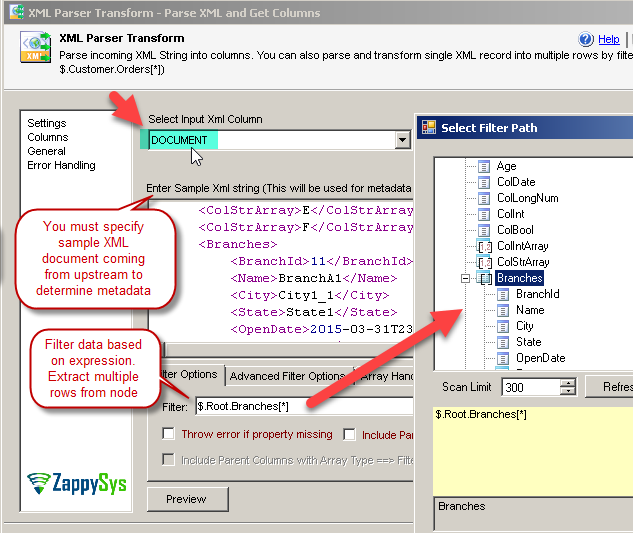
Inside the UI
Key settings, as they appear in SSDT.
Real screens from the XML Parser Transform product page. Step through them, or open any shot at full size.
Parse XML and load rows
100 XML documents from the source become 300 rows after parsing with filter $.Root.Branches[*], then go to a CSV file or a SQL Server table.
Articles
Worked examples that use XML Parser Transform.
Compatibility and requirements
Designed to stay inside your SSIS runtime.
- SQL Server 2012 through 2025, 32-bit and 64-bit
- Windows only, 64-bit OS required. SQL Server Express and Web editions do not include SSIS
- Azure Data Factory SSIS Integration Runtime
- Self-hosted: credentials and data stay in your environment (external API calls still reach that service)
- Fully functional 30-day trial of SSIS PowerPack
FAQ
Questions teams ask before they drop XML Parser Transform on the canvas.
What is XML Parser Transform?
SSIS XML Parser Transform parses an XML string into multiple columns and rows. It is useful when raw XML is stored in a database column or arrives from another source, such as an API response, and you need it as relational data.
What do I need to configure?
Select the input column that holds the XML, paste a sample XML document (used to determine the output columns and types), and optionally set a filter such as $.Customer.Orders[*]. Click Preview to check the rows. See the step-by-step tutorial.
How do I get one row per child node?
Use a filter that ends with [*] on the repeating node, e.g. $.Customers[*].Orders[*] for all orders of all customers. Turn on IncludeParentColumns to add the parent’s fields; IncludeParentColumnsWhenChildMissing also keeps parents without children, like a LEFT OUTER JOIN (the help notes this option is resource intensive).
Can I keep the other columns from the input row?
Yes. By default only the parsed columns are output. Check OutputAllUpstreamColumns to pass every other upstream column through as well.
Can it parse XML responses from an API call?
Yes. Connect the response output of Web API Destination to the XML Parser Transform, as shown in the Workday SOAP API and Zoho CRM tutorials.
Which SQL Server versions can I run it on?
SQL Server 2025, 2022, 2019, 2017, 2016, 2014, and 2012 (32- and 64-bit), plus Azure Data Factory with an SSIS Integration Runtime (packages must target SQL Server 2017). See Compatibility and requirements.




What customers say
Start your free trial today
Install SSIS PowerPack and drag XML Parser Transform onto the Data Flow.
Turn XML strings from any upstream column into rows and columns.
- Data Flow Transform in SSISXML Parser Transform appears in the toolbox after you install PowerPack.
- Fully functional 30-day trialSSIS PowerPack, running in your environment.
- Live supportHelp during your trial and after purchase.
Open Help FileBrowse all SSIS PowerPack tasks
New purchases may be eligible for refund review within 30 days. See the refund policy.
Talk to an engineer before or during your trial.