SSIS Validation Task
Check files, folders, expressions and patterns during ETL, then fail or record the result.
SSIS Validation Task performs the most common checks during an ETL process, such as whether a file exists, is not empty or contains a certain string pattern. It also checks SSIS expressions, regular expressions and folder properties, and can throw an error or save the validation status to a variable.
The trial includes Validation Task and every other PowerPack component
- Control Flow Task in SSIS
- Runs in your environment
- Also runs in Azure Data Factory
- Fully functional 30-day trial


At a glance
What Validation Task can do
SSIS Validation Task performs the most common checks during an ETL process, such as whether a file exists, is not empty or contains a certain string pattern. It also checks SSIS expressions, regular expressions and folder properties, and can throw an error or save the validation status to a variable.
SSIS expression check
Evaluate an SSIS expression and check whether it returns true or false.
Expressionmust be Boolean type
Regular expression rules
Validate values with regular expression based rules.
CheckRegularExpressionactionRegXandNotRegXmatch operators
File & folder exists
Check whether a file or folder exists, for a single path or a wildcard pattern.
- Patterns like
c:\data\file*.csv SearchPatternandRecursiveScan
File property checks
Validate a file property such as size, dates, content or lock state.
- Size, last modified / creation date (local or UTC), age in days
- Content, file count, name, extension, encoding
- Exists flag and Is File Locked
Folder property checks
Validate folder properties such as total size, file count and age.
- Folder size, file count, exists flag
- Creation and last modified dates (local or UTC), age in days
Rich comparison operators
Compare the checked value with an expected result using many operators.
- =, !=, >, >=, <, <=
- Contains, Starts With, Ends With, RegX Match
- Between (
100#200), In / Not In (comma list)
Fail or record the result
Throw an error on failure, or save the status and message to variables.
ThrowErrorOnValidationFailurewithCustomMessageEnableSaveStatus/StatusVariableEnableSaveMessage/MessageVariable
SQL Server 2012–2025 & ADF
Runs in your environment on SQL Server 2012–2025 and Azure-SSIS.
- SQL Server 2025, 2022, 2019, 2017, 2016, 2014, 2012 (32/64-bit)
- Azure Data Factory (SSIS IR)
- Design packages in Visual Studio 2017, 2019, 2022, or 2026
- Windows only (64-bit OS): Windows 7–11 or Windows Server 2012–2025
Dynamic paths & logging
Read the path to validate from direct text, a variable or a connection, and control logging.
SourcePathAccessMode: Direct, Variable or ConnectionLoggingModeandPrefixTimestamp
See all features
- Validate business processes in few clicks
- SSIS Expression check for validation
- File/folder property validation such as file exists, check size, check content
- Support for regular expression based validation rules
- Check if file or folder exists using a single path or wildcard pattern, with recursive scan
- File properties: size, dates (local or UTC), age in days, content, encoding, file count, locked flag
- Folder properties: size, file count, dates, age in days, exists flag
- Operators including Contains, Starts With, RegX Match, Between and In / Not In
- Throw an error with a custom message on validation failure
- Save validation status and message into SSIS variables
- Source path from direct value, variable or connection
- Logging modes with optional timestamp prefix
- Check whether a file is locked, then fail or save the status to a variable
Support for SQL Server 2025, 2022, 2019, 2017, 2016, 2014, 2012 (32/64-bit) and Azure Data Factory
SQL Server 2012–2025
How it works
From the toolbox to your first run.
Key steps from the Validation Task page and help file, with the screens you will see in SSDT.
Check that a file, or any file matching a pattern, exists.
Choose Check if file exists (Single file or pattern) and enter a path such as c:\data\file123.csv or a wildcard such as c:\SSIS\*.csv. Turn on Recursive Scan to include child folders. The result is True or False.
- Path from direct text, a variable or a connection
- Check if folder exists works the same way
- Throw an error, or save the status to a variable
Validate size, dates, content or lock state of a file.
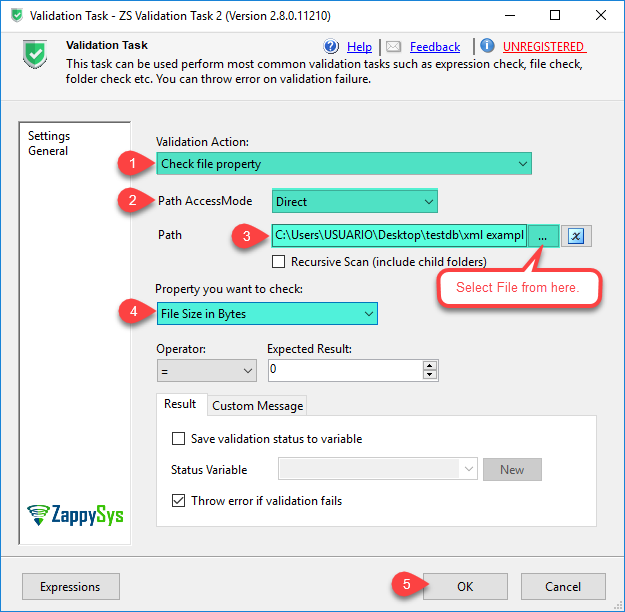
Choose Check file property, select the file and the property to check, then an operator and expected result. For example File Content Contains Hello World, or File Size in Bytes > 0 to make sure a file is not empty.
- Size, last modified / creation date, age in days, last edit in days
- Content, count, path, name, extension, encoding
- Exists flag and Is File Locked
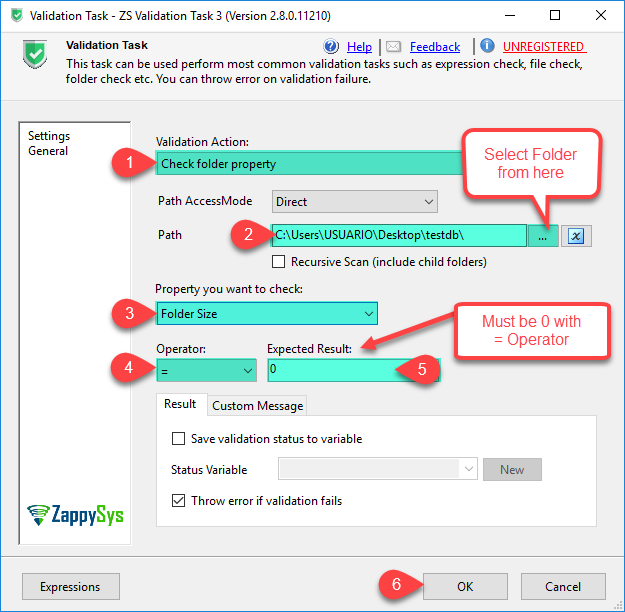
Check folder size, file count and age.
Choose Check folder property and pick Folder Size, Folder Last Modified Date, Folder Creation DateTime, Folder Age in Days, File count in folder or Folder Exists Flag. The help example checks Folder Size = 0 to detect an empty folder.
- Operators: =, !=, >, <, Contains, Starts With, RegX Match, Between, In
- Custom message on failure
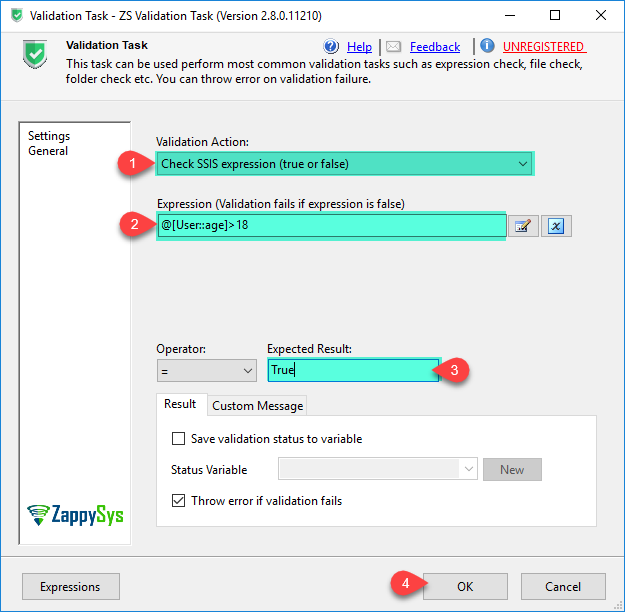
Fail the flow when an SSIS expression is false.
Choose Check SSIS expression (true or false) and enter a Boolean expression such as @[User::age]>18. Validation fails when the expression is false, so later tasks only run on good data.
- Expression must be Boolean
- Regular expression rules use the Validate Regular Expression action
Inside the UI
Key settings, as they appear in SSDT.
Real screens from the Validation Task product page. Step through them, or open any shot at full size.
Check File Exists
Check if file exists with path c:\SSIS\*.csv and expected result True; Throw error if validation fails is checked.
Articles
Worked examples that use Validation Task.
Compatibility and requirements
Designed to stay inside your SSIS runtime.
- SQL Server 2012 through 2025, 32-bit and 64-bit
- Windows only, 64-bit OS required. SQL Server Express and Web editions do not include SSIS
- Azure Data Factory SSIS Integration Runtime
- Self-hosted: credentials and data stay in your environment (external API calls still reach that service)
- Fully functional 30-day trial of SSIS PowerPack
FAQ
Questions teams ask before they drop Validation Task on the canvas.
What is Validation Task?
SSIS Validation Task performs the most common checks during an ETL process, such as whether a file exists, is not empty or contains a certain string pattern. It also checks SSIS expressions, regular expressions and folder properties, and can throw an error or save the validation status to a variable.
What can it check?
Six actions: Check SSIS expression (true or false), Validate Regular Expression, Check if file exists, Check file property, Check if folder exists and Check folder property. File and folder checks accept a single path or a wildcard pattern, with optional recursive scan.
What happens when validation fails?
With Throw error if validation fails (ThrowErrorOnValidationFailure) checked, the task fails, optionally with your CustomMessage. To continue instead, save the result with EnableSaveStatus / StatusVariable and the message with EnableSaveMessage / MessageVariable, then branch on the variable.
Can it check whether a file is locked?
Yes. Use Check file property with Is File Locked. The file lock tutorial stores the lock status in a variable and waits until the file is unlocked before copying it.
Which comparison operators are available?
=, !=, >, >=, <, <=, Contains, Not Contains, Starts With, Ends With, RegX Match, Not RegX Match, Between (e.g. 100#200), In and Not In (comma separated values).
Which SQL Server versions can I run it on?
SQL Server 2025, 2022, 2019, 2017, 2016, 2014, and 2012 (32- and 64-bit), plus Azure Data Factory with an SSIS Integration Runtime (packages must target SQL Server 2017). See Compatibility and requirements.



What customers say
Start your free trial today
Install SSIS PowerPack and drag Validation Task onto the Control Flow.
Validate files, folders and expressions before the next step of your ETL runs.
- Control Flow Task in SSISValidation Task appears in the toolbox after you install PowerPack.
- Fully functional 30-day trialSSIS PowerPack, running in your environment.
- Live supportHelp during your trial and after purchase.
Open Help FileBrowse all SSIS PowerPack tasks
New purchases may be eligible for refund review within 30 days. See the refund policy.
Talk to an engineer before or during your trial.