How to integrate FTP/SFTP XML File using Java


Learn how to quickly and efficiently connect FTP/SFTP XML File with Java for smooth data access.
Read and write XML files over FTP/SFTP effortlessly. Streamline, manage, and automate XML files on FTP and SFTP for analytics, reporting, and data pipelines — almost no coding required. You can do it all using the high-performance FTP/SFTP XML File ODBC Driver for Java (often referred to as the FTP/SFTP XML File Connector). How is this possible? You will connect to the ZappySys Data Gateway, which acts as a seamless bridge between the ODBC and JDBC layers. We'll walk you through the entire setup.
Ready to dive in? Download the product to jump right in, or follow the step-by-step guide below to see how it works.
Create data source in ZappySys Data Gateway
In this section we will create a data source for FTP/SFTP XML File in the Data Gateway. Let's follow these steps to accomplish that:
-
Download and install ODBC PowerPack (if you haven't already).
-
Search for
gatewayin the Windows Start Menu and open ZappySys Data Gateway Configuration: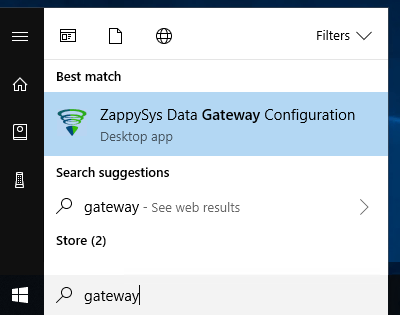
-
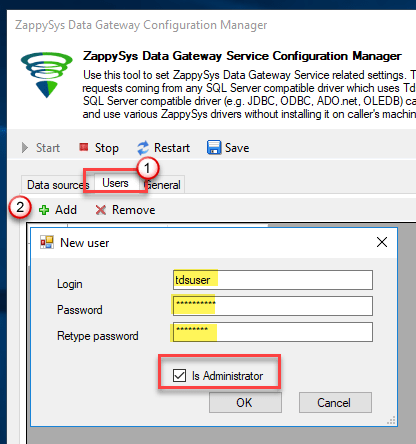
Go to the Users tab and follow these steps to add a Data Gateway user:
- Click the Add button
-
In the Login field enter a username, e.g.,
john - Then enter a Password
- Check the Is Administrator checkbox
- Click OK to save
-
Now we are ready to add a data source:
- Click the Add button
- Give the Data source a name (have it handy for later)
- Then select Native - ZappySys SFTP XML Driver
- Finally, click OK
FtpSftpXmlFileDSNZappySys SFTP XML Driver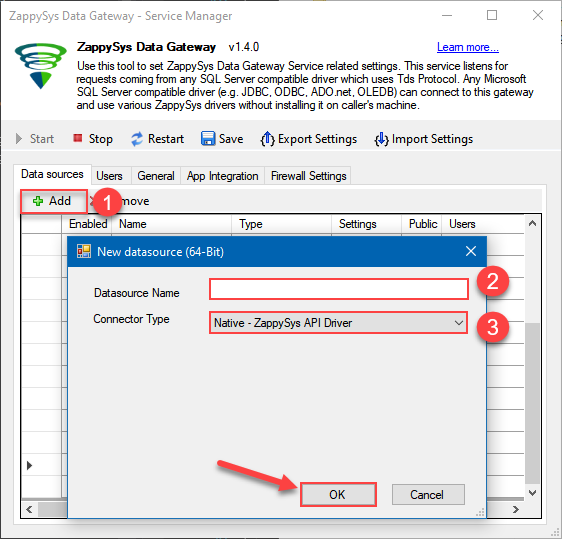
-
Create and configure a connection for the FTP/SFTP storage account.
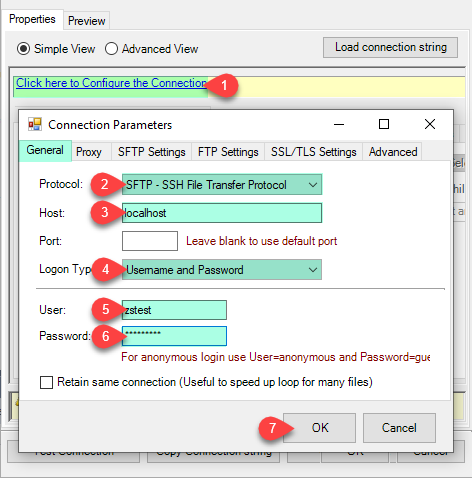
-
You can use select your desired single file by clicking [...] path button.
mybucket/dbo.tblNames.xmldbo.tblNames.xml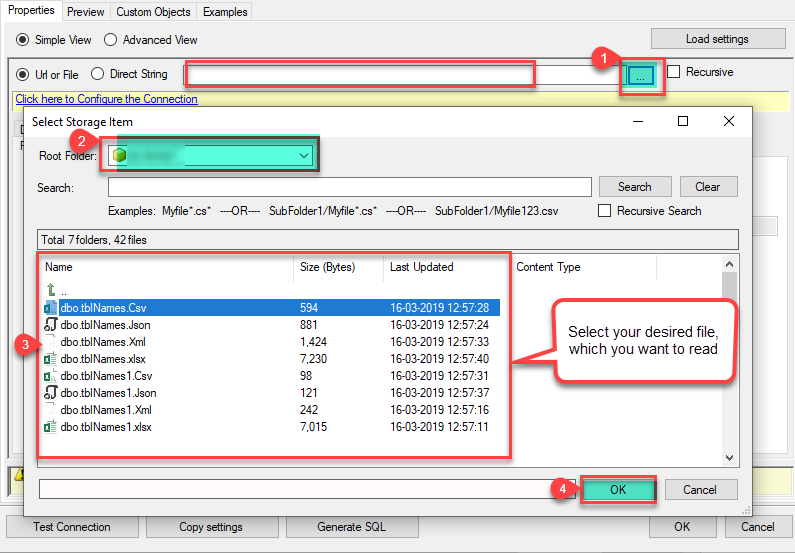
----------OR----------You can also read the multiple files stored in FTP/SFTP Storage using wildcard pattern supported e.g. dbo.tblNames*.xml.
Note: If you want to operation with multiple files then use wild card pattern as below
(when you use wild card pattern in source path then system will treat target path as folder regardless you end with slash)

mybucket/dbo.tblNames.xml (will read only single .XML file)
mybucket/dbo.tbl*.xml (all files starting with file name)
mybucket/*.xml (all files with .xml Extension and located under folder subfolder)
mybucket/dbo.tblNames*.xml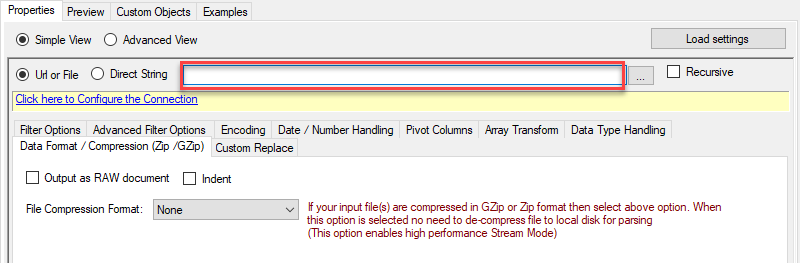
----------OR----------You can also read the zip and gzip compressed files also without extracting it in using FTP/SFTP XML Source File Task.
mybucket/dbo.tblNames*.gz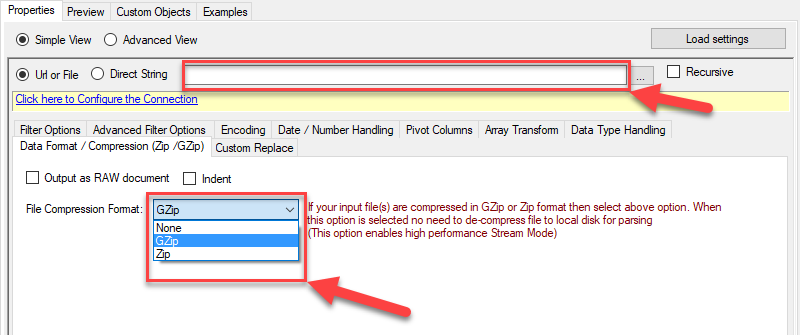
-
Now select/enter Path expression in Path textbox to extract only specific part of XML string as below ($.value[*] will get content of value attribute from XML document. Value attribute is array of XML documents so we have to use [*] to indicate we want all records of that array)
NOTE: Here, We are using our desired filter, but you need to select your desired filter based on your requirement.Go to Preview Tab.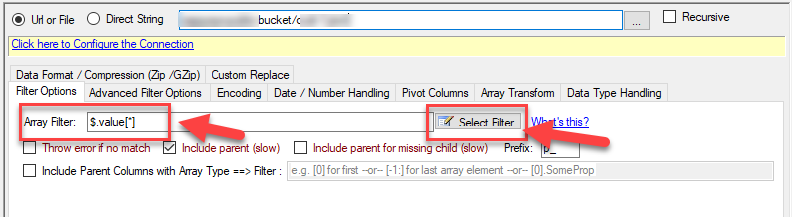
-
Navigate to the Preview Tab and let's explore the different modes available to access the data.
-
--- Using Direct Query ---
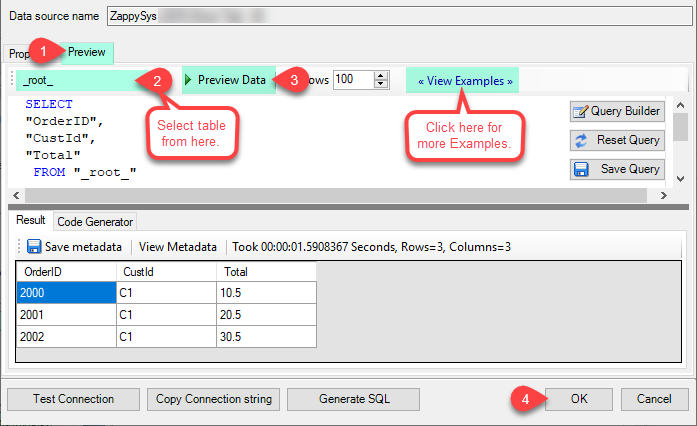
Click on Preview Tab, Select Table from Tables Dropdown and select [value] and click Preview.
-
--- Using Stored Procedure ---
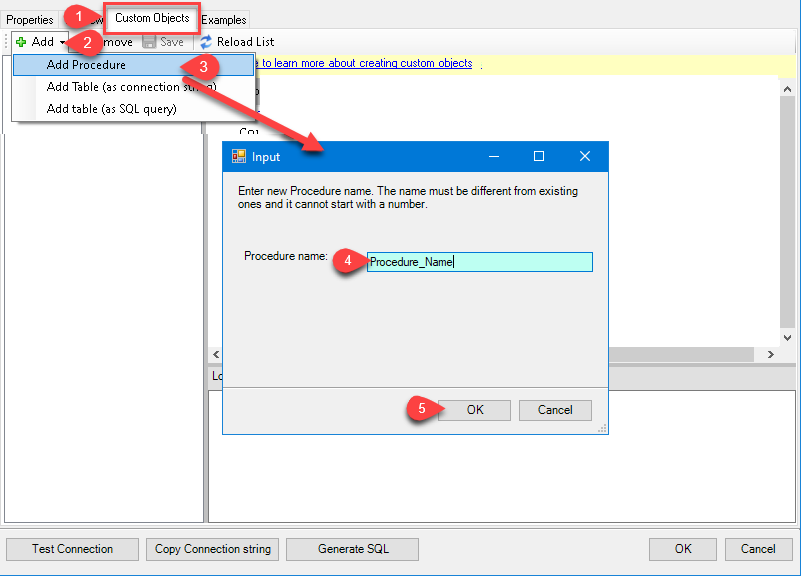
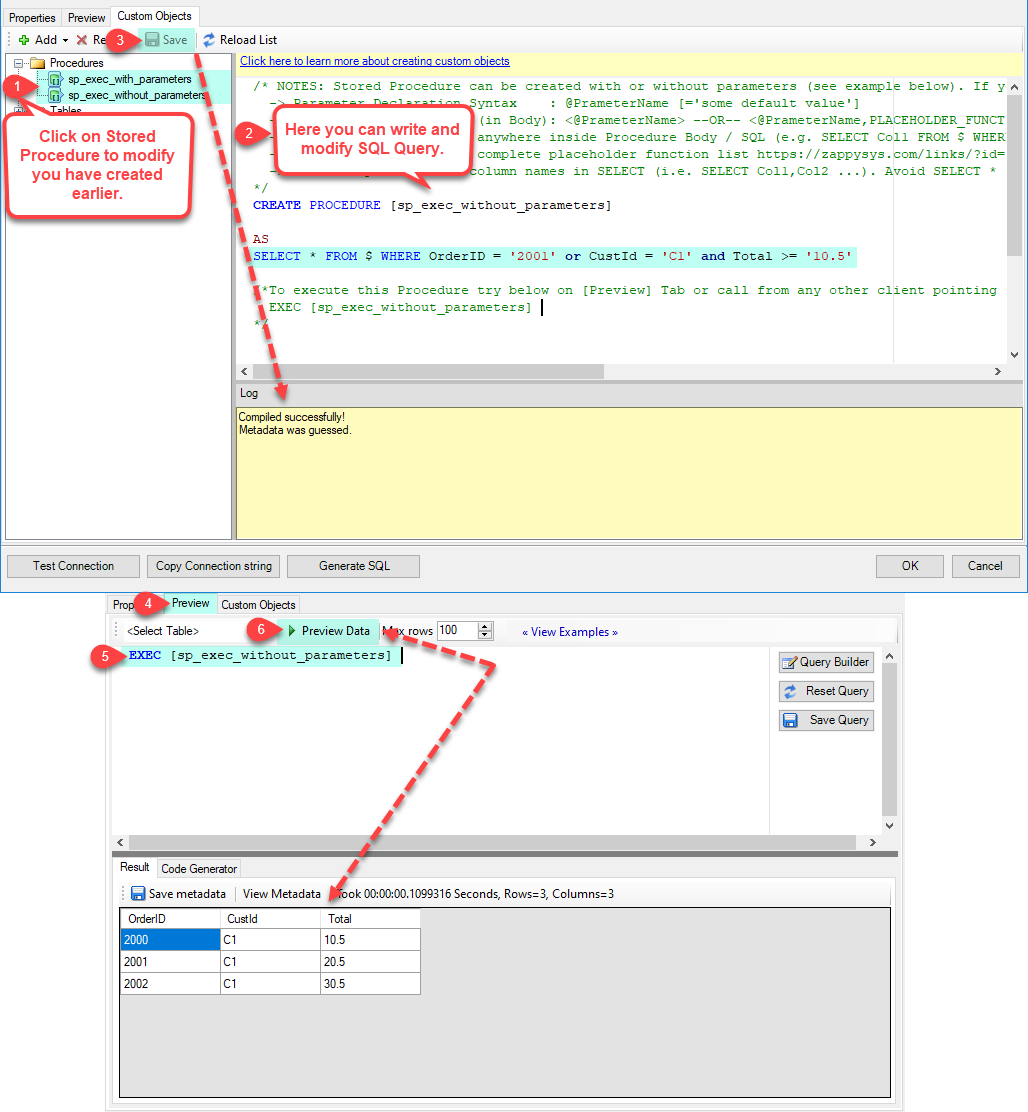
Note : For this you have to Save ODBC Driver configuration and then again reopen to configure same driver. For more information click here.Click on the Custom Objects Tab, Click on Add button and select Add Procedure and Enter an appropriate name and Click on OK button to create.
-
--- Without Parameters ---
Now Stored Procedure can be created with or without parameters (see example below). If you use parameters then Set default value otherwise it may fail to compilation)
-
--- With Parameters ---
Note : Here you can use Placeholder with Paramters in Stored Procedure. Example : SELECT * FROM $ WHERE OrderID = '<@OrderID, FUN_TRIM>' or CustId = '<@CustId>' and Total >= '<@Total>'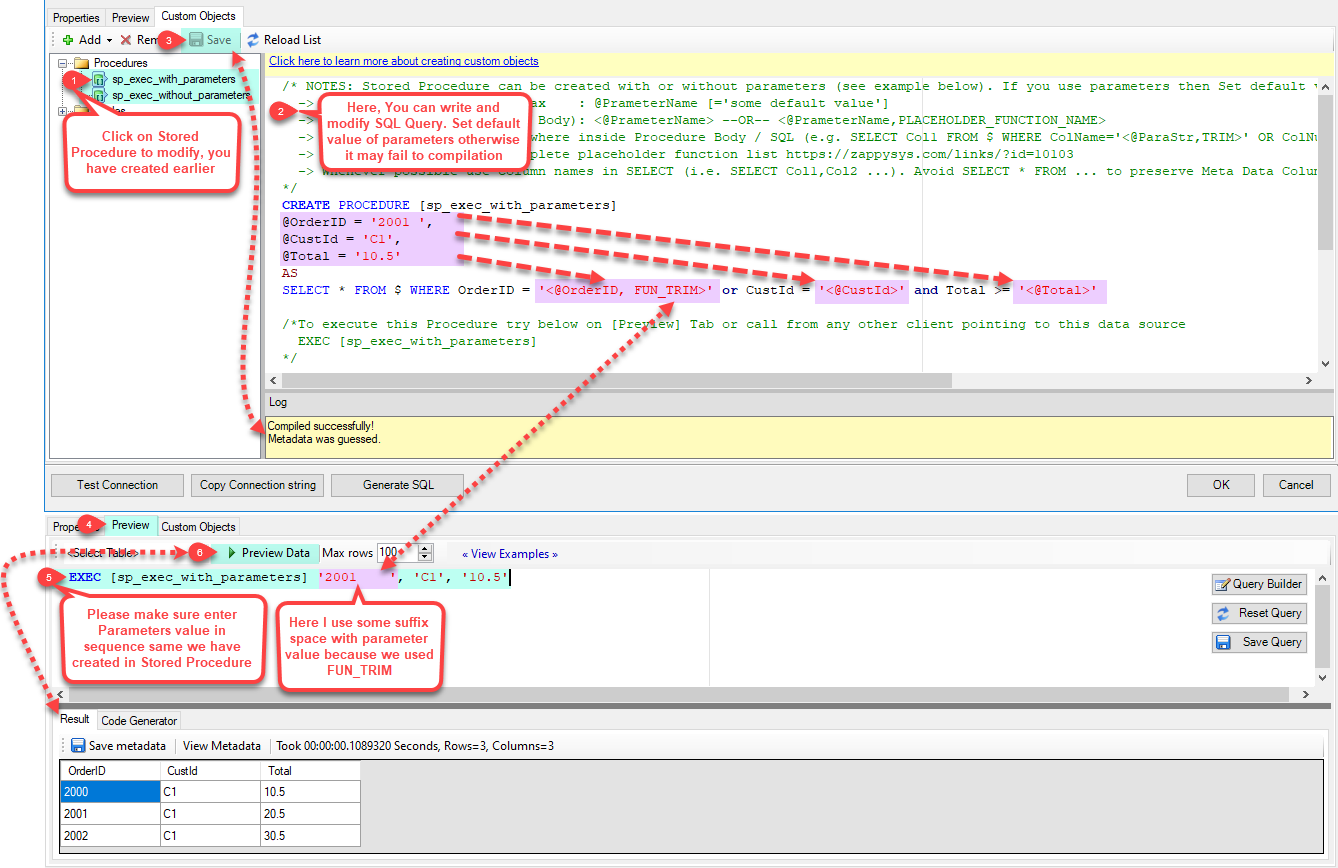
-
-
--- Using Virtual Table ---
Note : For this you have to Save ODBC Driver configuration and then again reopen to configure same driver. For more information click here.ZappySys APi Drivers support flexible Query language so you can override Default Properties you configured on Data Source such as URL, Body. This way you don't have to create multiple Data Sources if you like to read data from multiple EndPoints. However not every application support supplying custom SQL to driver so you can only select Table from list returned from driver.
Many applications like MS Access, Informatica Designer wont give you option to specify custom SQL when you import Objects. In such case Virtual Table is very useful. You can create many Virtual Tables on the same Data Source (e.g. If you have 50 Buckets with slight variations you can create virtual tables with just URL as Parameter setting).
vt__Customers
DataPath=mybucket_1/customers.xml

vt__Orders
DataPath=mybucket_2/orders.xml

vt__Products
DataPath=mybucket_3/products.xml
-
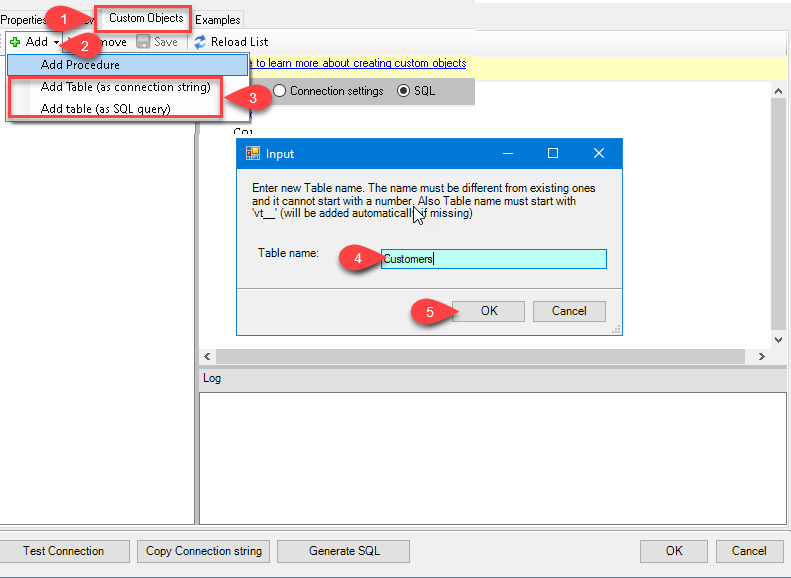
Click on the Custom Objects Tab, Click on Add button and select Add Table and Enter an appropriate name and Click on OK button to create.
-
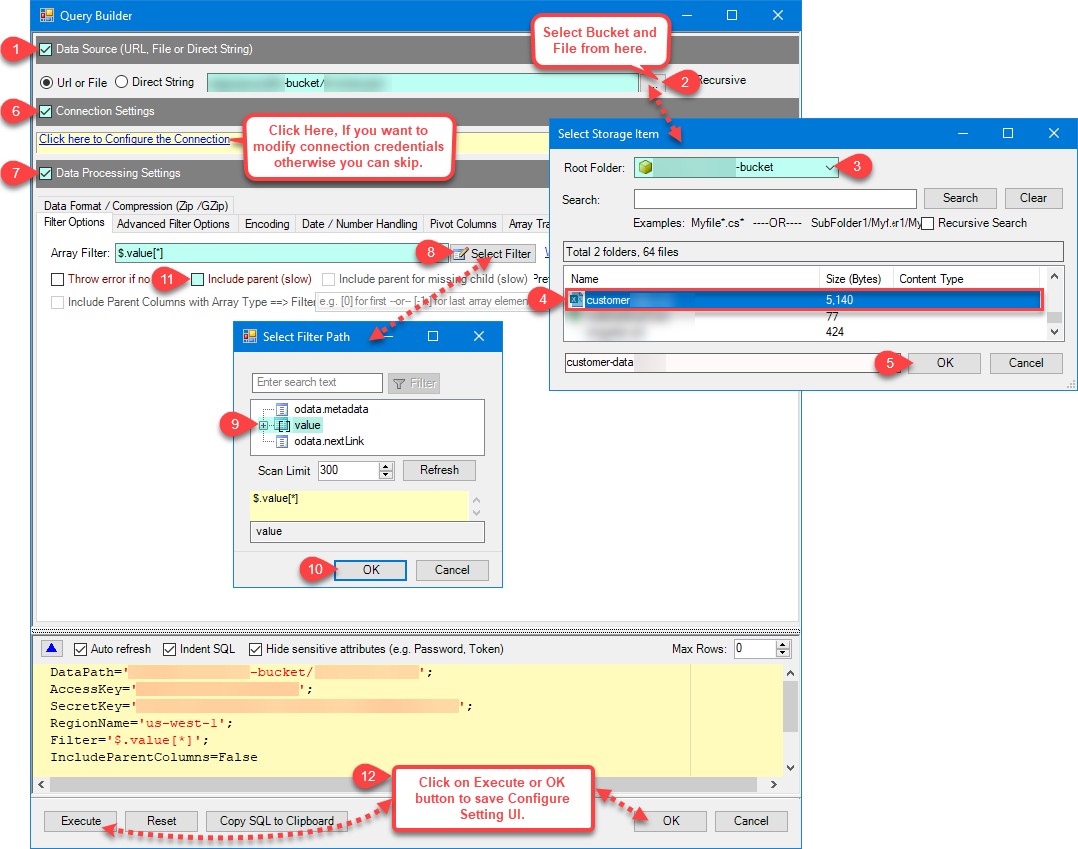
Once you see Query Builder Window on screen Configure it.
-
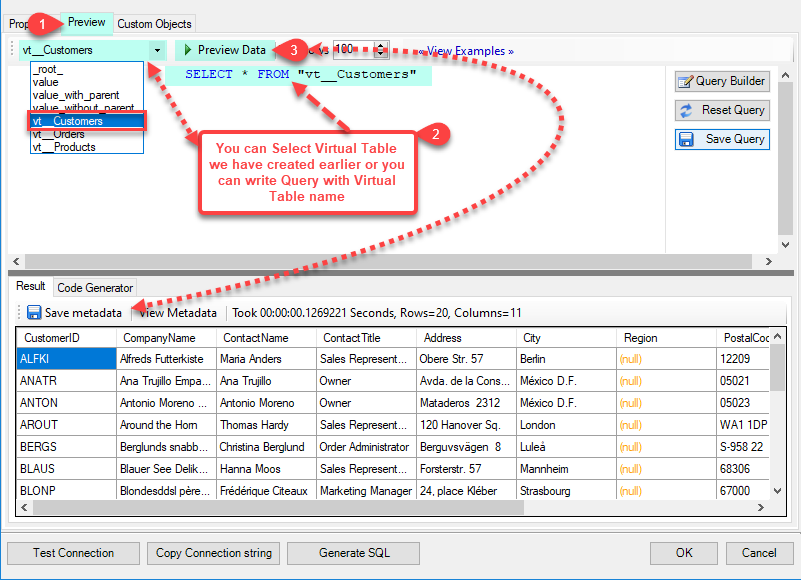
Click on Preview Tab, Select Virtual Table(prefix with vt__) from Tables Dropdown or write SQL query with Virtual Table name and click Preview.
-
Click on the Custom Objects Tab, Click on Add button and select Add Table and Enter an appropriate name and Click on OK button to create.
-
-
Click OK to finish creating the data source
-
That's it; we are done. In a few clicks we configured the to Read the FTP/SFTP XML File data using ZappySys FTP/SFTP XML File Connector
-
Once done, go to the Network Settings tab and Add a firewall rule for inbound traffic:
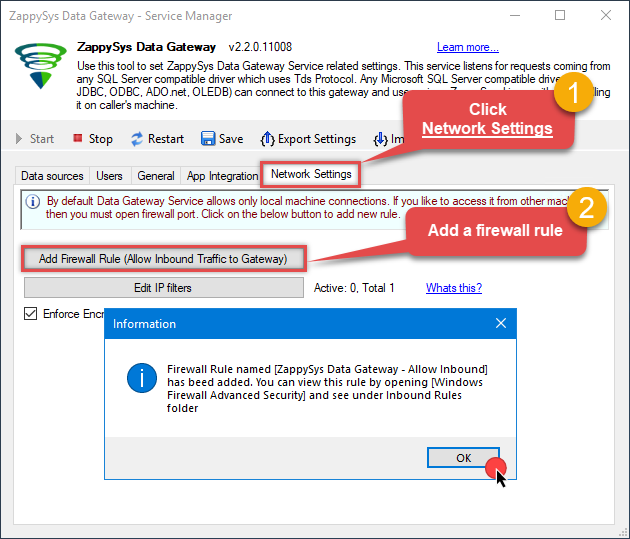
- This will initially allow all inbound traffic.
- Click Edit IP filters to restrict access to specific IP addresses or ranges.
-
Crucial Step: After creating or modifying the data source, you must:
- Click the Save button to persist your changes.
- Hit Yes when prompted to restart the Data Gateway service.
This ensures all changes are properly applied:
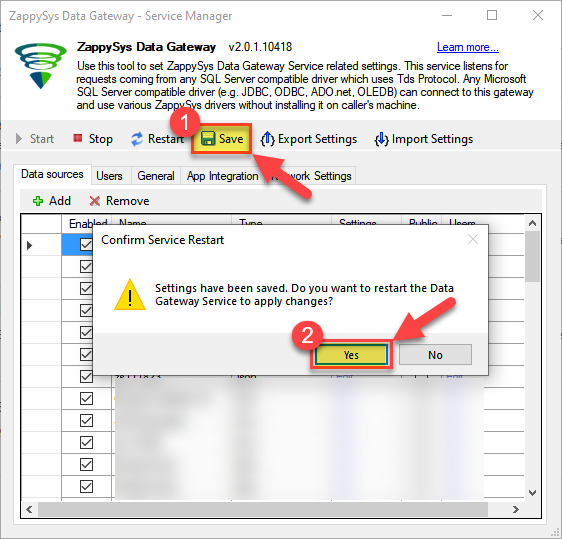 Skipping this step may cause the new settings to fail, preventing you from connecting to the data source.
Read data in Java from the DSN
-
Java code to get the data:
"jdbc:sqlserver://localhost:5000;databasename=FtpSftpXmlFileDSN;user=john;password=test"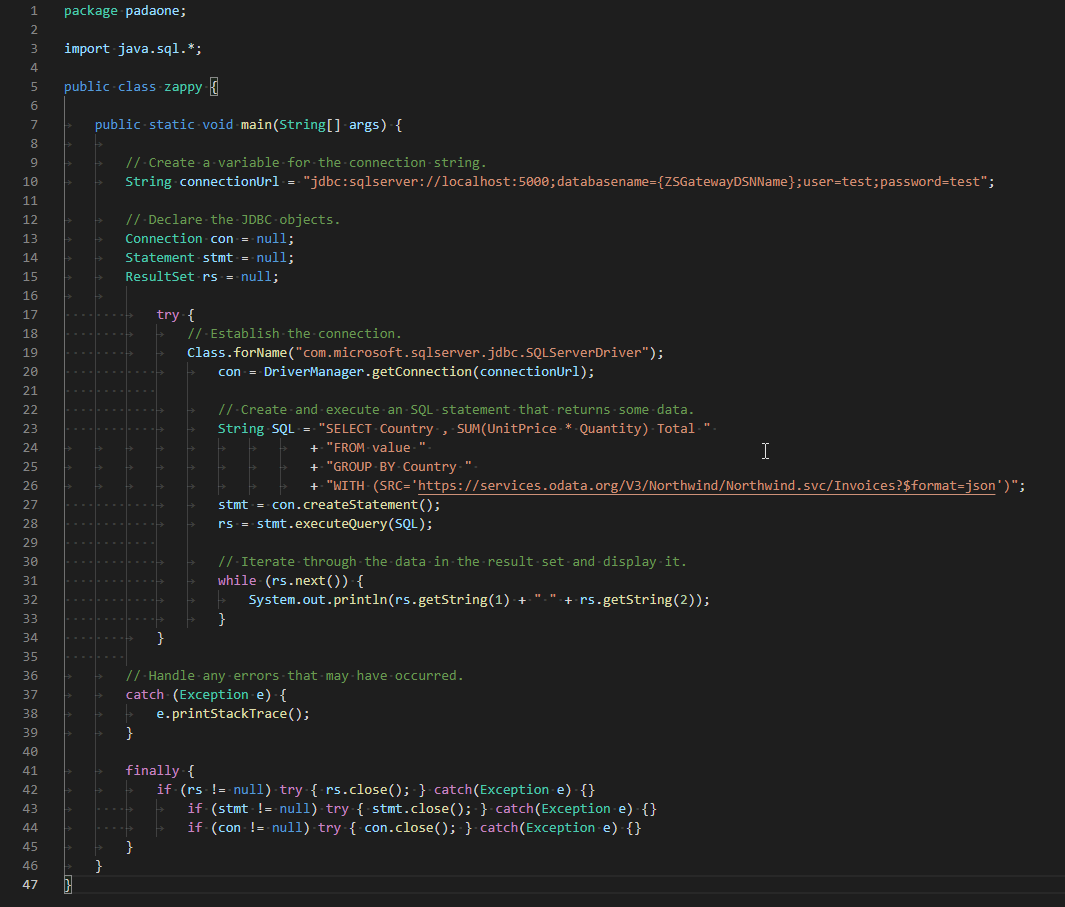
-
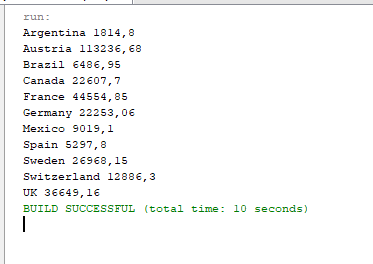
When you run the code it will make the API call and read the data:
-
Here is Java program's code in text format:
//Step-1: Install ZappySys ODBC PowerPack and Configure Data Gateway

//Step-2:Assuming the Microsoft SQL Server JDBC Driver is in below folder
//C:\Program Files\Microsoft Jdbc Driver 6.0 for SQL Server\sqljdbc_6.0\enu\auth\x64
package padaone;

import java.sql.*;

public class zappy {

    public static void main(String[] args) {

        // Create a variable for the connection string.
        String connectionUrl = "jdbc:sqlserver://localhost:5000;databasename=FtpSftpXmlFileDSN;user=test;password=test";

        // Declare the JDBC objects.
        Connection con = null;
        Statement stmt = null;
        ResultSet rs = null;

            try {
                // Establish the connection.
                Class.forName("com.microsoft.sqlserver.jdbc.SQLServerDriver");
                con = DriverManager.getConnection(connectionUrl);

                // Create and execute an SQL statement that returns some data.
                String SQL = "SELECT Country , SUM(UnitPrice * Quantity) Total "
                           + "FROM value "
                           + "GROUP BY Country "
                           + "WITH (SRC='https://services.odata.org/V3/Northwind/Northwind.svc/Invoices?$format=json')";
                stmt = con.createStatement();
                rs = stmt.executeQuery(SQL);

                // Iterate through the data in the result set and display it.
                while (rs.next()) {
                    System.out.println(rs.getString(1) + " " + rs.getString(2));
                }
            }

        // Handle any errors that may have occurred.
        catch (Exception e) {
            e.printStackTrace();
        }

        finally {
            if (rs != null) try { rs.close(); } catch (Exception e) {}
            if (stmt != null) try { stmt.close(); } catch (Exception e) {}
            if (con != null) try { con.close(); } catch (Exception e) {}
        }
    }
}
Conclusion
In this article we showed you how to connect to FTP/SFTP XML File in Java and integrate data without writing complex code — all of this was powered by FTP/SFTP XML File ODBC Driver.
Download ODBC PowerPack now or ping us via chat if you have any questions or are looking for a specific feature (you can also reach out to us by submitting a ticket):