SSIS MongoDB Destination
Bulk insert, update, upsert or delete documents in a MongoDB collection from any SSIS data source.
Load rows from any data source into a MongoDB collection with simple column mapping, or load raw nested JSON documents through the __DOCUMENT__ column. Run Insert, Reload, Update, Upsert, Delete or Replace in bulk, and use update operators such as $set and $push to change items inside an inner array.
The trial includes MongoDB Destination and every other PowerPack component
- Data Flow Destination in SSIS
- Runs in your environment
- Also runs in Azure Data Factory
- Fully functional 30-day trial


At a glance
What MongoDB Destination can do
MongoDB Destination bulk loads data from any SSIS source into a MongoDB collection, as mapped columns or as raw JSON documents, and can also update, upsert, delete or replace existing documents.
Bulk load to MongoDB
Bulk insert a large amount of records into a MongoDB collection from any data source.
Operation: Insert (append) or Reload (truncate collection, then insert)- Simple mode: map input columns to MongoDB columns on the Mappings tab
Load raw JSON documents
Load full nested JSON documents by mapping them to the __DOCUMENT__ input column.
- Generate documents with JSON Generator Transform or JSON Source (Output as Document)
- If
_idis not supplied, MongoDB generates a new one
Bulk update, upsert & delete
Perform bulk Update, Upsert (UpdateOrInsert), Delete and Replace operations on existing documents.
- Set JOIN columns in
ColumnsForLookup(case-sensitive) - Join on nested fields with the
>hierarchy separator
Update operators & arrays
Insert, update or remove values inside an inner array, e.g. add a new order to an existing customer document.
LoadOptionsop:$set(default),$push,$pull,$inc,$mul,$renameand moremulti: update one or all matching documents
Custom lookup query
Supply your own lookup condition for Update, Upsert or Delete when the auto-generated JOIN is not enough.
EnableCustomLookupQueryproperty- Lookup in Mongo JSON format or ZappySys SQL query syntax
Batching & bad-row isolation
Control batch size and keep good records when a batch fails.
BatchSize: records per requestSwitchToRowByRowOnBatchFailretries a failed batch row by row to reject only bad records
Secure MongoDB connection
Connect with host, user name, password and database through the MongoDB Connection Manager.
EnableSsland client certificate optionsMaxRetryOnError,RetryIntervalandTimeoutsettings
SQL Server 2012–2025 & ADF
Runs in your environment on SQL Server 2012–2025 and Azure-SSIS.
- SQL Server 2025, 2022, 2019, 2017, 2016, 2014, 2012 (32/64-bit)
- Azure Data Factory (SSIS IR)
- Design packages in Visual Studio 2017, 2019, 2022, or 2026
- Windows only (64-bit OS): Windows 7–11 or Windows Server 2012–2025
Error output & logging
Redirect bad rows to the error output and control how much is logged.
- Error output with RedirectRow captures bad rows with the exact error reason
LoggingMode: Normal, Medium, Detailed or Debugging;PrefixTimestamp
See all features
- Bulk load data to MongoDB from any data source
- Load raw JSON documents from any source or generated by JSON Generator Transform
- Multiple data operations: Insert, Reload, Update, Upsert (UpdateOrInsert), Delete and Replace
- Bulk Upsert (Update or Insert) and Bulk Delete
- Insert, update or remove values inside an inner array (e.g. add a new order to an existing customer document)
- MongoDB update operators via
LoadOptions($set,$push,$pull,$inc…) - JOIN on nested fields or array items with
ColumnsForLookup - Custom lookup query in Mongo JSON or SQL syntax (
EnableCustomLookupQuery) BatchSizeand row-by-row fallback when a batch fails- Error output to capture bad rows with the error reason
- SSL and client certificate support on the MongoDB Connection Manager
- Logging modes (Normal, Medium, Detailed, Debugging) with optional timestamp prefix
Support for SQL Server 2025, 2022, 2019, 2017, 2016, 2014, 2012 (32/64-bit) and Azure Data Factory
SQL Server 2012–2025
How it works
From the toolbox to your first run.
Connect, choose an operation, then map columns or a full JSON document, with the screens you will see in SSDT.
Load nested JSON documents into MongoDB.
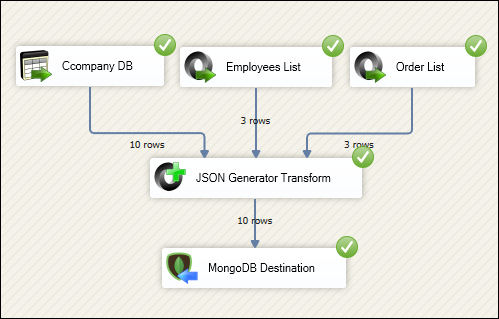
Build nested JSON with JSON Generator Transform (or JSON Source with Output as Document) and map it to the __DOCUMENT__ input column. When anything is mapped to __DOCUMENT__, the input is treated as a JSON document and other mappings are ignored.
- Map ZS_JSON_OUTPUT to
__DOCUMENT__ - Nested parent/child data without column mapping
- MongoDB generates
_idif you do not supply one
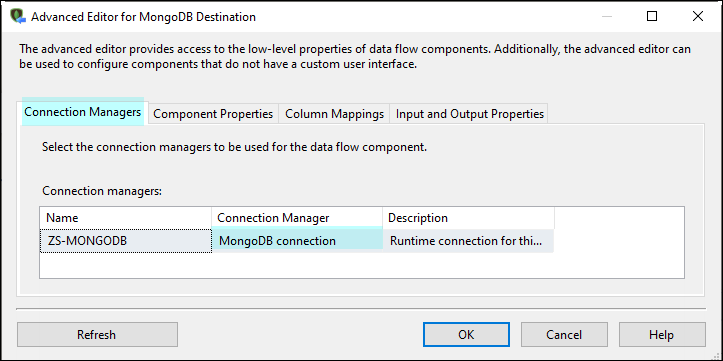
Pick a MongoDB connection manager.
Select a ZS-MongoDB connection manager on the Connection tab. In the connection manager, enter the host, user name, password and database, then click Test Connection.
- One connection manager for MongoDB Source, Destination and ExecuteSQL Task
- SSL and client certificate options
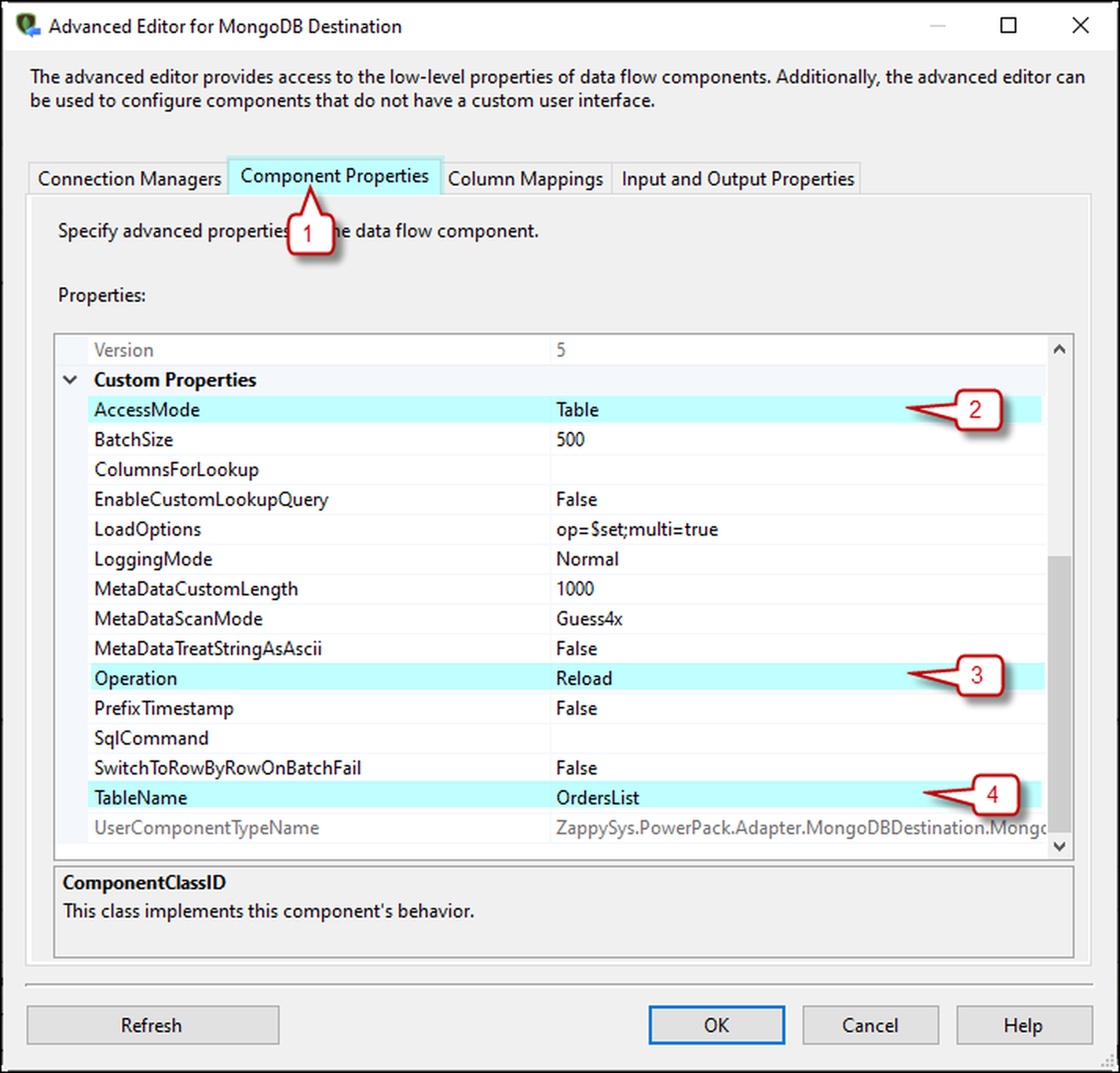
Choose the operation and lookup columns.
On Component Properties, pick the target collection and the Operation: Insert, Reload, Update, UpdateOrInsert (upsert), Delete or Replace. For Update, Upsert and Delete, list the JOIN columns in ColumnsForLookup and set LoadOptions such as op=$set;multi=true.
- Reload truncates the collection, then inserts
op:$set,$push,$pull,none(replace) and moreBatchSizeplus row-by-row retry when a batch fails
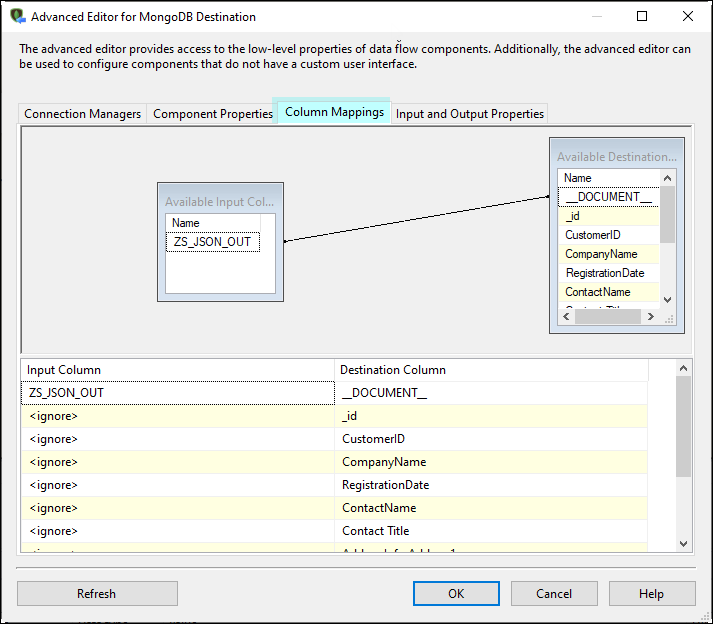
Map columns or a whole document.
Map input columns to MongoDB fields for flat data, or map one JSON column to __DOCUMENT__ for nested documents and arrays. Column mapping alone cannot build parent/child (nested) structures.
- Simple mode for flat rows
- Document mode for nested JSON and arrays
Inside the UI
Key settings, as they appear in SSDT.
Real screens from the MongoDB Destination product page. Step through them, or open any shot at full size.
Loading Raw JSON documents into MongoDB
JSON Generator Transform builds nested JSON and passes it to MongoDB Destination, which loads each row as a document.
Articles
Worked examples that use MongoDB Destination.
Compatibility and requirements
Designed to stay inside your SSIS runtime.
- SQL Server 2012 through 2025, 32-bit and 64-bit
- Windows only, 64-bit OS required. SQL Server Express and Web editions do not include SSIS
- Azure Data Factory SSIS Integration Runtime
- Self-hosted: credentials and data stay in your environment (external API calls still reach that service)
- Fully functional 30-day trial of SSIS PowerPack
FAQ
Questions teams ask before they drop MongoDB Destination on the canvas.
What is MongoDB Destination?
MongoDB Destination is an SSIS data flow component that bulk loads records from any data source into a MongoDB collection. Besides Insert it supports Reload (truncate, then insert), Update, UpdateOrInsert (upsert), Delete and Replace.
How do I load nested JSON documents?
Map a JSON string column to the __DOCUMENT__ input column. Build the JSON with JSON Generator Transform, or read it with JSON Source using Output as Document. When __DOCUMENT__ is mapped, other mappings are ignored; if the document has no _id, MongoDB generates one.
How do update, upsert and delete find the target documents?
List the JOIN columns in ColumnsForLookup (comma separated, case-sensitive) or map them on the Mappings tab. For nested fields use the > hierarchy separator with an alias, for example LocationInfo > ZipInfo > ZipCode AS LocationInfo.ZipInfo.ZipCode. For complex conditions, enable EnableCustomLookupQuery and pass a Mongo JSON or SQL lookup query.
Can I add or change items inside an array?
Yes. Set LoadOptions to an update operator such as op=$push (use $each to add several items) or op=$pull, plus multi=true or multi=false to change all or only one matching document. See Update MongoDB array items.
Which SQL Server versions can I run it on?
SQL Server 2025, 2022, 2019, 2017, 2016, 2014, and 2012 (32- and 64-bit), plus Azure Data Factory with an SSIS Integration Runtime (packages must target SQL Server 2017). See Compatibility and requirements.
See also
More from SSIS PowerPack.



What customers say
Start your free trial today
Install SSIS PowerPack and drag MongoDB Destination onto the Data Flow.
Bulk insert, update, upsert or delete MongoDB documents from any data source in SSIS.
- Data Flow Destination in SSISMongoDB Destination appears in the toolbox after you install PowerPack.
- Fully functional 30-day trialSSIS PowerPack, running in your environment.
- Live supportHelp during your trial and after purchase.
Open Help FileBrowse all SSIS PowerPack tasks
New purchases may be eligible for refund review within 30 days. See the refund policy.
Talk to an engineer before or during your trial.