Reading data in SSIS
In this section we will learn how to configure and use Smartsheet Connector in API Source to extract data from Smartsheet.
Video tutorial
This video covers following and more so watch carefully. After watching this video follow the steps described in this article.
- How to download SSIS PowerPack for Smartsheet integration in SSIS
- How to configure connection for Smartsheet
- How to read data from Smartsheet
- Features about SSIS API Source
- Using Smartsheet Connector in SSIS
Step-by-step instructions
-
Open Visual Studio and click Create a new project.
-
Select Integration Services Project. Enter a name and location for your project, then click OK.
-
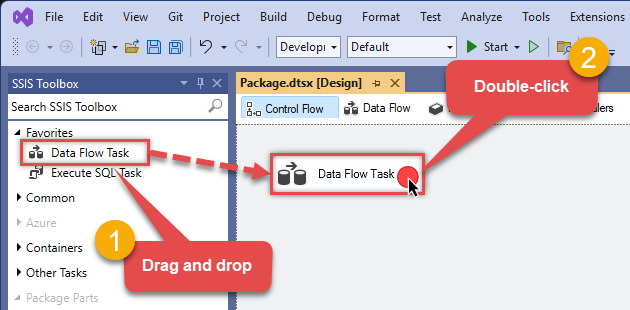
From the SSIS Toolbox, drag and drop a Data Flow Task onto the Control Flow surface, and double-click it:
-
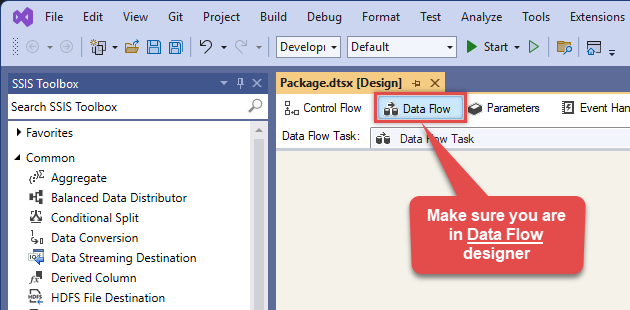
Make sure you are in the Data Flow Task designer:
-
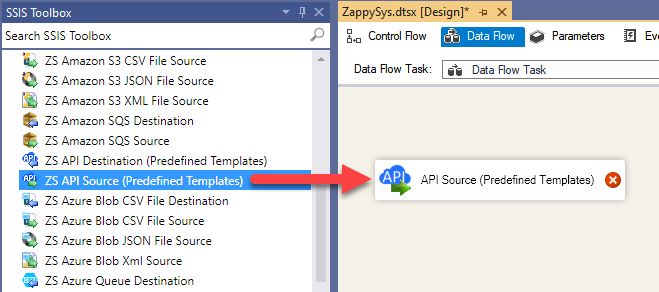
From the SSIS toolbox drag and API Source (Predefined Templates) on the data flow designer surface, and double click on it to edit it:
-
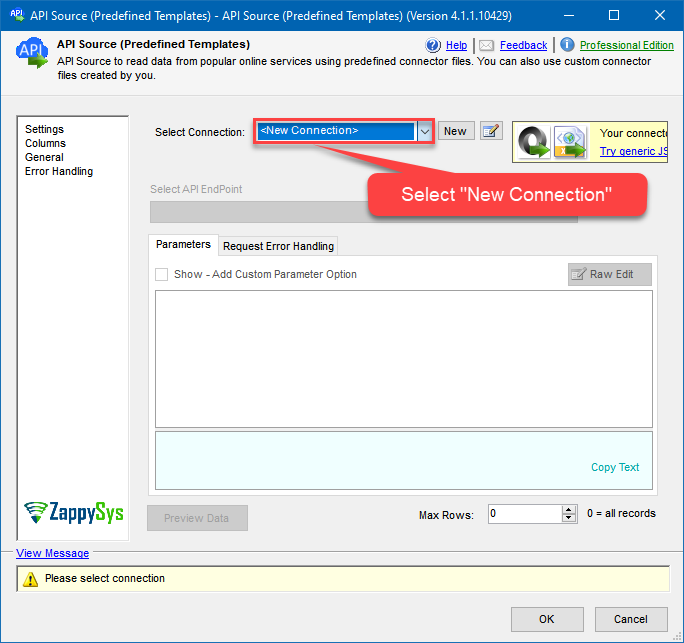
Select New Connection to create a new connection:
-
Use a preinstalled Smartsheet Connector from Popular Connector List or press Search Online radio button to download Smartsheet Connector. Once downloaded simply use it in the configuration:
Smartsheet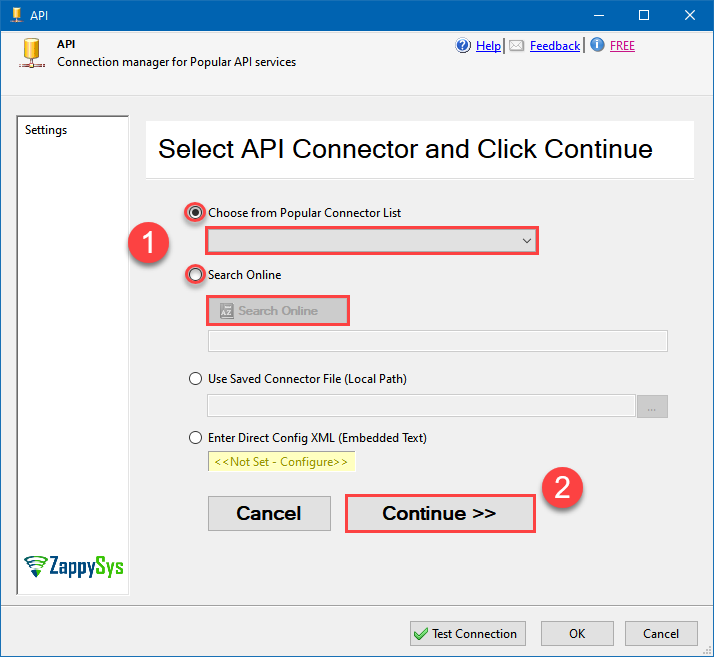
-
Select your authentication scenario below to expand connection configuration steps to:
- Configure the authentication in Smartsheet.
- Enter those details into the API Connection Manager configuration.
OAuth (Dynamic Token)
Smartsheet authentication
OAuth Walkthrough
Apps connect to Smartsheet using OAuth 2.0 to authenticate and authorize users. If you are building an app, this documentation will walk you through the steps you need to authenticate your users. The Smartsheet SDKs contain APIs for OAuth 2.0.
NOTE: For users of apps like AWS AppFabric, you will need a Tenant ID. You can find your Tenant ID in Admin Center under Security & Controls. There is a Smartsheet Tenant ID pane.
First Steps
Before you can start using OAuth 2.0 with your app, Smartsheet needs the following information:
- You must register with Smartsheet to get a developer account*. The developer account gives you access to "Developer Tools", which is where you manage your app.
- In "Developer Tools", complete any required fields in your developer profile.
- In "Developer Tools", register your app so Smartsheet can assign a client Id and a client secret to the app.
- Review the list of access scopes. You'll need to choose which ones your app needs to get to a user's Smartsheet data, and then ask the user to consent to that access.
- After you've worked through these steps, you'll be ready to implement the OAuth Flow.
Open Developer Tools
- Log in to Smartsheet with your developer account.
- Click the "Account" button in the lower-left corner of your Smartsheet screen, and then click "Developer Tools".
- Do one of the following:
- If you need to register an app, click "Create New App".
- If you need to manage an app, click "view/edit" for the app.
Register Your App Using Developer Tools
- Log in to Smartsheet with your developer account.
- Click the "Account" button in the upper-right corner of your Smartsheet screen, and then click "Developer Tools".
- In the "Create New App" form, provide the following information:
- Name: the name the user sees to identify your app
- Description: a brief description intended for the user
- URL: the URL to launch your app, or the landing page if not a web app
- Contact/support: support information for the user
- Redirect URL: also known as a callback URL. The URL within your application that will receive the OAuth 2.0 credentials After you click "Save", Smartsheet assigns a client Id and secret to your app. Make a note of these Ids for the next steps; however, you can always look them up again in "Developer Tools".
API Connection Manager configuration
Just perform these simple steps to finish authentication configuration:
-
Set Authentication Type to
OAuth (Dynamic Token) [OAuth] - Optional step. Modify API Base URL if needed (in most cases default will work).
- Fill in all the required parameters and set optional parameters if needed.
- Press Generate Token button to generate the tokens.
- Finally, hit OK button:
SmartsheetOAuth (Dynamic Token) [OAuth]https://api.smartsheet.com/2.0Required Parameters ClientId Fill-in the parameter... ClientSecret Fill-in the parameter... Scope Fill-in the parameter... Optional Parameters RetryMode RetryWhenStatusCodeMatch RetryStatusCodeList 429|503 RetryCountMax 5 RetryMultiplyWaitTime True 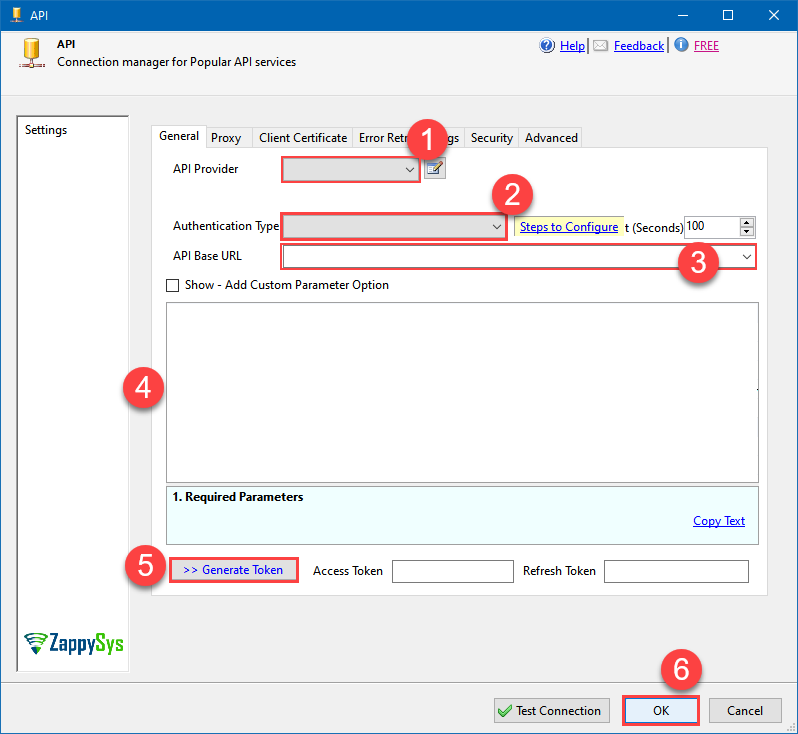 Find full details in the Smartsheet Connector authentication reference.
Static Token
Smartsheet authentication
Raw Token Requests
If you want to get started quickly, or are developing a standalone application that can run with your credentials, follow these instructions:
- Click the "Account" button in the lower-left corner of the Smartsheet screen, and then click "Personal Settings".
- Click the "API Access" tab.
- Click the "Generate new access token" button to obtain an access token.
The access token must be sent with every API call in an HTTP authorization header (except for therequests to Get Access Token or Refresh Access Token). Once you have an access token, include it in the Authorization header for every request you make:
Authorization: Bearer JKlMNOpQ12RStUVwxYZAbcde3F5g6hijklM789The header name is Authorization and the value of the header is Bearer JKlMNOpQ12RStUVwxYZAbcde3F5g6hijklM789. Since the access token is being transmitted in clear text, all API calls are done over HTTPS.
NOTE: A best practice is to use a shared account, such as ticket-processor@example.com, rather than your individual work account.
API Connection Manager configuration
Just perform these simple steps to finish authentication configuration:
-
Set Authentication Type to
Static Token [Http] - Optional step. Modify API Base URL if needed (in most cases default will work).
- Fill in all the required parameters and set optional parameters if needed.
- Finally, hit OK button:
SmartsheetStatic Token [Http]https://api.smartsheet.com/2.0Required Parameters Access Token Fill-in the parameter... Optional Parameters RetryMode RetryWhenStatusCodeMatch RetryStatusCodeList 429|503 RetryCountMax 5 RetryMultiplyWaitTime True 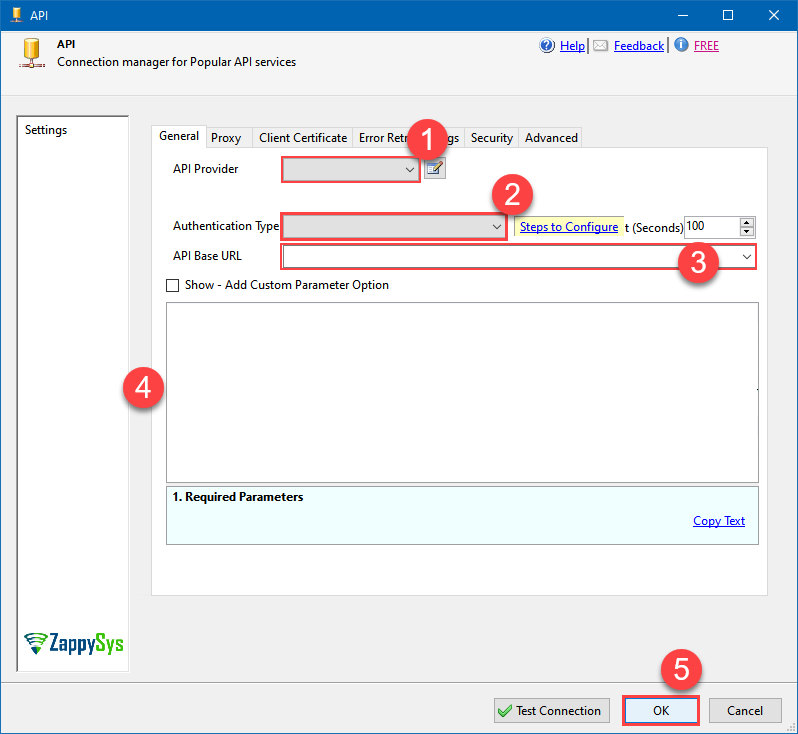 Find full details in the Smartsheet Connector authentication reference.
 -
Select the desired endpoint, change/pass the properties values, and click on Preview Data button to make the API call.
API Source - SmartsheetRead and write Smartsheet data effortlessly. Integrate, manage, and automate sheets, rows, and reports — almost no coding required.
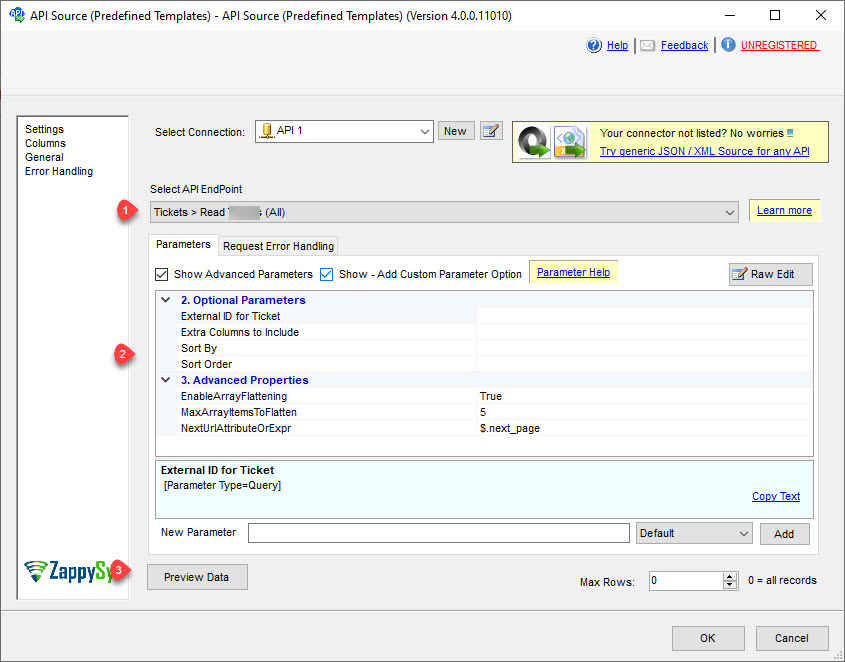
-
That's it! We are done! Just in a few clicks we configured the call to Smartsheet using Smartsheet Connector.
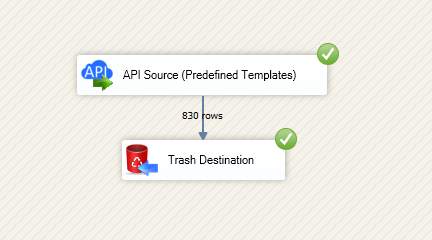
You can load the source data into your desired destination using the Upsert Destination , which supports SQL Server, PostgreSQL, and Amazon Redshift. We also offer other destinations such as CSV , Excel , Azure Table , Salesforce , and more . You can check out our SSIS PowerPack Tasks and components for more options. (*loaded in Trash Destination)