

Authentication Application Credentials
Description
Application-only access is broader and more powerful than delegated access (User Credentials), so you should only use app-only access where needed. Use it when: 1. The application needs to run in an automated way, without user input (for example, a daily script that checks emails from certain contacts and sends automated responses). 2. The application needs to access resources belonging to multiple different users (for example, a backup or data loss prevention app might need to retrieve messages from many different chat channels, each with different participants). 3. You find yourself tempted to store credentials locally and allow the app to sign in 'as' the user or admin. [API reference]
Instructions
Follow these simple steps below to create Microsoft Entra ID application with application access permissions.
- Navigate to the Azure Portal and log in using your credentials.
- Access Microsoft Entra ID.
-
Register a new application by going to App registrations and clicking on New registration button:
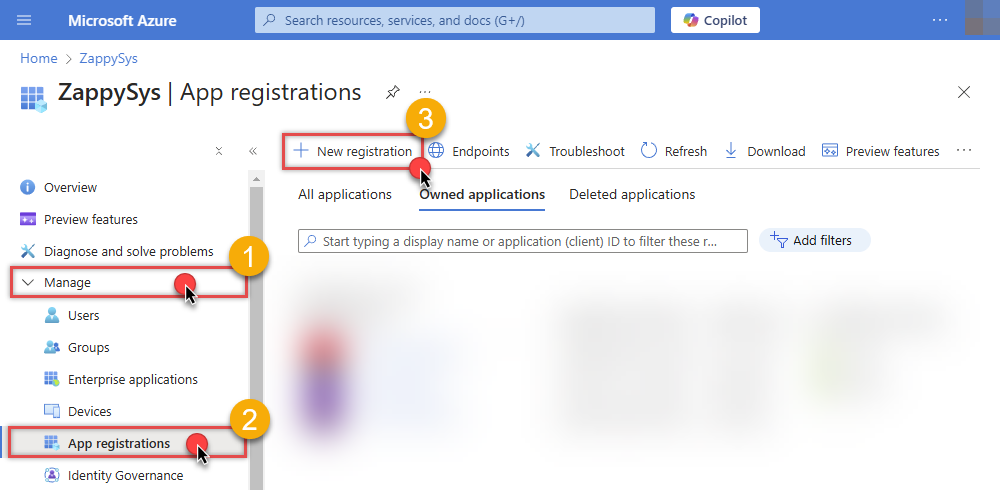 INFO: Find more information on how to register an application in Graph API reference.
 -
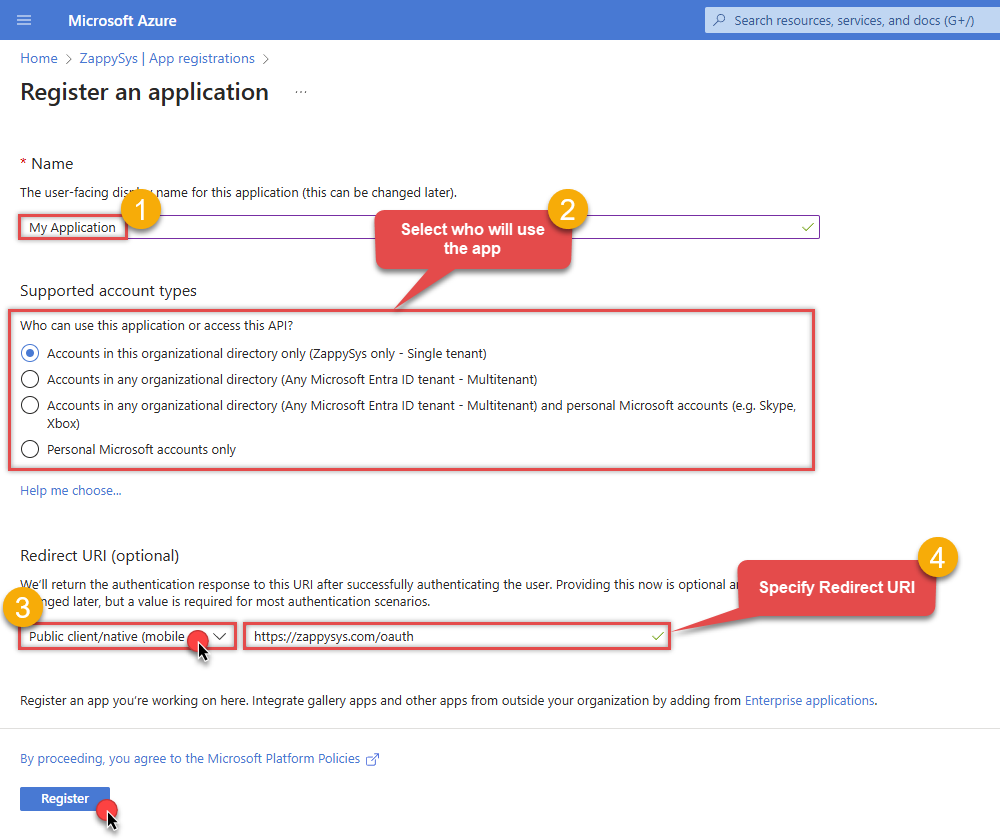
When configuration window opens, configure these fields:
-
Supported account type
- e.g. select
Accounts in this organizational directory onlyif you need access to data in your organization only.
- e.g. select
-
Redirect URI:
- Set the type to
Public client/native (mobile & desktop). - Leave the URL field empty.
- Set the type to
-
Supported account type
-
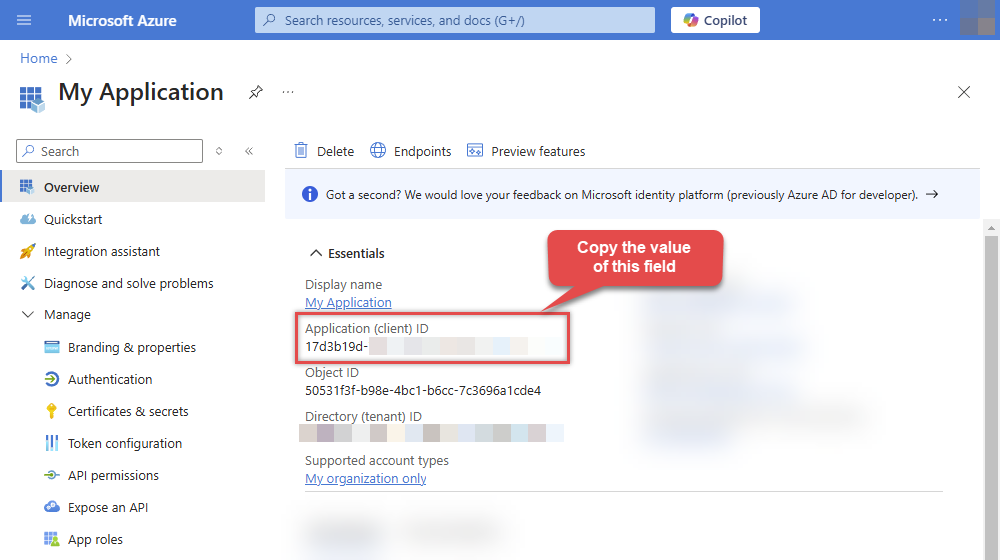
After registering the app, copy the Application (client) ID for later:
-
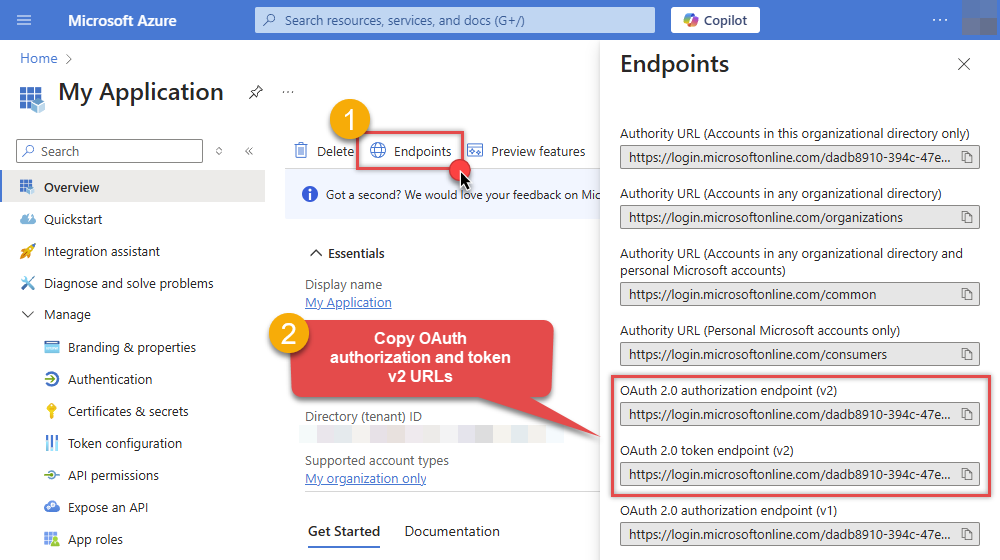
Then copy OAuth authorization endpoint (v2) & OAuth token endpoint (v2) URLs:
-
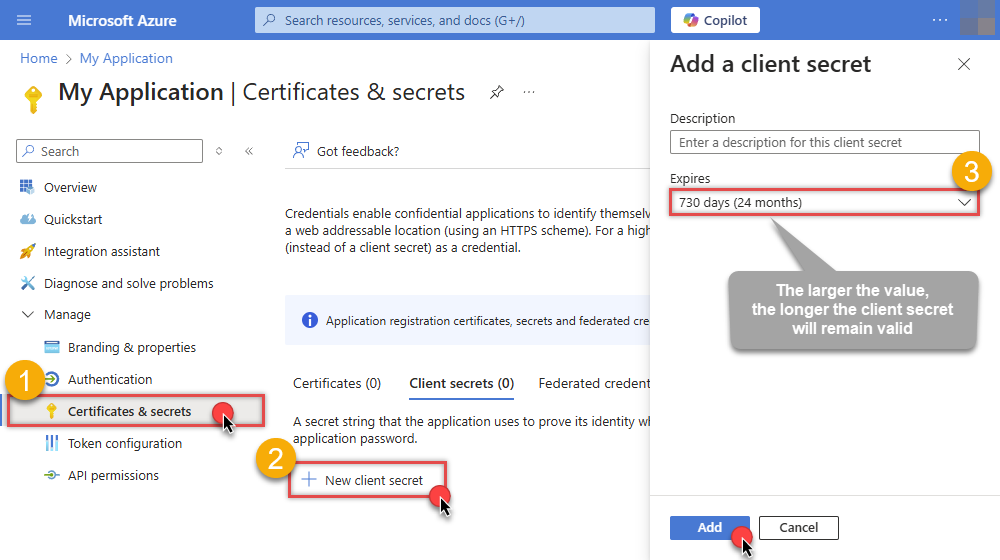
Continue and create Client secret:
-
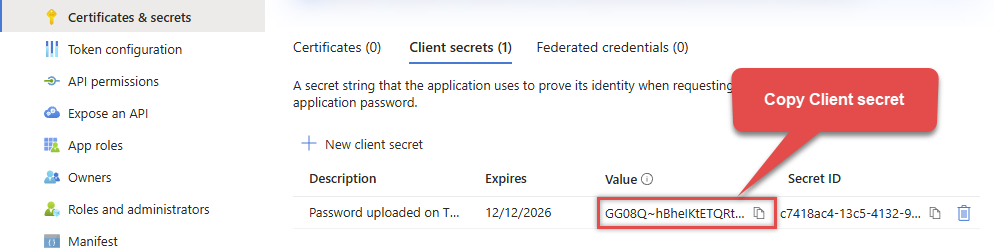
Then copy the Client secret for later steps:
-
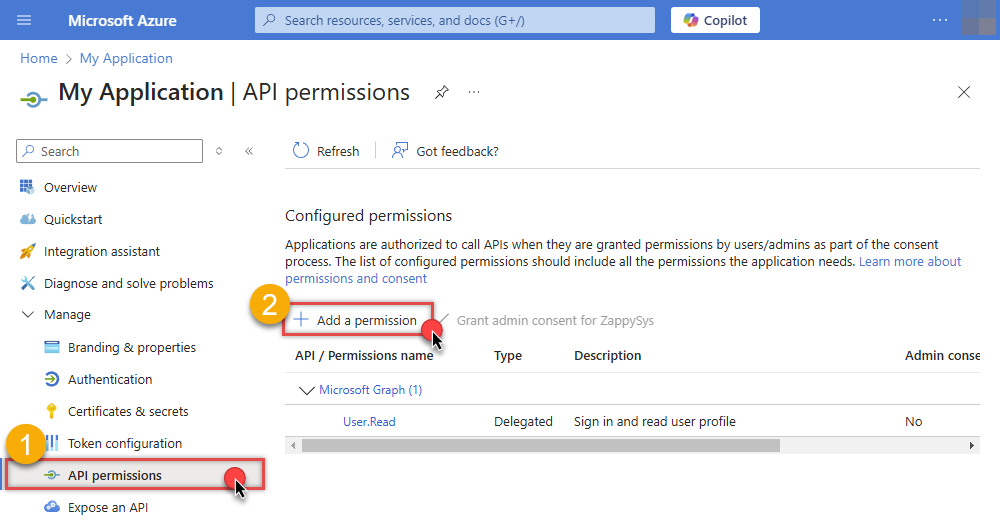
Continue by adding permissions for the app by going to the API permissions section, and clicking on Add a permission:
-
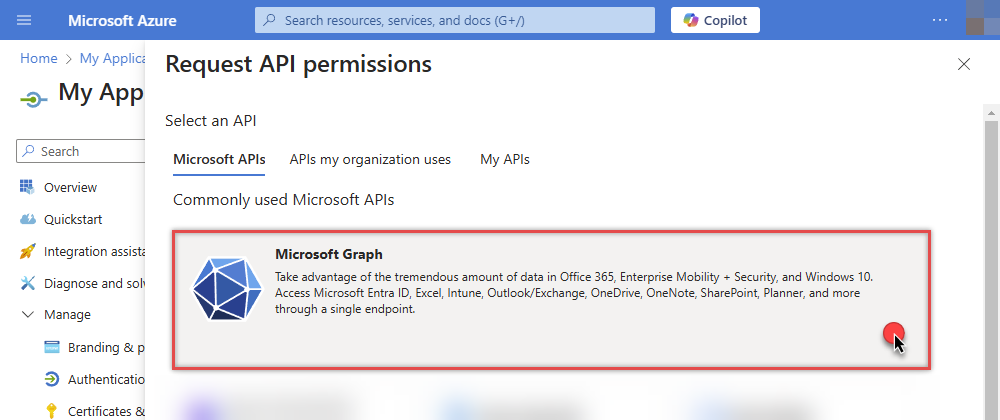
Select Microsoft Graph:
-
Then choose Application permissions option:
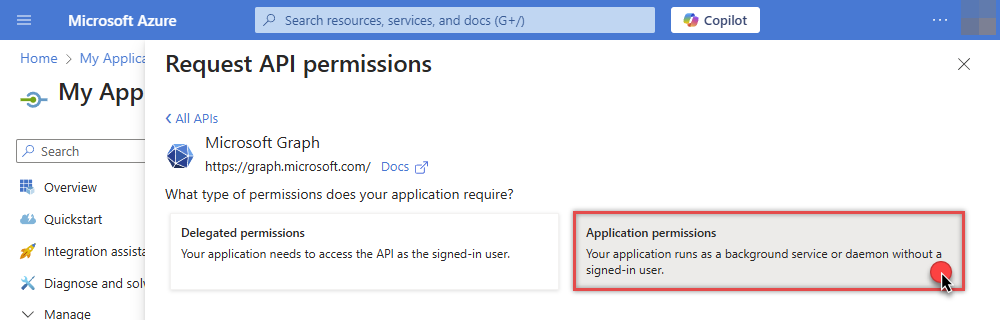
-
Continue by adding these Mail (Outlook) application permissions (for example
Mail.Read,Mail.ReadWrite, orMail.Senddepending on your needs):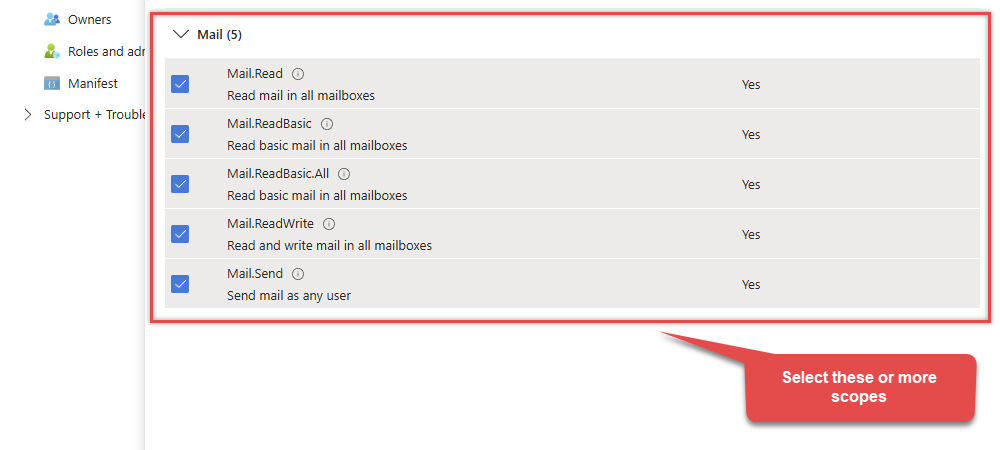
-
If you want the Default User Id drop down to list organization users (calls
GET /users), repeat Add a permission and also add the User.Read.All application permission. Add Group.Read.All if you need group lookups. Search forUserunder Application permissions, select User.Read.All, then click Add permissions. -
Finish by clicking Add permissions button:
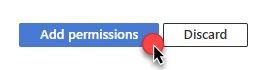
-
Now it's time to Grant admin consent for your application:
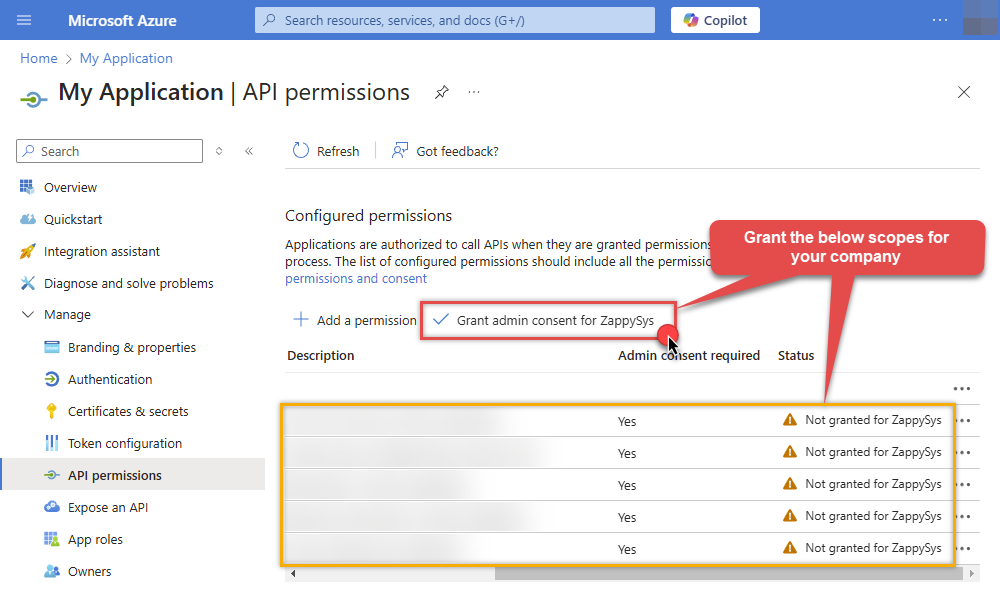
-
Confirm all the permissions are granted (Mail scopes plus
User.Read.Allwhen using the user drop down):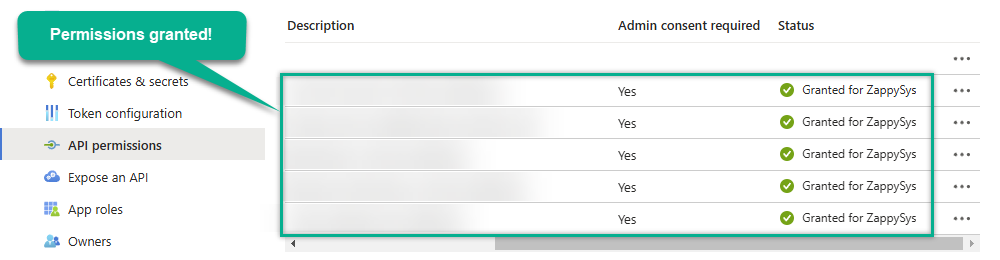
-
Now go to SSIS package or ODBC data source and use the copied values in Application Credentials authentication configuration:
- In the Token URL field paste the OAuth token endpoint (v2) URL value you copied in the previous step.
- In the Client ID field paste the Application (client) ID value you copied in the previous step.
- In the Client Secret field paste the Client secret value you copied in the previous step.
- Choose Default User Id from the drop down menu (requires
User.Read.Allapplication permission and admin consent), or type a user id or email manually.
- Click Test Connection to confirm the connection is working.
- That's it! Now you can use the connector.
Parameters
| Parameter | Required | Default value | Options | ||||||||
|---|---|---|---|---|---|---|---|---|---|---|---|
|
Name:
Label: Token URL |
YES |
|
|||||||||
|
Name:
Label: Application (client) ID |
YES | ||||||||||
|
Name:
Label: Client Secret |
YES | ||||||||||
|
Name:
Label: Scope Permissions you want to use. |
YES |
https://graph.microsoft.com/.default
|
|
||||||||
|
Name:
Label: Default User Id The Microsoft Mail user ID GUID or email address for the account to read messages from. (Examples: '4ff54a77-9c09-4274-958f-83bdc0a53900' or 'first.last@domain.com'). To populate this drop down (GET /users), User Credentials need User.ReadBasic.All delegated scope (in the default list; regenerate token after adding). Add User.Read.All only if you need full user profiles. Application Credentials need User.Read.All application permission with admin consent in Azure Portal. You can also type a user id or email manually if listing fails. |
YES | ||||||||||
|
Name:
Label: RetryMode |
RetryWhenStatusCodeMatch
|
|
|||||||||
|
Name:
Label: RetryStatusCodeList |
429|503
|
||||||||||
|
Name:
Label: RetryCountMax |
5
|
||||||||||
|
Name:
Label: RetryMultiplyWaitTime |
True
|