Salesforce Connector for Tableau How to Test Connection
Introduction
In this article we will delve deeper into Salesforce and Tableau integration, and will learn how to test connection. We are continuing from where we left off. By this time, you must have installed ODBC PowerPack, created ODBC Data Source, and configured authentication settings in your Salesforce account .
So, let's not waste time and begin.
Use Query Builder to generate SQL query
-
The first thing you have to do is open Query Builder:
 ZappySys API Driver - SalesforceAmazon Ads Connector can be used to get Amazon advertisements using Amazon Advertisements API, download various advertisement-related reports.SalesforceDSN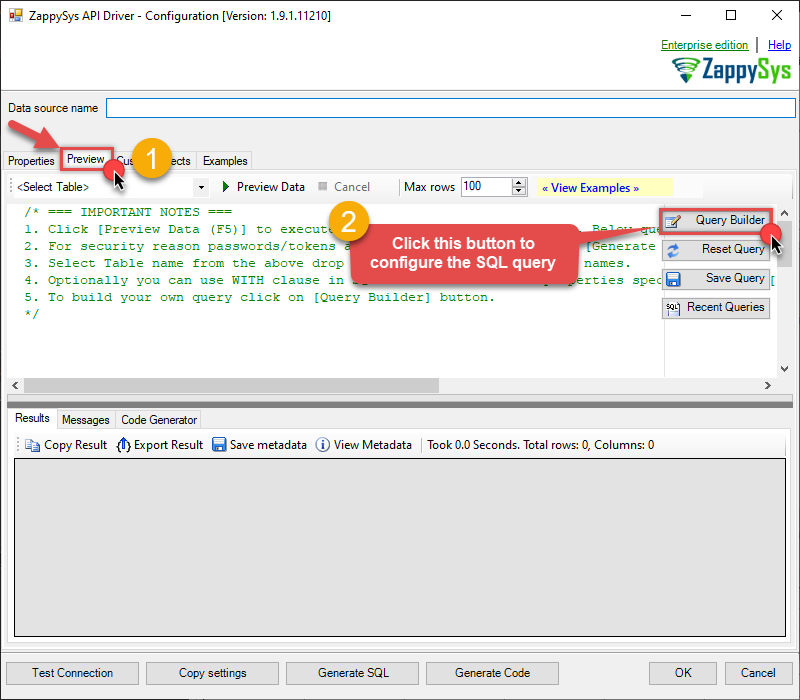
-
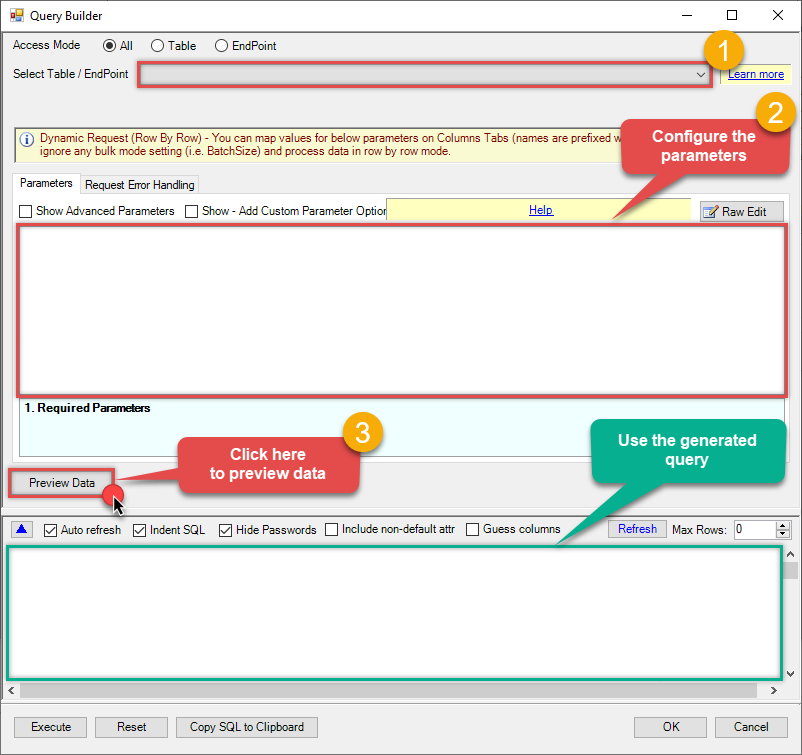
Then simply select the Test Connection endpoint (action).
-
Continue by configuring the Required parameters. You can also set optional parameters too.
-
Move on by hitting Preview Data button to preview the results.
-
If you see the results you need, simply copy the generated query:
-
That's it! You can use this query in Tableau.
Let's not stop here and explore SQL query examples, including how to use them in Stored Procedures and Views (virtual tables) in the next steps.
SQL query examples
Use these SQL queries in your Tableau data source:
How to Test connection
SELECT * FROM test_connectionTest Connection in Tableau
-
Open Tableau Desktop and click File > New.
-
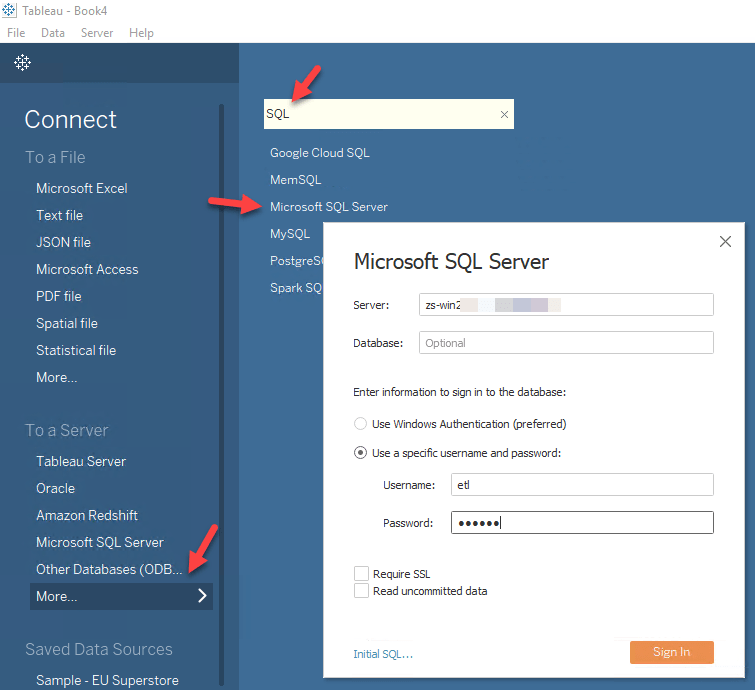
To create new Connection click More > Microsoft SQL Server > Enter your credentials to connect to SQL Server (in our example before we used john):
-
Once connection is created for SQL Server we can read Salesforce data 3 different ways:
- Query View which contains OPENQUERY to Linked Server for Salesforce data
- Use direct SQL Query using OPENQUERY
- Use Stored Procedure (Mostly useful to parameterize calls
-
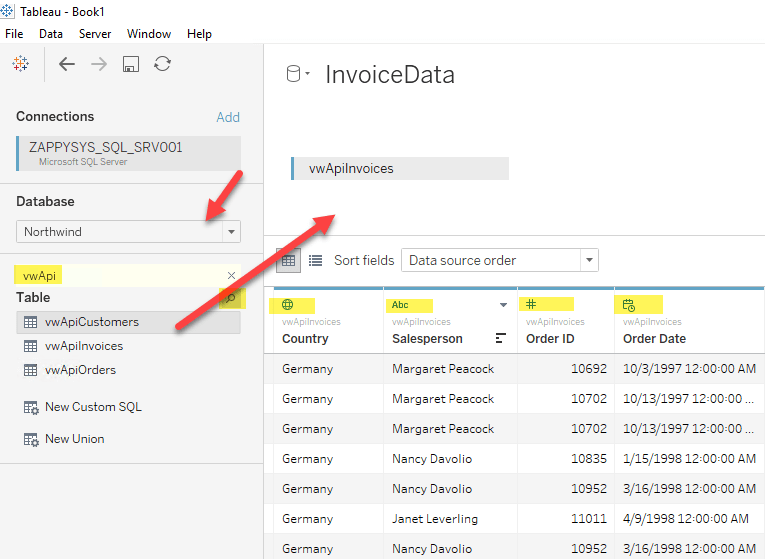
See below example to pull data from Salesforce in Tableau using SQL View approach:
-
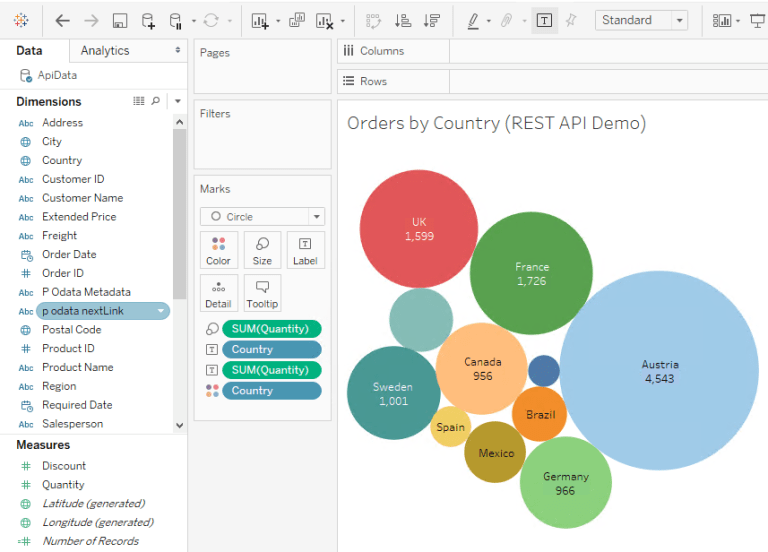
Once your data sources are created you can click on Sheet1 and drag fields to create visualizations for Tableau Dashboard:
More actions supported by Salesforce Connector
Learn how to perform other actions directly in Tableau with these how-to guides:
- Get Beta Report
- Get Profiles
- Get Report
- Make Generic API Request
- Make Generic API Request (Bulk Write)