

Authentication User Credentials
Description
Delegated access using OAuth authorization code flow. Users sign in with their Azure AD account. [API reference]
Instructions
Follow these simple steps below to create Microsoft Entra ID application with delegated access:
WARNING:
To automate your company's processes, make sure you use a system/generic account (e.g.
automation@my-company.com).
When you use a personal account which is tied to a specific employee profile and that employee leaves the company,
the token may become invalid and any automated processes using that token will start to fail.
- Navigate to the Azure Portal and log in using your credentials.
- Access Microsoft Entra ID.
-
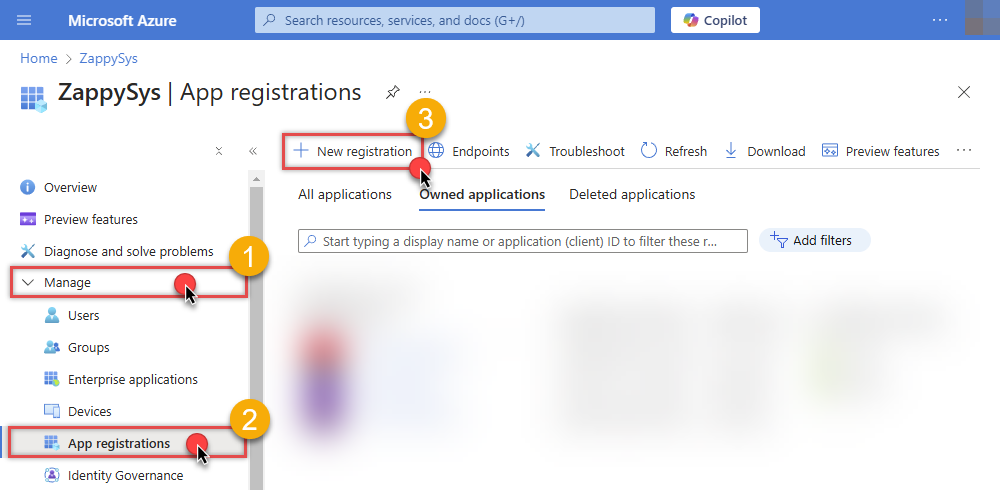
Register a new application by going to
App registrations
and clicking on New registration button:
 INFO: Find more information on how to register an application in Graph API reference.
 -
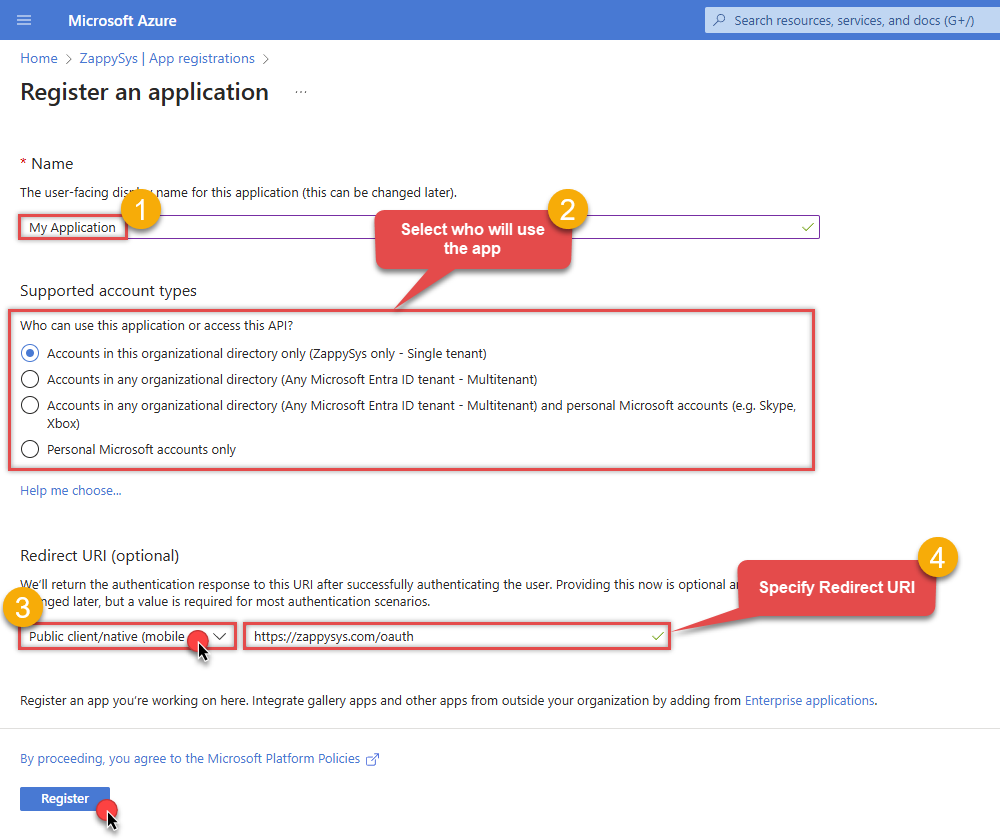
When configuration window opens, configure these fields:
-
Supported account type
- Use
Accounts in this organizational directory only, if you need access to data in your organization only.
- Use
-
Supported account type
-
Redirect URI:
- Set the type to
Public client/native (mobile & desktop). - Use
https://zappysys.com/oauthas the URL.
- Set the type to
-
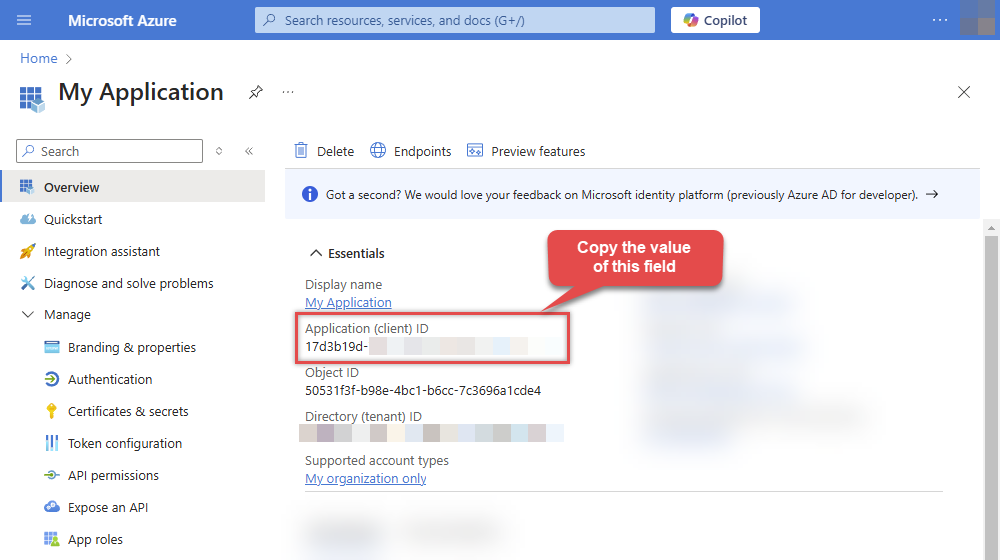
After registering the app, copy the Application (client) ID for later:
-
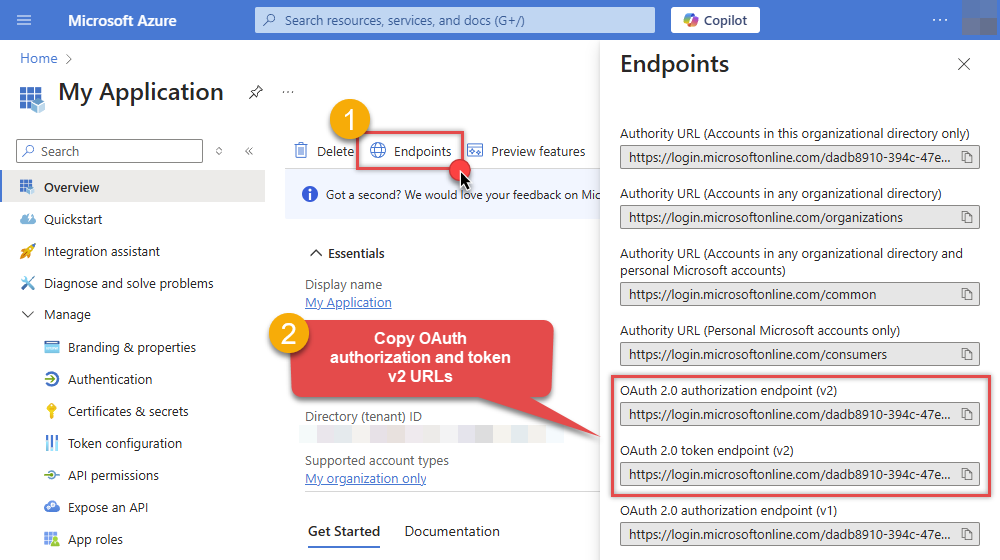
Then copy OAuth authorization endpoint (v2) & OAuth token endpoint (v2) URLs to use later in the configuration:
-
Now go to SSIS package or ODBC data source and use the copied values in User Credentials authentication configuration:
- In the Authorization URL field paste the OAuth authorization endpoint (v2) URL value you copied in the previous step.
- In the Token URL field paste the OAuth token endpoint (v2) URL value you copied in the previous step.
- In the Client ID field paste the Application (client) ID value you copied in the previous step.
-
In the Scope field use the default value or select individual scopes, e.g.:
-
vso.project -
vso.work_full
Admin consent note:- Token generation can still ask for admin approval, even when delegated scopes are listed in API permissions.
- A Global Administrator can allow user consent for selected low-impact delegated permissions.
- If tenant policy blocks user consent, an administrator must approve the requested delegated permissions.
-
- Press Generate Token button to generate Access and Refresh Tokens.
- Optional step. Choose Default Drive Id from the drop down menu.
- Click Test Connection to confirm the connection is working. After that, choose Default Project Name in connection settings. Some endpoints (for example, work items) often work more reliably when a default project is selected; otherwise, you must supply the Project value each time.
- Done! Now you are ready to use the API Connector!
Parameters
| Parameter | Required | Default value | Options | ||||||||||||||||||
|---|---|---|---|---|---|---|---|---|---|---|---|---|---|---|---|---|---|---|---|---|---|
|
Name:
Label: Authorization URL |
YES |
|
|||||||||||||||||||
|
Name:
Label: Token URL |
YES |
|
|||||||||||||||||||
|
Name:
Label: Application (client) ID |
YES | ||||||||||||||||||||
|
Name:
Label: Organization name or Id (e.g. mycompany) The organization name or Id obtained from Azure DevOps. |
YES | ||||||||||||||||||||
|
Name:
Label: Return URL The URL to send the authentication token back to. |
YES |
https://zappysys.com/oauth
|
|
||||||||||||||||||
|
Name:
Label: Scopes (Must match with App Registration) The scopes of access needed for the Azure DevOps API connection. **Offline_access** is required to receive a refresh token; without it the connection cannot renew and will effectively stop working when the access token expires. |
YES |
https://app.vssps.visualstudio.com/vso.project~https://app.vssps.visualstudio.com/vso.work_full~offline_access
|
|
||||||||||||||||||
|
Name:
Label: API Version The version of the Azure DevOps API to use. |
YES |
7.0
|
|
||||||||||||||||||
|
Name:
Label: Client Secret |
|||||||||||||||||||||
|
Name:
Label: Refresh Token File Path If you cant fit long refresh token in ConnectionString from your program then use this. Supply three properties in json format (i.e. save this in file { "access_token": "YOUR_ACCESS_TOKEN", "refresh_token": "YOUR_REFRESH_TOKEN", "expires_in": 3600 } ) |
|||||||||||||||||||||
|
Name:
Label: Default Project Name (Choose after Generating Token) The default project name to make API calls for. |
|||||||||||||||||||||
|
Name:
Label: RetryMode |
RetryWhenStatusCodeMatch
|
|
|||||||||||||||||||
|
Name:
Label: RetryStatusCodeList |
429
|
||||||||||||||||||||
|
Name:
Label: RetryCountMax |
5
|
||||||||||||||||||||
|
Name:
Label: RetryMultiplyWaitTime |
True
|