

Authentication Azure App Credentials with Certificate (Sign JWT with Private Key)
Description
Same as Application Credentials but uses a client certificate instead of a secret. [API reference]
Instructions
Step 1: Register the App in Microsoft Entra ID (AAD)
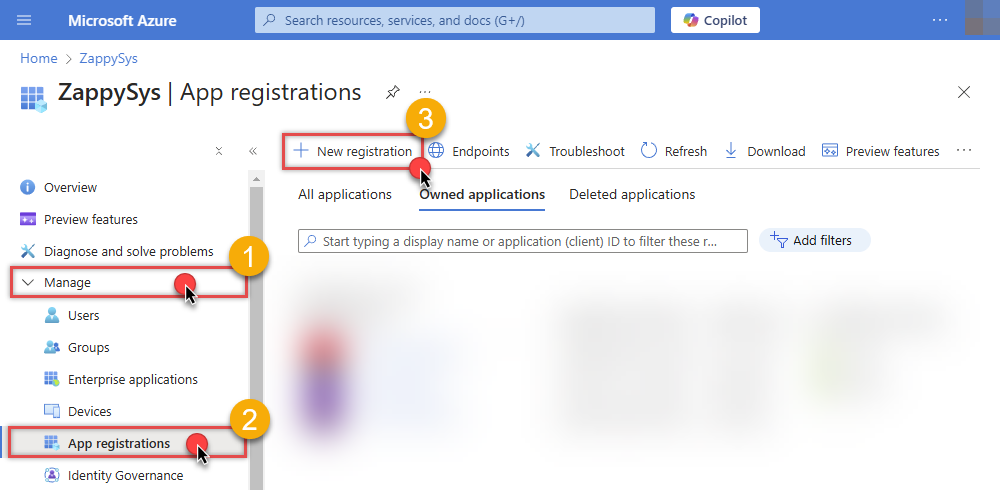
- Go to the Azure Portal > Microsoft Entra ID > App registrations and click New registration:
- Name it (e.g., ZS-AzureDevOps-CertAuth).
- Set Supported account types to "Accounts in this organizational directory only" (Single Tenant):
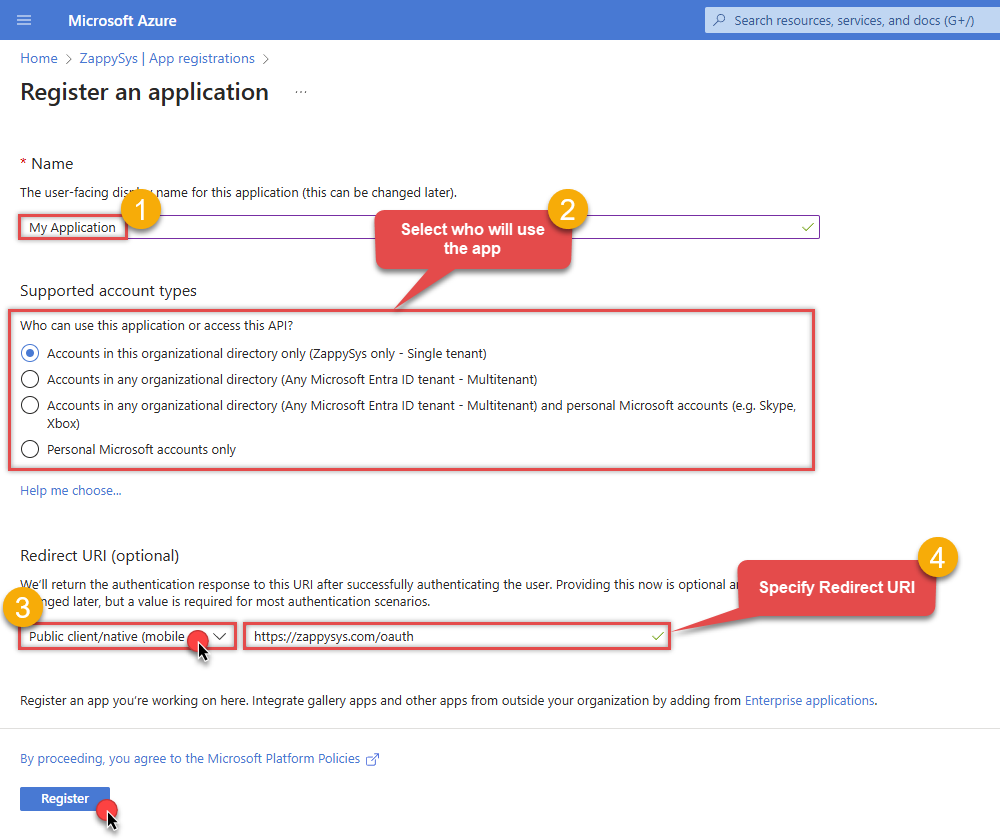
- Leave Redirect URI blank (it's not used for Client Credentials flows).
- Click Register.
Step 2: Upload Client Certificate
- In your new app, go to Certificates & secrets.
- Click the Certificates tab, then click Upload certificate.
- Upload your public key certificate (.cer, .pem, or .crt). Keep the private key secure on your system.
- Copy the Thumbprint for your configuration:
Step 3: Set Permissions and Admin Consent
- Go to API permissions > Add a permission.
- Select Azure DevOps and click Delegated permissions.
- Select the required scopes (e.g.,
vso.project,vso.work_full). - Crucial: Click Grant admin consent for [Your Tenant]. Without this, the background service cannot acquire a token.
Step 4: Map the App to Azure DevOps Organization
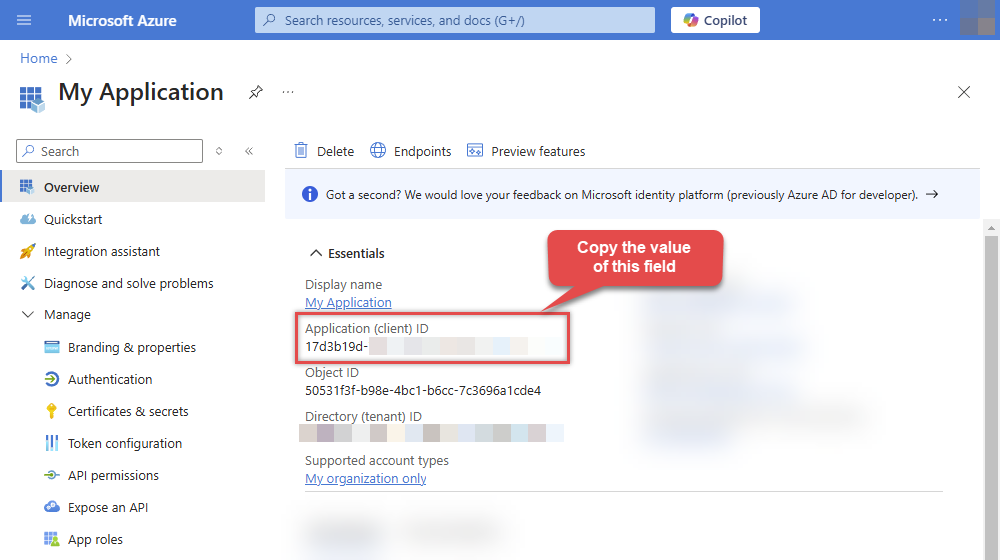
- Copy your Application (client) ID from the App Overview page.
- Open Organization settings > Users (you must add the Entra app here as a user). Use any of these ways to reach that page:
- Direct URL: after you sign in, open
https://dev.azure.com/YOUR_ORG_NAME/_settings/users, replacingYOUR_ORG_NAMEwith your organization name (the same value you enter in the connector Organization field). Example:https://dev.azure.com/contoso/_settings/users. - From the DevOps home page: go to https://dev.azure.com, select your organization, then in the lower-left corner choose Organization settings (gear). In the left pane under General, open Users.
- Direct URL: after you sign in, open
- Click Add users and paste the Application (client) ID in the search box to find the App.
- Assign an Access level (usually Basic) and add it to the relevant Projects.
Step 5: Connection Settings
In your SSIS package or ODBC data source, use the following in the Client Certificate configuration:
- In the Token URL field, paste the OAuth token endpoint (v2) URL from the Azure Portal 'Endpoints' tab.
- In the Client ID field, paste the Application (client) ID.
- Configure your Certificate Path or Thumbprint in the Client Certificate tab of the connector.
- In the Scope field, make sure to use:
https://app.vssps.visualstudio.com/.default
Step 6: Finalize Connection
- Press Generate Token. The connector will sign the request using your certificate to fetch a token.
- Click Test Connection to confirm the setup. After that, choose Default Project Name in connection settings. Some endpoints (for example, work items) often work more reliably when a default project is selected; otherwise, you must supply the Project value each time.
- Done! Your certificate-based connection is ready!
Parameters
| Parameter | Required | Default value | Options | ||||||||||||||||
|---|---|---|---|---|---|---|---|---|---|---|---|---|---|---|---|---|---|---|---|
|
Name:
Label: Token URL |
YES |
|
|||||||||||||||||
|
Name:
Label: Application (client) ID |
YES | ||||||||||||||||||
|
Name:
Label: Certificate: *** Configure [Client Certificate] Tab *** |
YES | ||||||||||||||||||
|
Name:
Label: Scopes (Must match with App Registration) For App Credentials or Certificates, use the **.default** scope to automatically include all permissions granted and consented to in the Azure App Registration. Note: offline_access is not used in App-Only flows as refresh tokens are not required. |
YES |
https://app.vssps.visualstudio.com/.default
|
|
||||||||||||||||
|
Name:
Label: Organization name or Id The organization name or Id obtained from Azure DevOps. |
YES | ||||||||||||||||||
|
Name:
Label: API Version The version of the Azure DevOps API to use. |
YES |
7.0
|
|
||||||||||||||||
|
Name:
Label: Default Project Name The default project name to make API calls for. |
|||||||||||||||||||
|
Name:
Label: RetryMode |
RetryWhenStatusCodeMatch
|
|
|||||||||||||||||
|
Name:
Label: RetryStatusCodeList |
429
|
||||||||||||||||||
|
Name:
Label: RetryCountMax |
5
|
||||||||||||||||||
|
Name:
Label: RetryMultiplyWaitTime |
True
|