SSIS Trash Destination
End a Data Flow path without expensive processing of incoming data, or optionally save the rows to a text file.
Trash Destination is a free SSIS Data Flow destination that terminates your pipeline without any expensive processing of incoming data. It is handy during testing, when you want to focus on sources and transforms, and can also act as a simple flat file destination that saves the rows to a text file.
Trash Destination is free in every edition. The same download also includes a trial of the paid PowerPack components
- Data Flow Destination in SSIS
- Runs in your environment
- Also runs in Azure Data Factory
- Free component (FREE edition)















At a glance
What Trash Destination can do
Trash Destination terminates your Data Flow pipeline without any expensive processing of incoming data. It is useful during testing when you focus on sources and transforms, and can save the rows to a text file.
Terminate the data flow
End your data flow pipeline without any expensive processing of incoming data.
- Handy during testing when you focus on sources and transforms
Save buffer data to file
Act as a simple flat file destination and write incoming rows to a file.
SaveDataToFile= True
Custom separators
Set the row and column separators for the output file.
RowSeparator(default CRLF)ColumnSeparator(default comma)
Header, quoting & Unicode
Control the output file format.
ColumnNamesInFirstRowQuoteDataIfNeededwraps text/datetime values in double quotesSupportUnicodefor international characters
Pick columns to log
All input columns are logged to the file by default, or choose only the ones you need.
- Select Columns tab in the settings UI
- Or Advanced Editor > Input Columns tab
Overwrite, append & date format
Decide how the output file is written.
- Overwrite target file if exists, or append data to the file
- Date format (e.g.
yyyy-MM-dd HH:mm:ss)
Dump binary data
Dump Varbinary columns to a CSV file, where they are written as Base64 text.
SQL Server 2012–2025 & ADF
Runs in your environment on SQL Server 2012–2025 and Azure-SSIS.
- SQL Server 2025, 2022, 2019, 2017, 2016, 2014, 2012 (32/64-bit)
- Azure Data Factory (SSIS IR)
- Design packages in Visual Studio 2017, 2019, 2022, or 2026
- Windows only (64-bit OS): Windows 7–11 or Windows Server 2012–2025
Logging options
Control how much is logged during package execution.
LoggingMode: Normal, Medium, Detailed or Debugging
See all features
- Free component, included in every SSIS PowerPack edition
- Terminate a data flow pipeline without expensive processing
- Useful for testing sources and transforms
- Optionally save buffer data to a flat file (
SaveDataToFile) - Custom row separator (default CRLF) and column separator (default comma)
- Column names in the first row
- Quote text/datetime values when needed
- Unicode support for international characters
- Overwrite or append to the output file, with a custom date format
- Write only selected input columns (Select Columns tab or Advanced Editor)
- Dump Varbinary data to CSV as Base64 text
- Logging modes (Normal, Medium, Detailed, Debugging)
Support for SQL Server 2025, 2022, 2019, 2017, 2016, 2014, 2012 (32/64-bit) and Azure Data Factory
SQL Server 2012–2025
How it works
From the toolbox to your first run.
Key steps from the Trash Destination page and help file, with the screens you will see in SSDT.
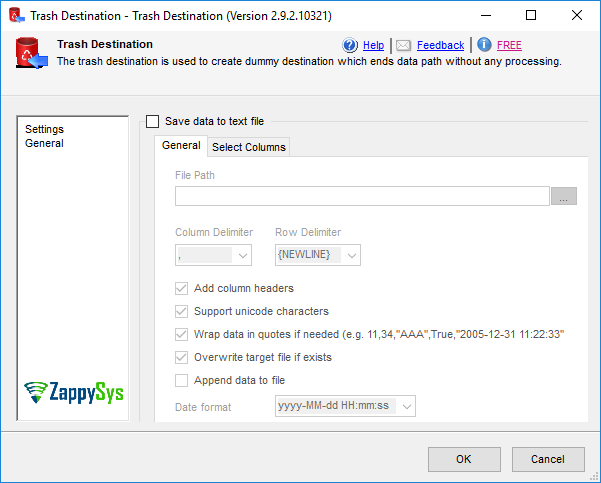
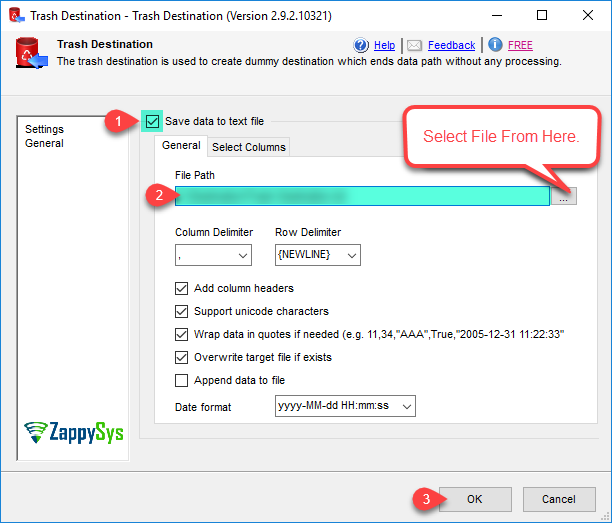
Connect a source and choose whether to save rows.
Connect any source (for example DummyData Source) to ZS Trash Destination and double-click it. Leave Save data to text file unchecked to simply discard rows, or check it and pick a file path to write the incoming rows to a text file.
- Column and row delimiters (default comma and new line)
- Column headers, Unicode, quote when needed, overwrite or append
- Choose columns on the Select Columns tab
- Date format, e.g.
yyyy-MM-dd HH:mm:ss
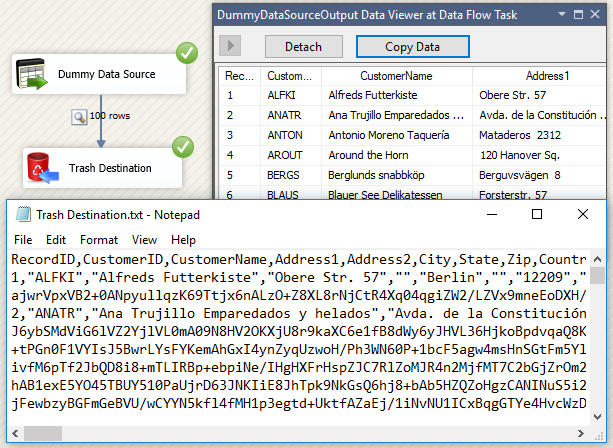
Run the package and inspect the data.
Right-click the path and add a Data Viewer, then execute the package to verify the source data. With Save data to text file on, the rows are also written to the file.
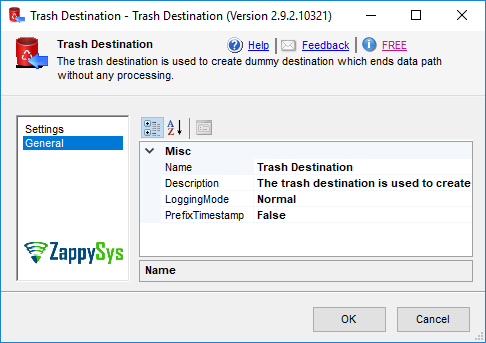
Control logging on the General tab.
On the General tab set LoggingMode (Normal, Medium, Detailed or Debugging) and PrefixTimestamp.
Inside the UI
Key settings, as they appear in SSDT.
Real screens from the Trash Destination product page. Step through them, or open any shot at full size.
Drag and drop
Drag Trash Destination from the SSIS Toolbox onto the Data Flow and connect your source to it.
Articles
Worked examples that use Trash Destination.
Compatibility and requirements
Designed to stay inside your SSIS runtime.
- SQL Server 2012 through 2025, 32-bit and 64-bit
- Windows only, 64-bit OS required. SQL Server Express and Web editions do not include SSIS
- Azure Data Factory SSIS Integration Runtime
- Self-hosted: credentials and data stay in your environment (external API calls still reach that service)
- Fully functional 30-day trial of SSIS PowerPack
FAQ
Questions teams ask before they drop Trash Destination on the canvas.
What is Trash Destination?
Trash Destination is a free SSIS Data Flow destination that terminates your pipeline without any expensive processing of incoming data. It is very useful during testing, when you want to focus on sources and transforms and don’t care about the destination.
Is Trash Destination free?
Yes. It is included in the FREE edition of SSIS PowerPack, as well as in the Standard, Professional and Enterprise editions. See compare editions.
Can it save the rows to a file?
Yes. Set SaveDataToFile (Save data to text file) and it acts as a simple flat file destination. You can set the row separator (default CRLF) and column separator (default comma), column names in the first row, Unicode, and quoting of text/datetime values. All input columns are written by default; choose specific columns on the Select Columns tab or in the Advanced Editor’s Input Columns tab.
Which SQL Server versions can I run it on?
SQL Server 2025, 2022, 2019, 2017, 2016, 2014, and 2012 (32- and 64-bit), plus Azure Data Factory with an SSIS Integration Runtime (packages must target SQL Server 2017). See Compatibility and requirements.

What customers say
Free in every edition
Install SSIS PowerPack and drag Trash Destination onto the Data Flow.
End a Data Flow path without expensive processing of incoming data, or optionally save the rows to a text file.
- Data Flow Destination in SSISTrash Destination appears in the toolbox after you install PowerPack.
- Free to useTrash Destination is included in the FREE edition of SSIS PowerPack.
- Live supportQuestions? Talk to a ZappySys engineer.
Talk to an engineer before or during your trial.