

Table Tickets
Description
No description available
Supported Operations
Below section contains supported CRUD operations. Each operation is executed by some EndPoint behind the scene.| Method | Supported | Reference EndPoint |
|---|---|---|
| SELECT | get_tickets | |
| INSERT | post_ticket | |
| UPDATE | put_ticket | |
| UPSERT | ||
| DELETE | delete_ticket | |
| LOOKUP | get_tickets_by_ids |
Examples
SSIS
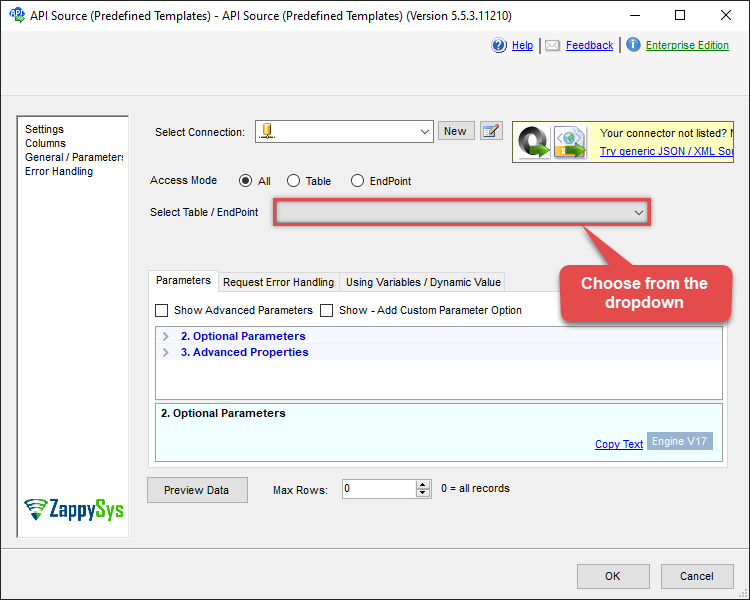
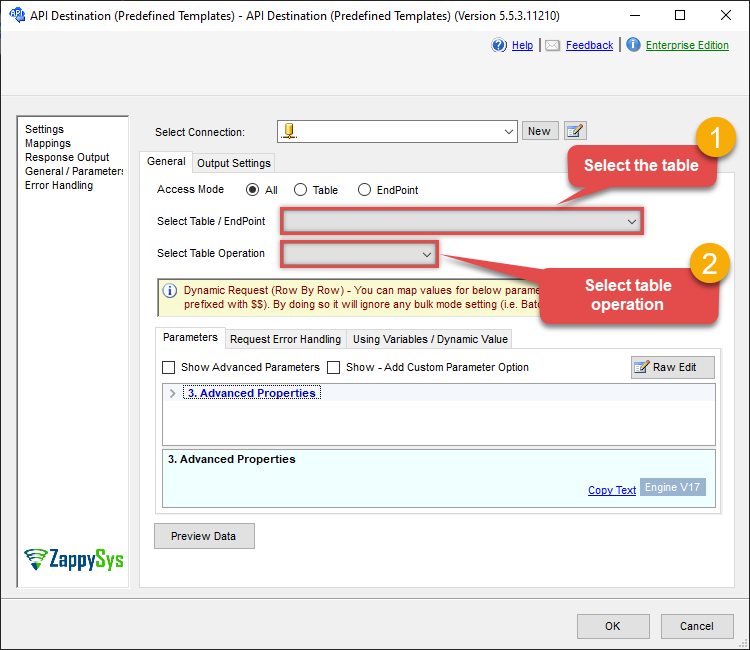
Use Zendesk Connector in API Source component to read data or in API Destination component to read/write data:
Read from Tickets (Row by Row) table using API Source

| Optional Parameters | |
|---|---|
| Sort By | |
| Sort Order | |
| Extra Columns to Include | |
| External ID for Ticket | |
| NextUrlAttributeOrExpr | $.links.next |
| Records Per Page (Max 100) | 100 |
| NextUrlEndIndicator | false |
| StopIndicatorAttributeOrExpr | $.meta.has_more |
Read/write to Tickets (Row by Row) table using API Destination
| Optional Parameters | |
|---|---|
| Sort By | |
| Sort Order | |
| Extra Columns to Include | |
| External ID for Ticket | |
| NextUrlAttributeOrExpr | $.links.next |
| Records Per Page (Max 100) | 100 |
| NextUrlEndIndicator | false |
| StopIndicatorAttributeOrExpr | $.meta.has_more |
ODBC application
Use these SQL queries in your ODBC application data source:
Read tickets
<p>Reads all tickets from the Zendesk account. This example demonstrates a basic SELECT query to retrieve a complete list of tickets from the <code>Tickets</code> table.</p>
SELECT * FROM TicketsRead a ticket by ID
<p>Reads a single ticket by its ID. This example demonstrates how to filter the <code>Tickets</code> table using the <code>WHERE</code> clause to retrieve a specific ticket.</p>
SELECT * from Tickets
WHERE ID=104861
Create a ticket
<p>Creates a new ticket in the <code>Tickets</code> table. This example demonstrates how to use the <code>INSERT INTO</code> statement to specify ticket details such as subject, status, assignee, and custom fields.</p>
INSERT INTO Tickets(
	subject
	,status
	,assignee_id
	,comment_body_html --(for html body)
	--,comment_body (for plain text)
	,comment_public
	,tags
	,custom_fields)
VALUES(
  'Test Ticket Subject - From email'
, 'new' --new, solved, closed
, 18590685428 --assign to agent id
, 'This is <b>html body</b>' --markup also supported
, 1 --1=public, 0=private
, '["tag1","tag2"]'
  --below json can be obtained using select custom_fields from tickets where id=1234
, '[
  {
    "id": 56608448,
    "value": "1122"
  },
  {
    "id": 57385967,
    "value": "ORD-12345"
  }
]'
)
Create a ticket on behalf of user
<p>Creates a ticket on behalf of a user specified by email and name. If the user does not exist, a new user is created. This example demonstrates setting <code>requester_email</code> and <code>requester_name</code> in the <code>INSERT INTO</code> statement.</p>
INSERT INTO Tickets(
	subject
	,status
	,requester_email
	,requester_name
	,assignee_id
	--,group_id --or assign to group
	,comment_body_html --(for html body)
	--,comment_body (for plain text)
	,comment_public
	,tags
	,custom_fields)
VALUES(
  'Test Ticket Subject - From email'
, 'new' --new, solved, closed
, 'fromsomeuser@abc.com' --from email
, 'Bob Smith' --submitter name needed if its new user
, 18590685428 --assign to agent id
--,123435454 --or use group id if not assignee
, 'This is <b>html body</b>' --markup also supported
--, 'This is plain text'
, 1 --1=public, 0=private
, '["tag1","tag2"]'
  --below json can be obtained using select custom_fields from tickets where id=1234
, '[
  {
    "id": 56608448,
    "value": "1122"
  },
  {
    "id": 57385967,
    "value": "ORD-12345"
  }
]'
)
Delete a ticket
<p>Deletes a single ticket by its ID. This example demonstrates using the <code>DELETE FROM</code> statement with a <code>WHERE</code> clause specifying the ticket ID.</p>
DELETE FROM Tickets WHERE Id=111Update a ticket
<p>Updates an existing ticket by its ID. This example demonstrates modifying fields such as subject, tags, status, and custom fields using the <code>UPDATE</code> statement.</p>
Update Tickets
SET subject='Test ticket subject'
  , tags='["tag1","tag2"]'
  --, additional_tags ='["tag1","tag2"]' --tags you like to remove
  --, remove tags='["tag1","tag2"]'
  , status='pending' --new, solved, closed
  --below json can be obtained using select custom_fields from tickets where id=1234
  , custom_fields='[
  {
    "id": 10000,
    "value": "some value for prop1"
  },
  {
    "id": 10001,
    "value": "some value for prop2"
  }
]'
Where Id = 1234
Update ticket with private comment
<p>Adds a private comment to an existing ticket and updates its status. This example demonstrates setting <code>comment_body</code>, <code>comment_public</code>, and <code>status</code> in the <code>UPDATE</code> statement.</p>
Update Tickets
SET comment_body='Closing this ticket'
  , comment_public = 0 --or 1
  , status='solved' --pending, new, closed
  --, comment_body_html='Closing <b>this</b> ticket'
  --, comment_author_id=123545
Where Id = 1234
Update ticket with HTML comment
<p>Adds an HTML-formatted comment to an existing ticket and updates its status. This example demonstrates setting <code>comment_body_html</code> in the <code>UPDATE</code> statement.</p>
Update Tickets
SET comment_body_html='Closing <b>this</b> ticket'
  , status='solved' --pending, new, closed
  --, comment_author_id=123545
  --, comment_public = 0 --or 1
Where Id = 1234
Create a ticket using raw JSON
<p>Creates a new ticket by supplying the raw JSON body directly. This example demonstrates using the <code>_rawdoc_</code> column to pass the full JSON payload for ticket creation.</p>
INSERT INTO Tickets(_rawdoc_)
VALUES(
  '{
      "subject": "Test ticket #1",
      "comment": {
        "body": "Test ticket #1"
      },
      "priority": "urgent"
    }'
)
Update a ticket using raw JSON
<p>Updates an existing ticket by supplying the raw JSON body. This example demonstrates using the <code>_rawdoc_</code> column in the <code>UPDATE</code> statement to pass the JSON payload.</p>
UPDATE Tickets
SET _rawdoc_ =
  '{
      "subject": "Test ticket #1",
      "comment": {
        "body": "Test ticket #1"
      },
      "priority": "urgent"
    }'
WHERE Id=1234
SQL Server
Use these SQL queries in SQL Server after you create a data source in Data Gateway:
Read tickets
<p>Reads all tickets from the Zendesk account. This example demonstrates a basic SELECT query to retrieve a complete list of tickets from the <code>Tickets</code> table.</p>
DECLARE @MyQuery NVARCHAR(MAX) = 'SELECT * FROM Tickets';

EXEC (@MyQuery) AT [LS_TO_ZENDESK_IN_GATEWAY];
Read a ticket by ID
<p>Reads a single ticket by its ID. This example demonstrates how to filter the <code>Tickets</code> table using the <code>WHERE</code> clause to retrieve a specific ticket.</p>
DECLARE @MyQuery NVARCHAR(MAX) = 'SELECT * from Tickets
WHERE ID=104861';

EXEC (@MyQuery) AT [LS_TO_ZENDESK_IN_GATEWAY];
Create a ticket
<p>Creates a new ticket in the <code>Tickets</code> table. This example demonstrates how to use the <code>INSERT INTO</code> statement to specify ticket details such as subject, status, assignee, and custom fields.</p>
DECLARE @MyQuery NVARCHAR(MAX) = 'INSERT INTO Tickets(
	subject
	,status
	,assignee_id
	,comment_body_html --(for html body)
	--,comment_body (for plain text)
	,comment_public
	,tags
	,custom_fields)
VALUES(
  ''Test Ticket Subject - From email''
, ''new'' --new, solved, closed
, 18590685428 --assign to agent id
, ''This is <b>html body</b>'' --markup also supported
, 1 --1=public, 0=private
, ''["tag1","tag2"]''
  --below json can be obtained using select custom_fields from tickets where id=1234
, ''[
  {
    "id": 56608448,
    "value": "1122"
  },
  {
    "id": 57385967,
    "value": "ORD-12345"
  }
]''
)';

EXEC (@MyQuery) AT [LS_TO_ZENDESK_IN_GATEWAY];
Create a ticket on behalf of user
<p>Creates a ticket on behalf of a user specified by email and name. If the user does not exist, a new user is created. This example demonstrates setting <code>requester_email</code> and <code>requester_name</code> in the <code>INSERT INTO</code> statement.</p>
DECLARE @MyQuery NVARCHAR(MAX) = 'INSERT INTO Tickets(
	subject
	,status
	,requester_email
	,requester_name
	,assignee_id
	--,group_id --or assign to group
	,comment_body_html --(for html body)
	--,comment_body (for plain text)
	,comment_public
	,tags
	,custom_fields)
VALUES(
  ''Test Ticket Subject - From email''
, ''new'' --new, solved, closed
, ''fromsomeuser@abc.com'' --from email
, ''Bob Smith'' --submitter name needed if its new user
, 18590685428 --assign to agent id
--,123435454 --or use group id if not assignee
, ''This is <b>html body</b>'' --markup also supported
--, ''This is plain text''
, 1 --1=public, 0=private
, ''["tag1","tag2"]''
  --below json can be obtained using select custom_fields from tickets where id=1234
, ''[
  {
    "id": 56608448,
    "value": "1122"
  },
  {
    "id": 57385967,
    "value": "ORD-12345"
  }
]''
)';

EXEC (@MyQuery) AT [LS_TO_ZENDESK_IN_GATEWAY];
Delete a ticket
<p>Deletes a single ticket by its ID. This example demonstrates using the <code>DELETE FROM</code> statement with a <code>WHERE</code> clause specifying the ticket ID.</p>
DECLARE @MyQuery NVARCHAR(MAX) = 'DELETE FROM Tickets WHERE Id=111';

EXEC (@MyQuery) AT [LS_TO_ZENDESK_IN_GATEWAY];
Update a ticket
<p>Updates an existing ticket by its ID. This example demonstrates modifying fields such as subject, tags, status, and custom fields using the <code>UPDATE</code> statement.</p>
DECLARE @MyQuery NVARCHAR(MAX) = 'Update Tickets
SET subject=''Test ticket subject''
  , tags=''["tag1","tag2"]''
  --, additional_tags =''["tag1","tag2"]'' --tags you like to remove
  --, remove tags=''["tag1","tag2"]''
  , status=''pending'' --new, solved, closed
  --below json can be obtained using select custom_fields from tickets where id=1234
  , custom_fields=''[
  {
    "id": 10000,
    "value": "some value for prop1"
  },
  {
    "id": 10001,
    "value": "some value for prop2"
  }
]''
Where Id = 1234';

EXEC (@MyQuery) AT [LS_TO_ZENDESK_IN_GATEWAY];
Update ticket with private comment
<p>Adds a private comment to an existing ticket and updates its status. This example demonstrates setting <code>comment_body</code>, <code>comment_public</code>, and <code>status</code> in the <code>UPDATE</code> statement.</p>
DECLARE @MyQuery NVARCHAR(MAX) = 'Update Tickets
SET comment_body=''Closing this ticket''
  , comment_public = 0 --or 1
  , status=''solved'' --pending, new, closed
  --, comment_body_html=''Closing <b>this</b> ticket''
  --, comment_author_id=123545
Where Id = 1234';

EXEC (@MyQuery) AT [LS_TO_ZENDESK_IN_GATEWAY];
Update ticket with HTML comment
<p>Adds an HTML-formatted comment to an existing ticket and updates its status. This example demonstrates setting <code>comment_body_html</code> in the <code>UPDATE</code> statement.</p>
DECLARE @MyQuery NVARCHAR(MAX) = 'Update Tickets
SET comment_body_html=''Closing <b>this</b> ticket''
  , status=''solved'' --pending, new, closed
  --, comment_author_id=123545
  --, comment_public = 0 --or 1
Where Id = 1234';

EXEC (@MyQuery) AT [LS_TO_ZENDESK_IN_GATEWAY];
Create a ticket using raw JSON
<p>Creates a new ticket by supplying the raw JSON body directly. This example demonstrates using the <code>_rawdoc_</code> column to pass the full JSON payload for ticket creation.</p>
DECLARE @MyQuery NVARCHAR(MAX) = 'INSERT INTO Tickets(_rawdoc_)
VALUES(
  ''{
      "subject": "Test ticket #1",
      "comment": {
        "body": "Test ticket #1"
      },
      "priority": "urgent"
    }''
)';

EXEC (@MyQuery) AT [LS_TO_ZENDESK_IN_GATEWAY];
Update a ticket using raw JSON
<p>Updates an existing ticket by supplying the raw JSON body. This example demonstrates using the <code>_rawdoc_</code> column in the <code>UPDATE</code> statement to pass the JSON payload.</p>
DECLARE @MyQuery NVARCHAR(MAX) = 'UPDATE Tickets
SET _rawdoc_ =
  ''{
      "subject": "Test ticket #1",
      "comment": {
        "body": "Test ticket #1"
      },
      "priority": "urgent"
    }''
WHERE Id=1234';

EXEC (@MyQuery) AT [LS_TO_ZENDESK_IN_GATEWAY];