Salesforce Connector for MS Access How to Make Generic API Request (Bulk Write)
Introduction
In this article we will delve deeper into Salesforce and MS Access integration, and will learn how to make generic api request (bulk write). We are continuing from where we left off. By this time, you must have installed ODBC PowerPack, created ODBC Data Source, and configured authentication settings in your Salesforce account .
So, let's not waste time and begin.
Use Query Builder to generate SQL query
-
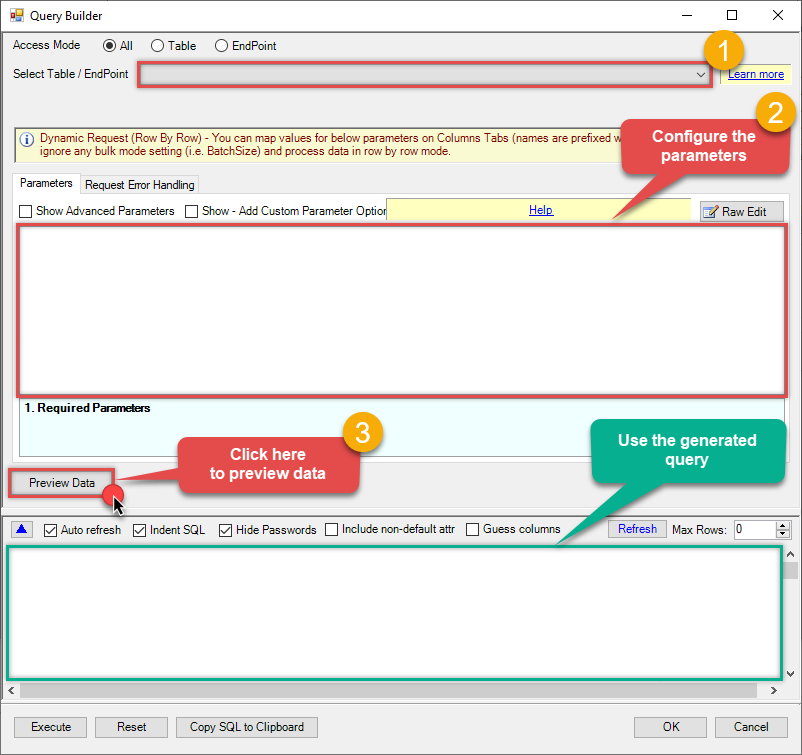
The first thing you have to do is open Query Builder:
 ZappySys API Driver - SalesforceAmazon Ads Connector can be used to get Amazon advertisements using Amazon Advertisements API, download various advertisement-related reports.SalesforceDSN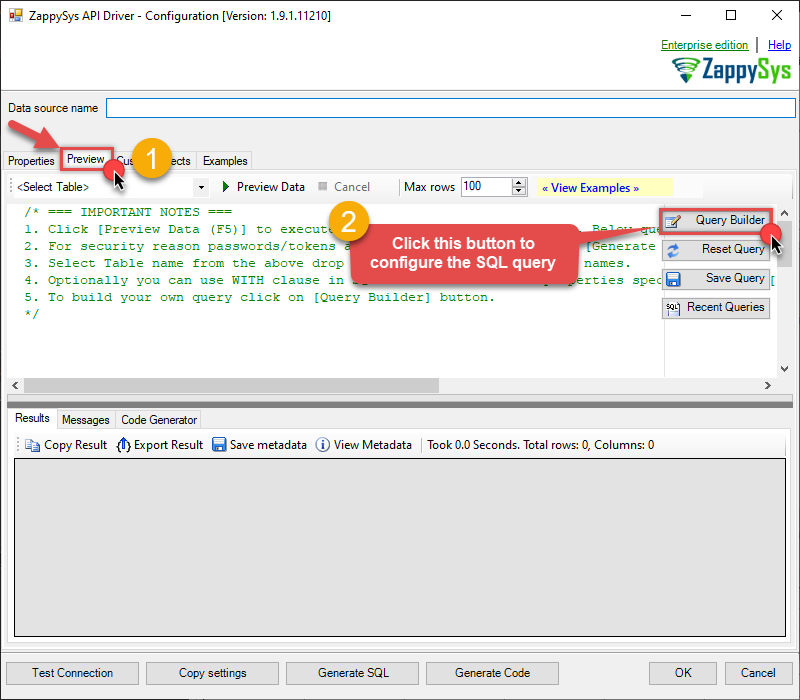
-
Then simply select the Make Generic API Request (Bulk Write) endpoint (action).
-
Continue by configuring the Required parameters. You can also set optional parameters too.
-
Move on by hitting Preview Data button to preview the results.
-
If you see the results you need, simply copy the generated query:
-
That's it! You can use this query in MS Access.
Let's not stop here and explore SQL query examples, including how to use them in Stored Procedures and Views (virtual tables) in the next steps.
SQL query examples
Use these SQL queries in your MS Access data source:
How to Make generic api request
SELECT * FROM __DynamicRequest__
WITH
(
    "Url" = '/something/123',
    "RequestMethod" = 'POST'
)
generic_request_bulk_write endpoint belongs to
__DynamicRequest__
table(s), and can therefore be used via those table(s).
Make Generic API Request (Bulk Write) in MS Access
-
First of all, open MS Access and create a new MS Access database.
-
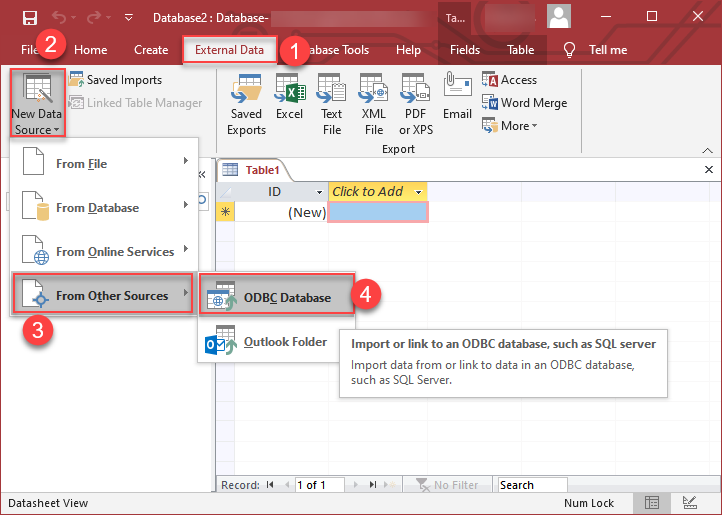
In the next step, start loading ODBC data source we created:
-
Then click next until data source selection window appears. Select the data source we created in one of the previous steps and hit OK:
SalesforceDSN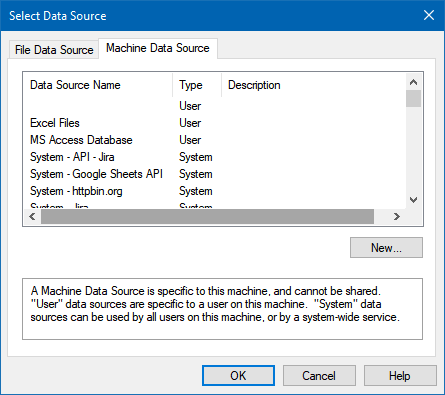
-
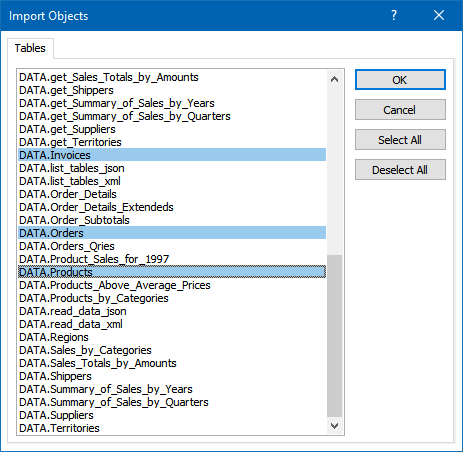
Continue with tables and views selection. You can extract multiple tables or views:
-
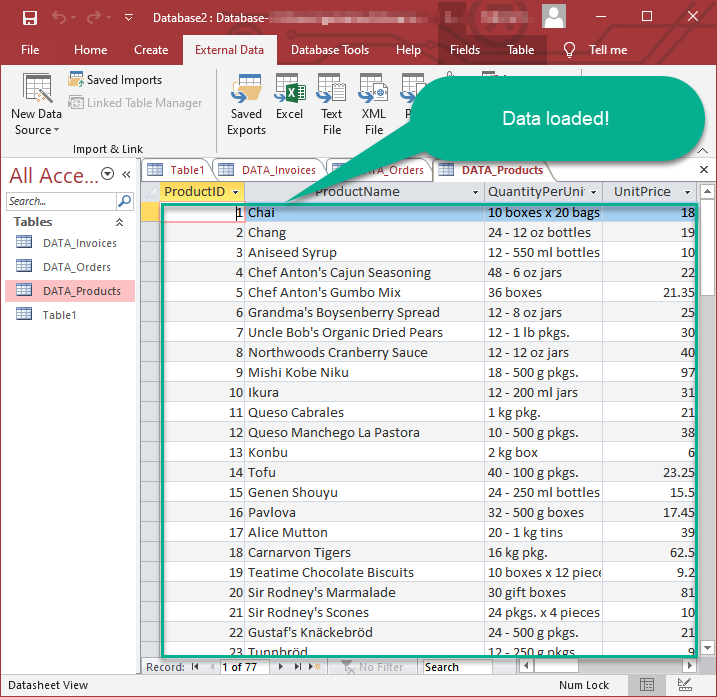
Finally, wait while data is being loaded and once done you should see a similar view:
More actions supported by Salesforce Connector
Learn how to perform other actions directly in MS Access with these how-to guides: