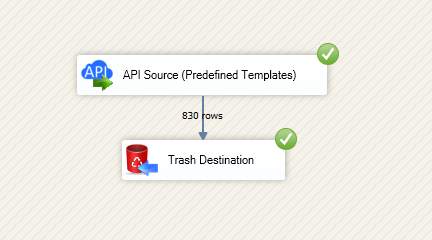
Now, we are ready to read data with the Hello-World Connector, which we created in the previous step, in SSIS:
Read data with Custom API Connector in an SSIS package
In this section we will learn how to configure and use Custom API Connector in API Source to extract data from Custom API.
-
Open Visual Studio and click Create a new project.
-
Select Integration Services Project. Enter a name and location for your project, then click OK.
-
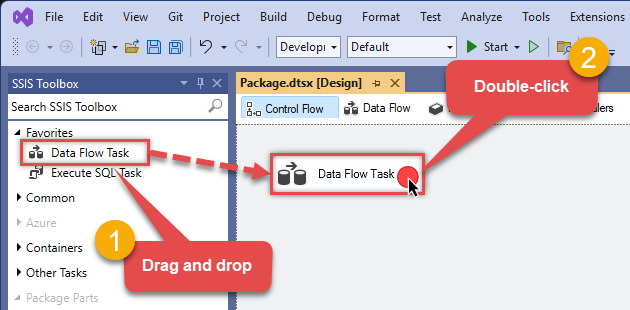
From the SSIS Toolbox, drag and drop a Data Flow Task onto the Control Flow surface, and double-click it:
-
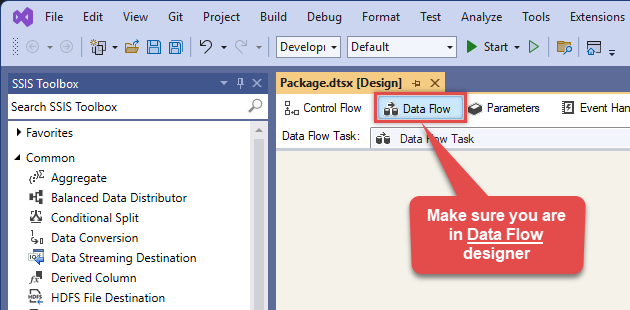
Make sure you are in the Data Flow Task designer:
-
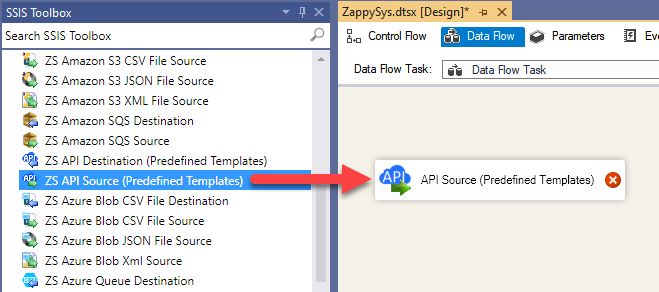
From the SSIS toolbox drag and API Source (Predefined Templates) on the data flow designer surface, and double click on it to edit it:
-
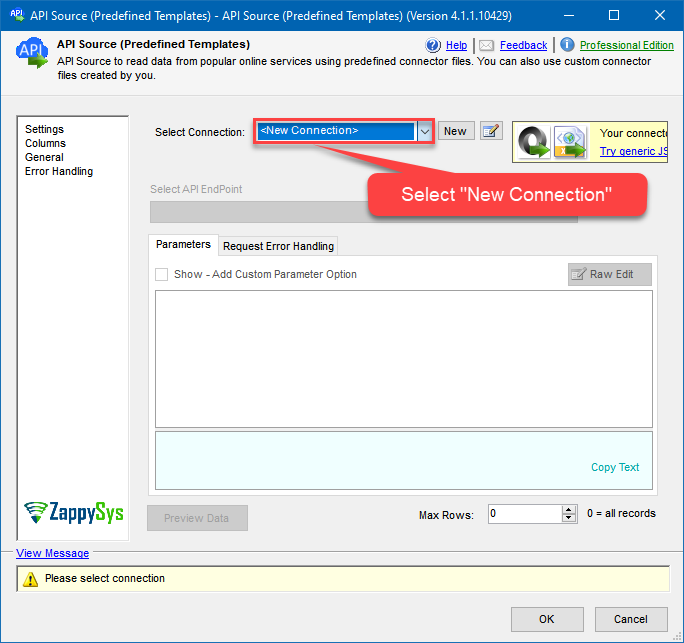
Select New Connection to create a new connection:
-
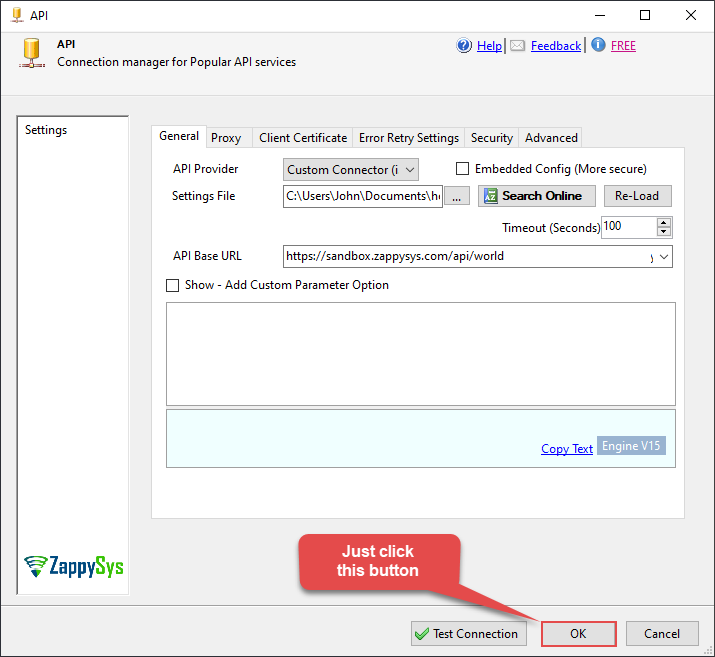
Once the next window opens, just click OK:
-
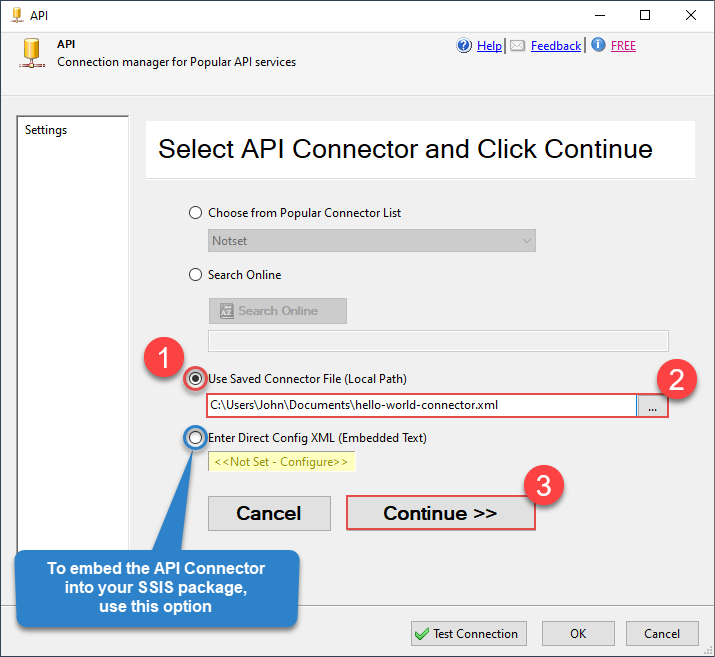
Then use the Hello-World Connector by selecting it from disk:
-
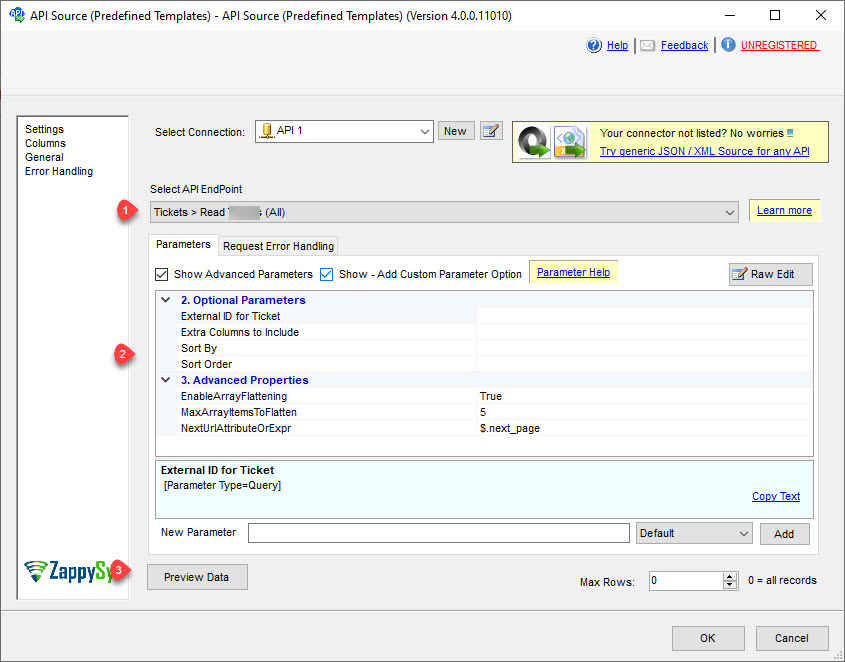
Select the desired endpoint, change/pass the properties values, and click on Preview Data button to make the API call.
API Source - Hello-World ConnectorRead / write Custom API data without coding.
-
That's it! We are done! Just in a few clicks we configured the call to Custom API using Custom API Connector.
You can load the source data into your desired destination using the Upsert Destination , which supports SQL Server, PostgreSQL, and Amazon Redshift. We also offer other destinations such as CSV , Excel , Azure Table , Salesforce , and more . You can check out our SSIS PowerPack Tasks and components for more options. (*loaded in Trash Destination)