Salesforce Connector for Azure Data Factory (Pipeline) How to Make Generic API Request

Introduction

In this article we will delve deeper into Salesforce and Azure Data Factory (Pipeline) integration, and will learn how to make generic api request. We are continuing from where we left off. By this time, you must have installed ODBC PowerPack, created ODBC Data Source, and configured authentication settings in your Salesforce account .

So, let's not waste time and begin.

Use Query Builder to generate SQL query

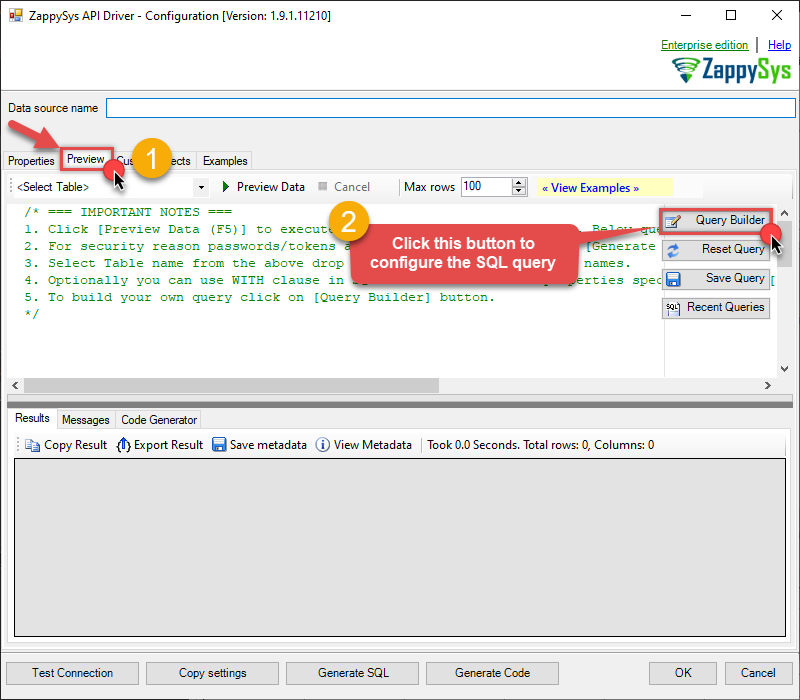
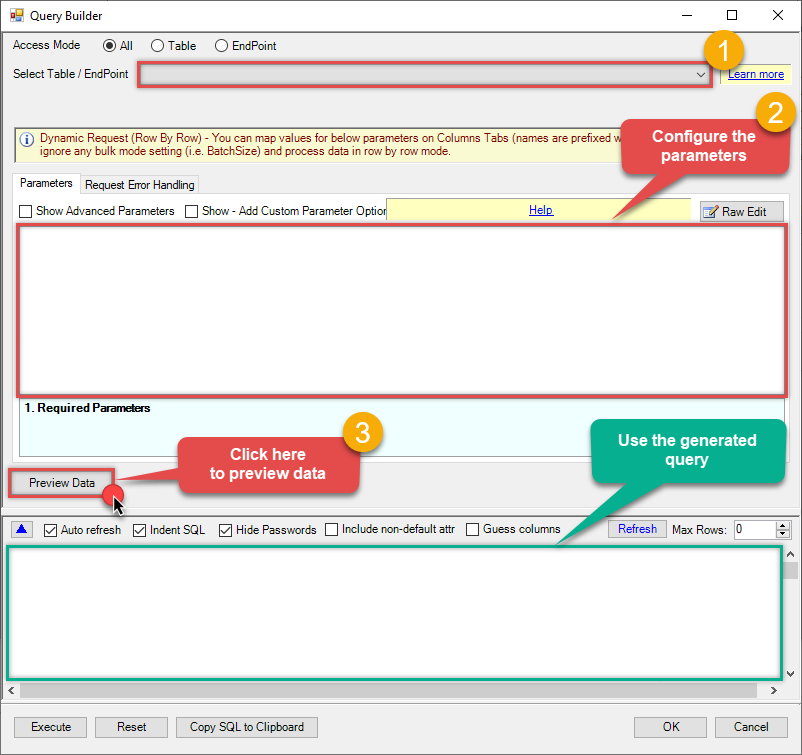
  1. The first thing you have to do is open Query Builder:

    ZappySys API Driver - Salesforce
    Amazon Ads Connector can be used to get Amazon advertisements using Amazon Advertisements API, download various advertisement-related reports.
    SalesforceDSN
    Open Query Builder in API ODBC Driver to read and write data to REST API
  2. Then simply select the Make Generic API Request endpoint (action).

  3. Continue by configuring the Required parameters. You can also set optional parameters too.

  4. Move on by hitting Preview Data button to preview the results.

  5. If you see the results you need, simply copy the generated query:
    Make Generic API Request
    Required Parameters
    HTTP - Url or File Path Select the value from the dropdown
    Optional Parameters
    HTTP - Request Body
    HTTP - Is MultiPart Body (Pass File data/Mixed Key/value)
    HTTP - Headers (e.g. hdr1:aaa || hdr2:bbb) Accept: */* || Cache-Control: no-cache
    Parser - Filter (e.g. $.rows[*] )
    Download - Enable reading binary data False
    Download - File overwrite mode AlwaysOverwrite
    Download - Save file path
    Download - Enable raw output mode as single row False
    Download - Raw output data RowTemplate {Status:'Downloaded'}
    Download - Request Timeout (Milliseconds)
    Advanced Properties
    HTTP - Request Method GET
    HTTP - Request Format (Content-Type) ApplicationJson
    Parser - Response Format (Default=Json) Default
    Parser - Encoding
    Parser - CharacterSet
    General - Enable Custom Search/Replace
    General - SearchFor (e.g. (\d)-(\d)--regex)
    General - ReplaceWith (e.g. $1-***)
    General - File Compression Type
    General - Date Format
    General - Enable Big Number Handling False
    General - Wait time (Ms) - Helps to slow down pagination (Use for throttling) 0
    JSON/XML - ExcludedProperties (e.g. meta,info)
    JSON/XML - Flatten Small Array (Not preferred for more than 10 items)
    JSON/XML - Max Array Items To Flatten 10
    JSON/XML - Array Transform Type
    JSON/XML - Array Transform Column Name Filter
    JSON/XML - Array Transform Row Value Filter
    JSON/XML - Array Transform Enable Custom Columns
    JSON/XML - Enable Pivot Transform
    JSON/XML - Array Transform Custom Columns
    JSON/XML - Pivot Path Replace With
    JSON/XML - Enable Pivot Path Search Replace False
    JSON/XML - Pivot Path Search For
    JSON/XML - Include Pivot Path False
    JSON/XML - Throw Error When No Match for Filter False
    JSON/XML - Parent Column Prefix
    JSON/XML - Include Parent When Child Null False
    Pagination - Mode
    Pagination - Attribute Name (e.g. page)
    Pagination - Increment By (e.g. 100) 1
    Pagination - Expression for Next URL (e.g. $.nextUrl)
    Pagination - Wait time after each request (milliseconds) 0
    Pagination - Max Rows Expr
    Pagination - Max Pages Expr
    Pagination - Max Rows DataPath Expr
    Pagination - Max Pages 0
    Pagination - End Rules
    Pagination - Next URL Suffix
    Pagination - Next URL End Indicator
    Pagination - Stop Indicator Expr
    Pagination - Current Page
    Pagination - End Strategy Type DetectBasedOnRecordCount
    Pagination - Stop based on this Response StatusCode
    Pagination - When EndStrategy Condition Equals True
    Pagination - Max Response Bytes 0
    Pagination - Min Response Bytes 0
    Pagination - Error String Match
    Pagination - Enable Page Token in Body False
    Pagination - Placeholders (e.g. {page})
    Pagination - Has Different NextPage Info False
    Pagination - First Page Body Part
    Pagination - Next Page Body Part
    Csv - Column Delimiter ,
    Csv - Has Header Row True
    Csv - Throw error when column count mismatch False
    Csv - Throw error when no record found False
    Csv - Allow comments (i.e. line starts with # treat as comment and skip line) False
    Csv - Comment Character #
    Csv - Skip rows 0
    Csv - Ignore Blank Lines True
    Csv - Skip Empty Records False
    Csv - Skip Header Comment Rows 0
    Csv - Trim Headers False
    Csv - Trim Fields False
    Csv - Ignore Quotes False
    Csv - Treat Any Blank Value As Null False
    Xml - ElementsToTreatAsArray
    SELECT * FROM __DynamicRequest__
    Query Builder
  6. That's it! You can use this query in Azure Data Factory (Pipeline).

Let's not stop here and explore SQL query examples, including how to use them in Stored Procedures and Views (virtual tables) in the next steps.

SQL query examples

Use these SQL queries in your Azure Data Factory (Pipeline) data source:

How to Get __DynamicRequest__

SELECT * FROM __DynamicRequest__

generic_request endpoint belongs to __DynamicRequest__ table(s), and can therefore be used via those table(s).

Make Generic API Request in Azure Data Factory (Pipeline)

  1. Sign in to Azure Portal

    • Open your browser and go to: https://portal.azure.com

    • Enter your Azure credentials and complete MFA if required.

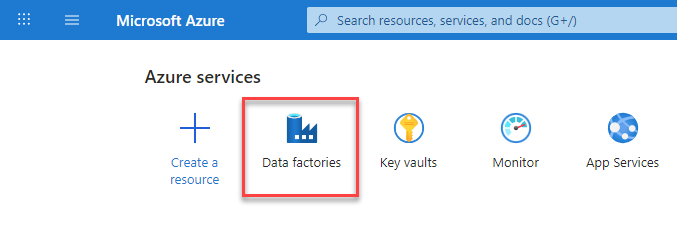
    • After login, go to Data factories.

    Azure Portal
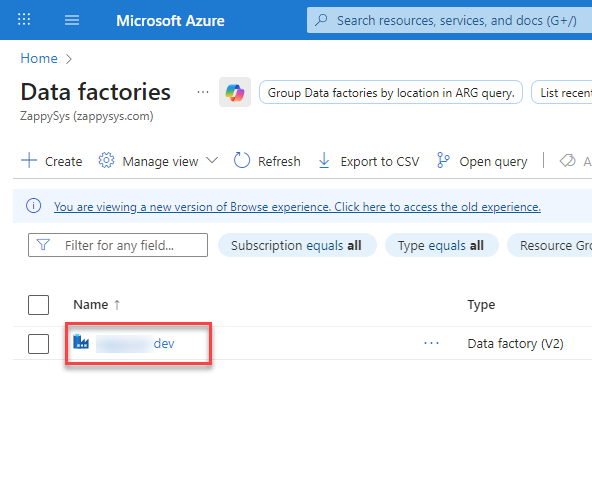
  2. Under Azure Data Factory Resource - Create or select the Data Factory you want to work with.
    Select the Data Factory
  3. Inside the Data Factory resource page, click Launch studio.
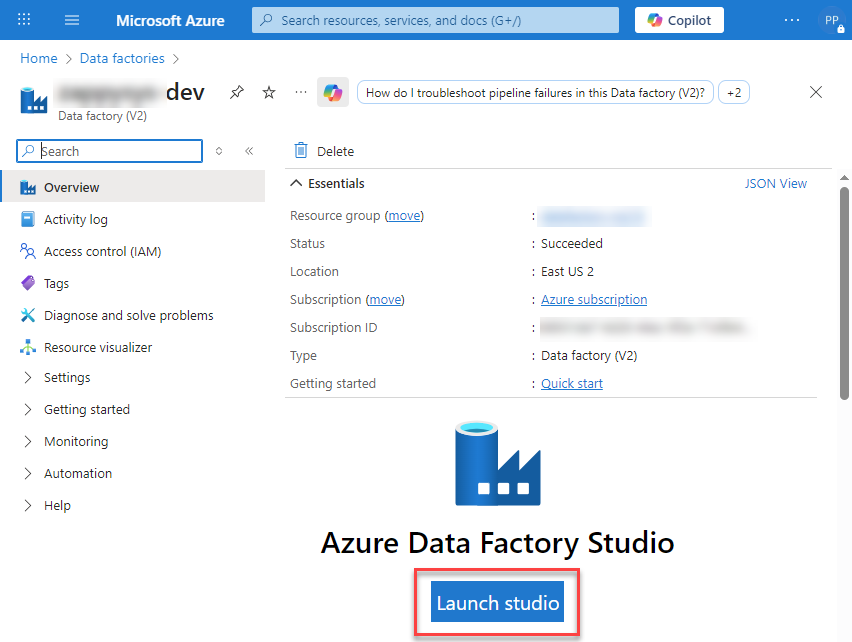
    Launch Azure Data Factory Studio
  4. Create a New Linked service:

    • In the Manage section (left menu).

    • Under Connections, select Linked services.

    • Click + New to create a new Linked service based on ODBC.
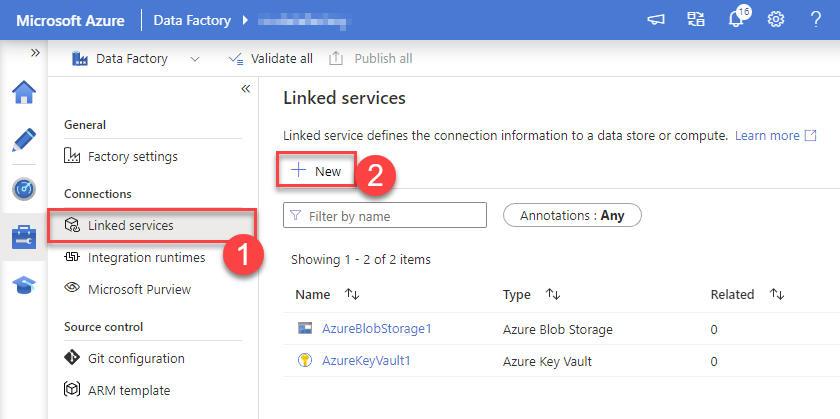
    Add new Linked service
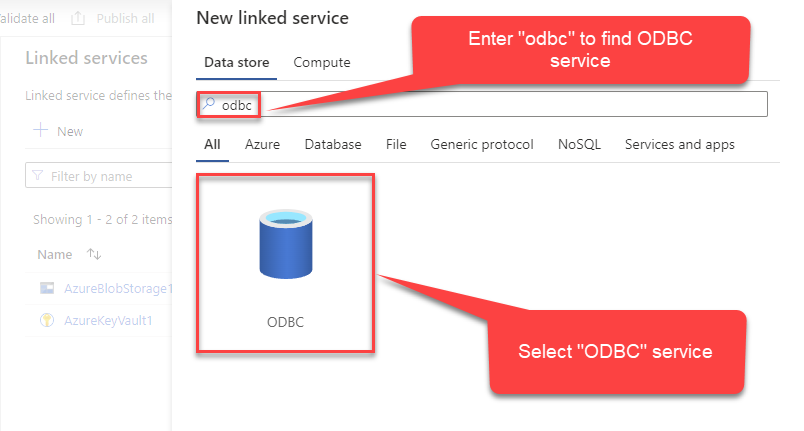
  5. Select ODBC service:

    Add new ODBC service
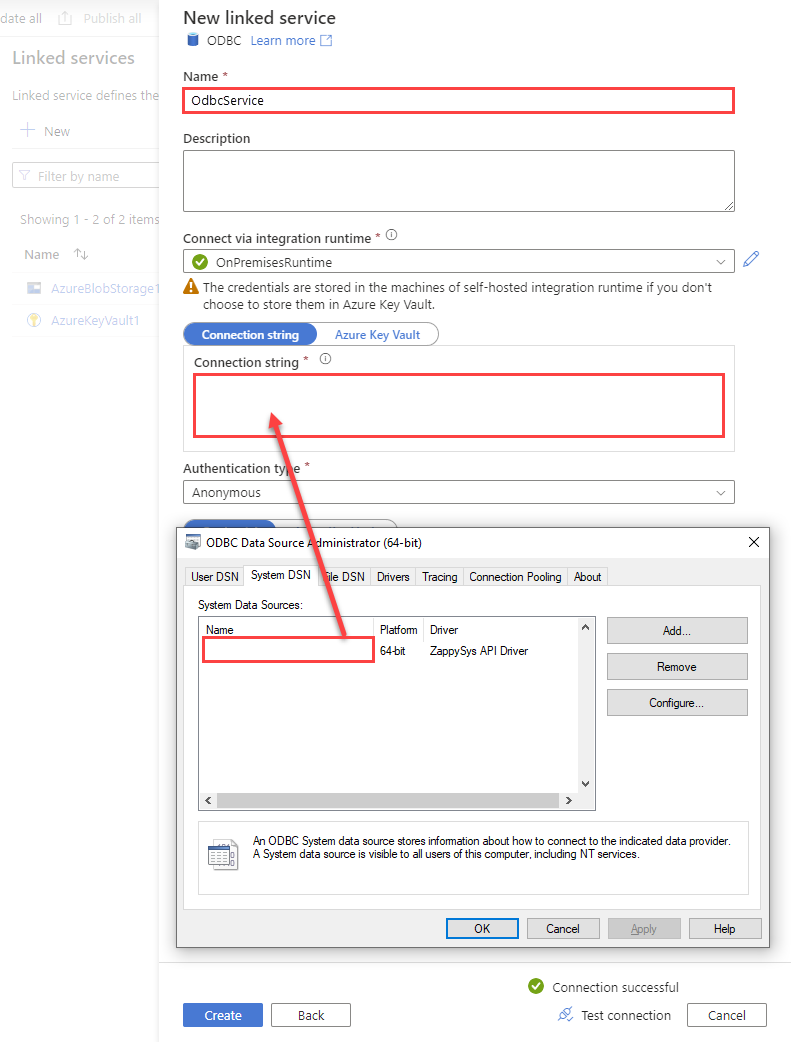
  6. Configure new ODBC service. Use the same DSN name we used in the previous step and copy it to Connection string box:

    SalesforceDSN
    DSN=SalesforceDSN
    Configure new ODBC service
  7. For created ODBC service create ODBC-based dataset:
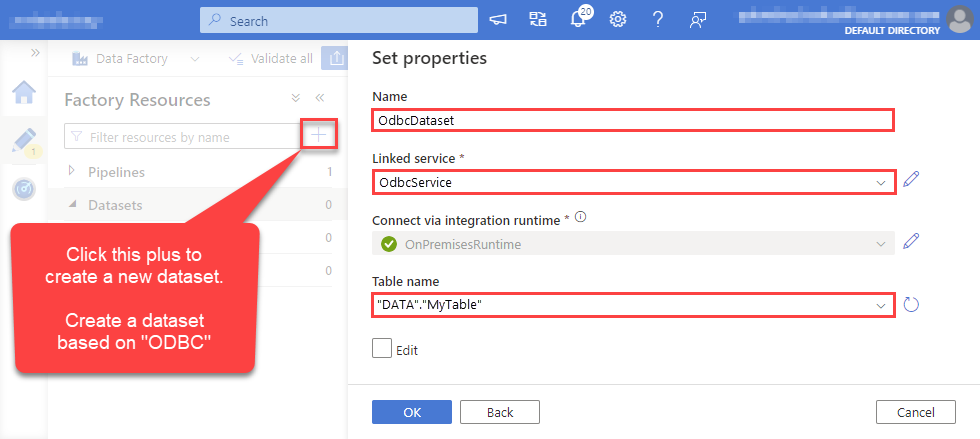
    Add new ODBC dataset
  8. Go to your pipeline and add Copy data connector into the flow. In Source section use OdbcDataset we created as a source dataset:
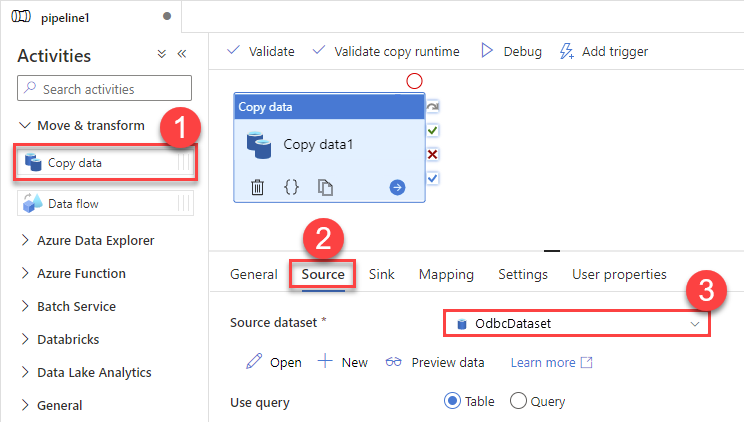
    Set source in Copy data
  9. Then go to Sink section and select a destination/sink dataset. In this example we use precreated AzureBlobStorageDataset which saves data into an Azure Blob:
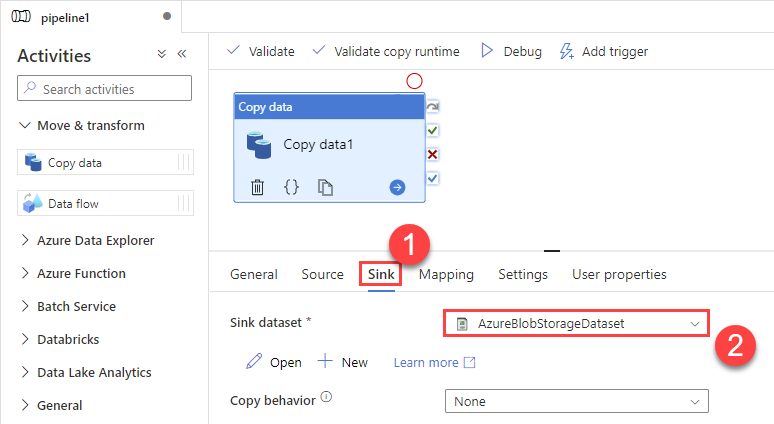
    Set sink in Copy data
  10. Finally, run the pipeline and see data being transferred from OdbcDataset to your destination dataset:
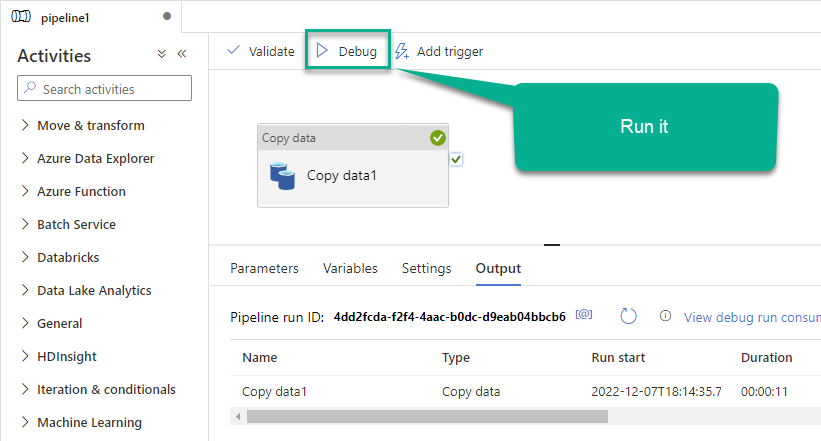
    Run the flow

More actions supported by Salesforce Connector

Learn how to perform other actions directly in Azure Data Factory (Pipeline) with these how-to guides:

More integrations

All
Data Integration
Database
BI & Reporting
Productivity
Programming Languages
Automation & Scripting
ODBC applications