

Table [Dynamic Table]
Description
No description available
Supported Operations
Below section contains supported CRUD operations. Each operation is executed by some EndPoint behind the scene.| Method | Supported | Reference EndPoint |
|---|---|---|
| SELECT | get_documents | |
| INSERT | create_document | |
| UPDATE | update_document | |
| UPSERT | upsert_document | |
| DELETE | delete_document | |
| LOOKUP | get_document |
Examples
SSIS
Use Cosmos DB Connector in API Source component to read data or in API Destination component to read/write data:
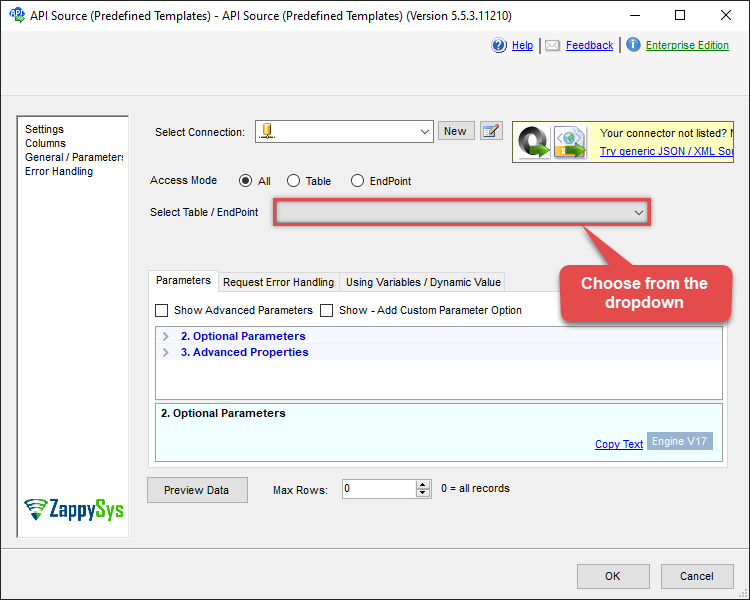
Read from [Dynamic Table] table using API Source

| Required Parameters | |
|---|---|
| Table Name (Case-Sensitive) | Fill-in the parameter... |
| Optional Parameters | |
| Database Name (keep blank to use default) Case-Sensitive | |
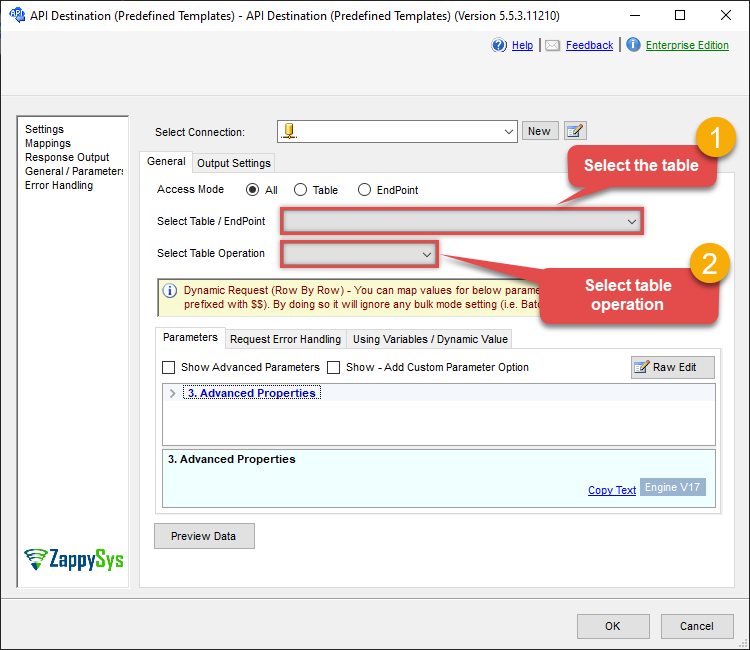
Read/write to [Dynamic Table] table using API Destination
| Required Parameters | |
|---|---|
| Table Name (Case-Sensitive) | Fill-in the parameter... |
| Optional Parameters | |
| Database Name (keep blank to use default) Case-Sensitive | |
ODBC application
Use these SQL queries in your ODBC application data source:
Query documents (default container)
<p>Runs a Cosmos DB SQL query against the default container from the connection settings. Use the <code>#DirectSQL</code> prefix so the query is sent as-is; <code>root</code> refers to the container. Filter and order as needed (e.g. by <code>root._ts</code> for last-updated).</p><p>For query syntax see <a href="https://learn.microsoft.com/en-us/azure/cosmos-db/nosql/query/select">Cosmos DB SQL query reference</a>.</p>
#DirectSQL SELECT * FROM root where root.id !=null order by root._ts descList all documents in a container
<p>Returns all documents in the specified container (table). Use the container name as the table in the <code>FROM</code> clause; the default database and container from the connection are used unless you override with <code>WITH</code>. Use for small containers or when you need a full dump; for large data sets consider a query with a filter.</p>
SELECT * FROM TestContainerGet document by ID
<p>Returns a single document by its <code>id</code>. Filter with a <code>WHERE</code> clause on <code>Id</code>; the container must be the one from the connection or specified in <code>WITH</code>. For partitioned containers, partition key is inferred from the document when possible, or you can supply it in <code>WITH</code>.</p>
SELECT * FROM TestContainer Where Id='user2'Create document with partition key
<p>Inserts a new document into the container. If the container has a partition key, supply it in the <code>PartitionKey</code> column as a JSON array (e.g. ["user2"]). The value must match the document attribute used as the partition key. The <code>Document</code> column holds the full JSON body. Use the <code>Upsert</code> option in <code>WITH</code> to update if a document with the same <code>id</code> already exists.</p>
INSERT INTO TestContainer (PartitionKey, Document)
VALUES(
'["user2"]', --partition key value must match its attribute from document else it will throw error. In this example container PartitionKey is /id so we used its value. For multiple key use JSON array ["val1","val2"]
'{
  "id": "user2",
  "name": "John Doe",
  "email": "jdoe@contoso.com",
  "phone": ["12345"],
  "level": "platinum"
}'
)
WITH(Upsert='true')
Create document from file path
<p>Inserts a document whose JSON body is read from a local file. The file path must start with the <code>@</code> symbol (e.g. @c:\data\order.json). Set <code>IsMultiPart=1</code> in <code>WITH</code> so the driver reads from disk. Partition key rules are the same as for inline document insert.</p>
INSERT INTO TestContainer (PartitionKey, Document)
VALUES(
'["user2"]', --partition key value must match its attribute from document else it will throw error. In this example container PartitionKey is /id so we used its value. For multiple key use JSON array ["val1","val2"]
'@c:\data\order.json'   --path must start with @ symbol
)
WITH(Upsert='true', IsMultiPart=1)
Upsert document (insert or update if exists)
<p>Inserts the document or updates it if a document with the same <code>id</code> already exists. Use the <code>Upsert</code> option in <code>WITH</code> on <code>INSERT</code> to enable upsert. Handy for sync or idempotent loads where you do not want to fail on duplicate id.</p>
INSERT INTO TestContainer (PartitionKey, Document)
VALUES(
'["user2"]', --partition key value must match its attribute from document else it will throw error. In this example container PartitionKey is /id so we used its value. For multiple key use JSON array ["val1","val2"]
'{
  "id": "user2",
  "name": "John Doe",
  "email": "jdoe@contoso.com",
  "phone": ["12345"],
  "level": "platinum"
}')
 WITH(Upsert='true')
Upsert document using UPSERT keyword
<p>Same as upsert with <code>INSERT</code> and the <code>Upsert</code> option in <code>WITH</code>, but uses the <code>UPSERT INTO</code> syntax so you do not need the <code>WITH</code> clause. Use whichever style you prefer; behavior is the same.</p>
UPSERT INTO TestContainer (PartitionKey, Document)
VALUES(
'["user2"]', --partition key value must match its attribute from document else it will throw error. In this example container PartitionKey is /id so we used its value. For multiple key use JSON array ["val1","val2"]
'{
  "id": "user2",
  "name": "John Doe",
  "email": "jdoe@contoso.com",
  "phone": ["12345"],
  "level": "platinum"
}')
Update document (full replace)
<p>Replaces the entire document for the given <code>Id</code>. Set <code>PartitionKey</code> and <code>Document</code> to the full JSON body. The default request method is PUT (full replace). Use this when you want to overwrite the document completely; for changing only some fields use the partial update (PATCH) example.</p>
UPDATE TestContainer
SET
 PartitionKey='["user2"]'
,Document=
'{
  "id" : "user2",
  "name": "John Doe at <<FUN_NOW>>",
  "email": "jdoe@contoso.com",
  "phone": ["<<FUN_TODAY>>"],
  "level": "platinum"
}'
Where Id='user2'
Partial update document (PATCH)
<p>Updates only specified attributes using the PATCH method. Set <code>RequestMethod</code> to PATCH in <code>WITH</code> and supply a <code>Document</code> body with a JSON Patch <code>operations</code> array (e.g. set, add, remove, incr, move). Use when you need to change a few fields without sending the full document.</p><p>For operations and syntax see <a href="https://learn.microsoft.com/en-us/azure/cosmos-db/partial-document-update">partial document update</a> and <a href="https://learn.microsoft.com/en-us/rest/api/cosmos-db/patch-a-document">REST API</a>.</p>
UPDATE TestContainer
SET
 PartitionKey='["user2"]'
,Document=
'{
  "operations": [
     { "op": "set", "path": "/name", "value": "updated name" }
	,{ "op": "set", "path": "/email", "value": "updated@email.com" }
  ]
}'
Where Id='user2'
WITH(
		RequestMethod='PATCH' --Partial Replace (change name and email only)
    )

/*
Example Document Operations
https://learn.microsoft.com/en-us/azure/cosmos-db/partial-document-update
https://learn.microsoft.com/en-us/rest/api/cosmos-db/patch-a-document

[
  { "op": "add", "path": "/color", "value": "silver" },
  { "op": "remove", "path": "/used" },
  { "op": "set", "path": "/price", "value": 355.45 }
  { "op": "incr", "path": "/inventory/quantity", "value": 10 },
  { "op": "add", "path": "/tags/-", "value": "featured-bikes" },
  { "op": "move", "from": "/color", "path": "/inventory/color" }
]

*/
Partial update document (PATCH) from file
<p>Same as partial update (PATCH) but the JSON Patch operations are read from a local file. The path must start with the <code>@</code> symbol; set <code>IsMultiPart=1</code> in <code>WITH</code> to enable file upload. Useful when the patch payload is large or generated externally.</p><p>For operations and syntax see <a href="https://learn.microsoft.com/en-us/azure/cosmos-db/partial-document-update">partial document update</a> and <a href="https://learn.microsoft.com/en-us/rest/api/cosmos-db/patch-a-document">REST API</a>.</p>
UPDATE TestContainer
SET
 PartitionKey='["user2"]'
,Document='@c:\temp\b.txt'  --path must start with @ symbol
Where Id='user2'
WITH(
		 RequestMethod='PATCH' --Partial Replace (change name and email only)
	    ,IsMultiPart=1 --this enables file upload
    )

/*
Example Document Operations
https://learn.microsoft.com/en-us/azure/cosmos-db/partial-document-update
https://learn.microsoft.com/en-us/rest/api/cosmos-db/patch-a-document

[
  { "op": "add", "path": "/color", "value": "silver" },
  { "op": "remove", "path": "/used" },
  { "op": "set", "path": "/price", "value": 355.45 }
  { "op": "incr", "path": "/inventory/quantity", "value": 10 },
  { "op": "add", "path": "/tags/-", "value": "featured-bikes" },
  { "op": "move", "from": "/color", "path": "/inventory/color" }
]

*/
SQL Server
Use these SQL queries in SQL Server after you create a data source in Data Gateway:
Query documents (default container)
<p>Runs a Cosmos DB SQL query against the default container from the connection settings. Use the <code>#DirectSQL</code> prefix so the query is sent as-is; <code>root</code> refers to the container. Filter and order as needed (e.g. by <code>root._ts</code> for last-updated).</p><p>For query syntax see <a href="https://learn.microsoft.com/en-us/azure/cosmos-db/nosql/query/select">Cosmos DB SQL query reference</a>.</p>
DECLARE @MyQuery NVARCHAR(MAX) = '#DirectSQL SELECT * FROM root where root.id !=null order by root._ts desc';

EXEC (@MyQuery) AT [LS_TO_COSMOS_DB_IN_GATEWAY];
List all documents in a container
<p>Returns all documents in the specified container (table). Use the container name as the table in the <code>FROM</code> clause; the default database and container from the connection are used unless you override with <code>WITH</code>. Use for small containers or when you need a full dump; for large data sets consider a query with a filter.</p>
DECLARE @MyQuery NVARCHAR(MAX) = 'SELECT * FROM TestContainer';

EXEC (@MyQuery) AT [LS_TO_COSMOS_DB_IN_GATEWAY];
Get document by ID
<p>Returns a single document by its <code>id</code>. Filter with a <code>WHERE</code> clause on <code>Id</code>; the container must be the one from the connection or specified in <code>WITH</code>. For partitioned containers, partition key is inferred from the document when possible, or you can supply it in <code>WITH</code>.</p>
DECLARE @MyQuery NVARCHAR(MAX) = 'SELECT * FROM TestContainer Where Id=''user2''';

EXEC (@MyQuery) AT [LS_TO_COSMOS_DB_IN_GATEWAY];
Create document with partition key
<p>Inserts a new document into the container. If the container has a partition key, supply it in the <code>PartitionKey</code> column as a JSON array (e.g. ["user2"]). The value must match the document attribute used as the partition key. The <code>Document</code> column holds the full JSON body. Use the <code>Upsert</code> option in <code>WITH</code> to update if a document with the same <code>id</code> already exists.</p>
DECLARE @MyQuery NVARCHAR(MAX) = 'INSERT INTO TestContainer (PartitionKey, Document)
VALUES(
''["user2"]'', --partition key value must match its attribute from document else it will throw error. In this example container PartitionKey is /id so we used its value. For multiple key use JSON array ["val1","val2"]
''{
  "id": "user2",
  "name": "John Doe",
  "email": "jdoe@contoso.com",
  "phone": ["12345"],
  "level": "platinum"
}''
)
WITH(Upsert=''true'')';

EXEC (@MyQuery) AT [LS_TO_COSMOS_DB_IN_GATEWAY];
Create document from file path
<p>Inserts a document whose JSON body is read from a local file. The file path must start with the <code>@</code> symbol (e.g. @c:\data\order.json). Set <code>IsMultiPart=1</code> in <code>WITH</code> so the driver reads from disk. Partition key rules are the same as for inline document insert.</p>
DECLARE @MyQuery NVARCHAR(MAX) = 'INSERT INTO TestContainer (PartitionKey, Document)
VALUES(
''["user2"]'', --partition key value must match its attribute from document else it will throw error. In this example container PartitionKey is /id so we used its value. For multiple key use JSON array ["val1","val2"]
''@c:\data\order.json''   --path must start with @ symbol
)
WITH(Upsert=''true'', IsMultiPart=1)';

EXEC (@MyQuery) AT [LS_TO_COSMOS_DB_IN_GATEWAY];
Upsert document (insert or update if exists)
<p>Inserts the document or updates it if a document with the same <code>id</code> already exists. Use the <code>Upsert</code> option in <code>WITH</code> on <code>INSERT</code> to enable upsert. Handy for sync or idempotent loads where you do not want to fail on duplicate id.</p>
DECLARE @MyQuery NVARCHAR(MAX) = 'INSERT INTO TestContainer (PartitionKey, Document)
VALUES(
''["user2"]'', --partition key value must match its attribute from document else it will throw error. In this example container PartitionKey is /id so we used its value. For multiple key use JSON array ["val1","val2"]
''{
  "id": "user2",
  "name": "John Doe",
  "email": "jdoe@contoso.com",
  "phone": ["12345"],
  "level": "platinum"
}'')
 WITH(Upsert=''true'')';

EXEC (@MyQuery) AT [LS_TO_COSMOS_DB_IN_GATEWAY];
Upsert document using UPSERT keyword
<p>Same as upsert with <code>INSERT</code> and the <code>Upsert</code> option in <code>WITH</code>, but uses the <code>UPSERT INTO</code> syntax so you do not need the <code>WITH</code> clause. Use whichever style you prefer; behavior is the same.</p>
DECLARE @MyQuery NVARCHAR(MAX) = 'UPSERT INTO TestContainer (PartitionKey, Document)
VALUES(
''["user2"]'', --partition key value must match its attribute from document else it will throw error. In this example container PartitionKey is /id so we used its value. For multiple key use JSON array ["val1","val2"]
''{
  "id": "user2",
  "name": "John Doe",
  "email": "jdoe@contoso.com",
  "phone": ["12345"],
  "level": "platinum"
}'')';

EXEC (@MyQuery) AT [LS_TO_COSMOS_DB_IN_GATEWAY];
Update document (full replace)
<p>Replaces the entire document for the given <code>Id</code>. Set <code>PartitionKey</code> and <code>Document</code> to the full JSON body. The default request method is PUT (full replace). Use this when you want to overwrite the document completely; for changing only some fields use the partial update (PATCH) example.</p>
DECLARE @MyQuery NVARCHAR(MAX) = 'UPDATE TestContainer
SET
 PartitionKey=''["user2"]''
,Document=
''{
  "id" : "user2",
  "name": "John Doe at <<FUN_NOW>>",
  "email": "jdoe@contoso.com",
  "phone": ["<<FUN_TODAY>>"],
  "level": "platinum"
}''
Where Id=''user2''';

EXEC (@MyQuery) AT [LS_TO_COSMOS_DB_IN_GATEWAY];
Partial update document (PATCH)
<p>Updates only specified attributes using the PATCH method. Set <code>RequestMethod</code> to PATCH in <code>WITH</code> and supply a <code>Document</code> body with a JSON Patch <code>operations</code> array (e.g. set, add, remove, incr, move). Use when you need to change a few fields without sending the full document.</p><p>For operations and syntax see <a href="https://learn.microsoft.com/en-us/azure/cosmos-db/partial-document-update">partial document update</a> and <a href="https://learn.microsoft.com/en-us/rest/api/cosmos-db/patch-a-document">REST API</a>.</p>
DECLARE @MyQuery NVARCHAR(MAX) = 'UPDATE TestContainer
SET
 PartitionKey=''["user2"]''
,Document=
''{
  "operations": [
     { "op": "set", "path": "/name", "value": "updated name" }
	,{ "op": "set", "path": "/email", "value": "updated@email.com" }
  ]
}''
Where Id=''user2''
WITH(
		RequestMethod=''PATCH'' --Partial Replace (change name and email only)
    )

/*
Example Document Operations
https://learn.microsoft.com/en-us/azure/cosmos-db/partial-document-update
https://learn.microsoft.com/en-us/rest/api/cosmos-db/patch-a-document

[
  { "op": "add", "path": "/color", "value": "silver" },
  { "op": "remove", "path": "/used" },
  { "op": "set", "path": "/price", "value": 355.45 }
  { "op": "incr", "path": "/inventory/quantity", "value": 10 },
  { "op": "add", "path": "/tags/-", "value": "featured-bikes" },
  { "op": "move", "from": "/color", "path": "/inventory/color" }
]

*/';

EXEC (@MyQuery) AT [LS_TO_COSMOS_DB_IN_GATEWAY];
Partial update document (PATCH) from file
<p>Same as partial update (PATCH) but the JSON Patch operations are read from a local file. The path must start with the <code>@</code> symbol; set <code>IsMultiPart=1</code> in <code>WITH</code> to enable file upload. Useful when the patch payload is large or generated externally.</p><p>For operations and syntax see <a href="https://learn.microsoft.com/en-us/azure/cosmos-db/partial-document-update">partial document update</a> and <a href="https://learn.microsoft.com/en-us/rest/api/cosmos-db/patch-a-document">REST API</a>.</p>
DECLARE @MyQuery NVARCHAR(MAX) = 'UPDATE TestContainer
SET
 PartitionKey=''["user2"]''
,Document=''@c:\temp\b.txt''  --path must start with @ symbol
Where Id=''user2''
WITH(
		 RequestMethod=''PATCH'' --Partial Replace (change name and email only)
	    ,IsMultiPart=1 --this enables file upload
    )

/*
Example Document Operations
https://learn.microsoft.com/en-us/azure/cosmos-db/partial-document-update
https://learn.microsoft.com/en-us/rest/api/cosmos-db/patch-a-document

[
  { "op": "add", "path": "/color", "value": "silver" },
  { "op": "remove", "path": "/used" },
  { "op": "set", "path": "/price", "value": 355.45 }
  { "op": "incr", "path": "/inventory/quantity", "value": 10 },
  { "op": "add", "path": "/tags/-", "value": "featured-bikes" },
  { "op": "move", "from": "/color", "path": "/inventory/color" }
]

*/';

EXEC (@MyQuery) AT [LS_TO_COSMOS_DB_IN_GATEWAY];