

Reading data in SQL Server
This section covers steps for setting up Amazon Ads Connector in the ZappySys Data Gateway data source (based on API Driver) to read Amazon Ads data in SQL Server:
Create data source in Data Gateway based on ZappySys API Driver
In this section we will create a data source for Amazon Ads in the Data Gateway. Let's follow these steps to accomplish that:
-
Download and install ODBC PowerPack (if you haven't already).
-
Search for
gatewayin the Windows Start Menu and open ZappySys Data Gateway Configuration: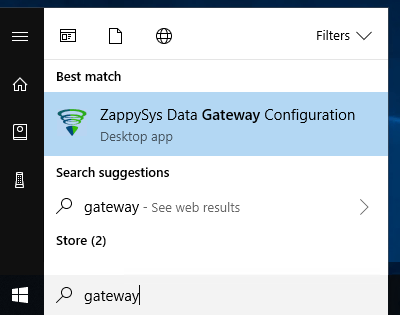
-
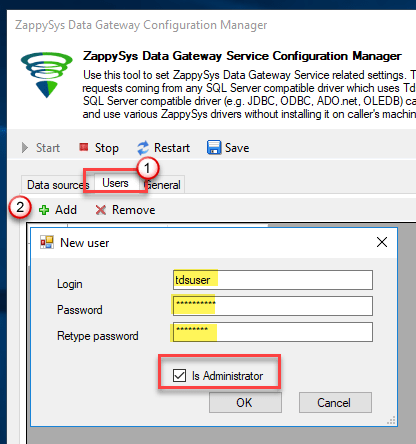
Go to the Users tab and follow these steps to add a Data Gateway user:
- Click the Add button
-
In the Login field enter a username, e.g.,
john - Then enter a Password
- Check the Is Administrator checkbox
- Click OK to save
-
Now we are ready to add a data source:
- Click the Add button
- Give the Data source a name (have it handy for later)
- Then select Native - ZappySys API Driver
- Finally, click OK
AmazonAdsDSNZappySys API Driver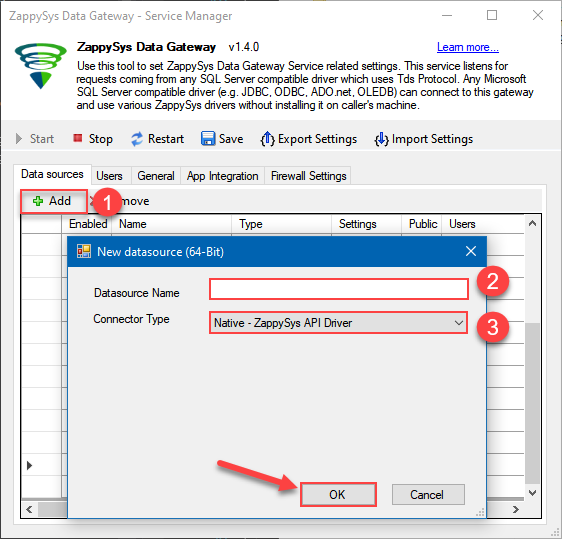
-
When the Configuration window appears give your data source a name if you haven't done that already, then select "Amazon Ads" from the list of Popular Connectors. If "Amazon Ads" is not present in the list, then click "Search Online" and download it. Then set the path to the location where you downloaded it. Finally, click Continue >> to proceed with configuring the DSN:
AmazonAdsDSNAmazon Ads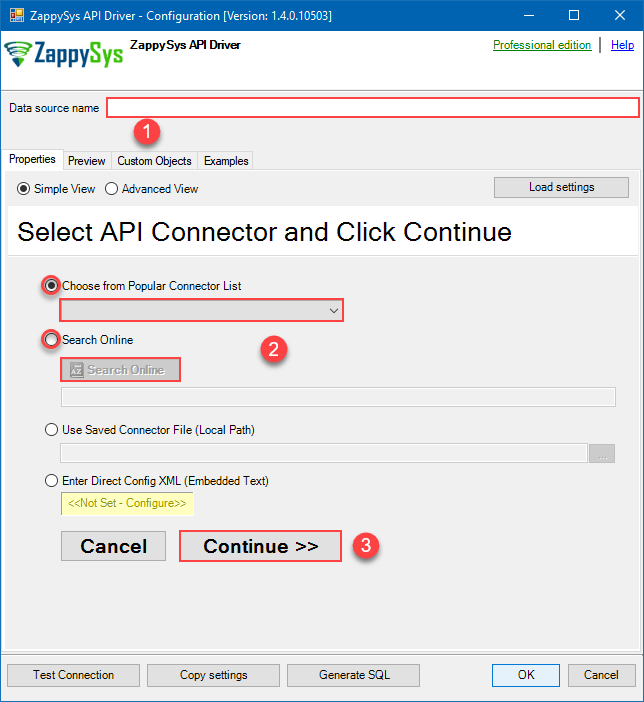
-
Select your authentication scenario below to expand connection configuration steps to:
- Configure the authentication in Amazon Ads.
- Enter those details into the ZappySys API Driver data source configuration.
OAuth Authentication
Amazon Ads authentication
Amazon OAuth Security Profile has be created in Amazon Developer portal. [API reference]
Firstly, login into Amazon Developer portal in https://developer.amazon.com.
Then click Sign in.
If you don't have an account, press Create your Amazon Developer account button to create one.
-
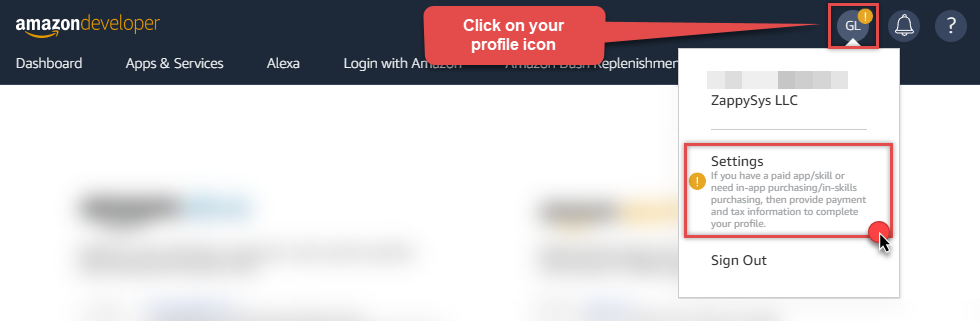
Once logged in, click on your profile icon on the right-top of the window and hit Settings:
-
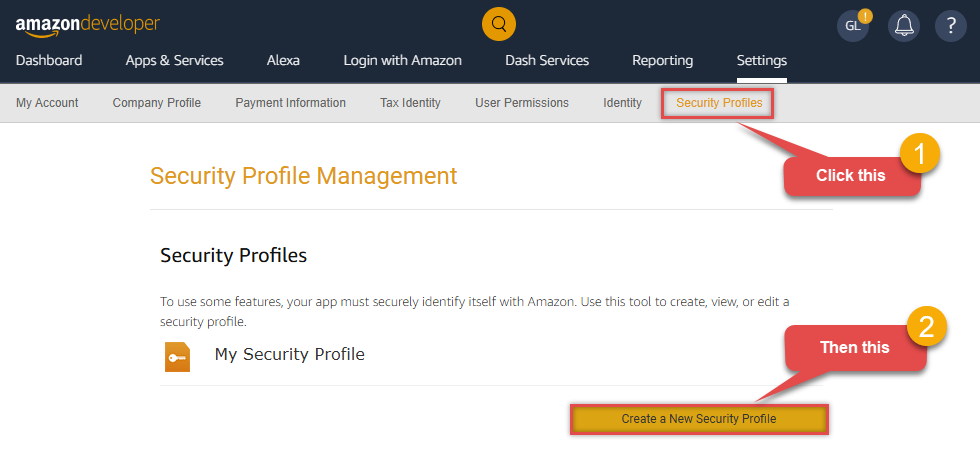
Then click Security Profiles and proceed with creating a new Security Profile:
-
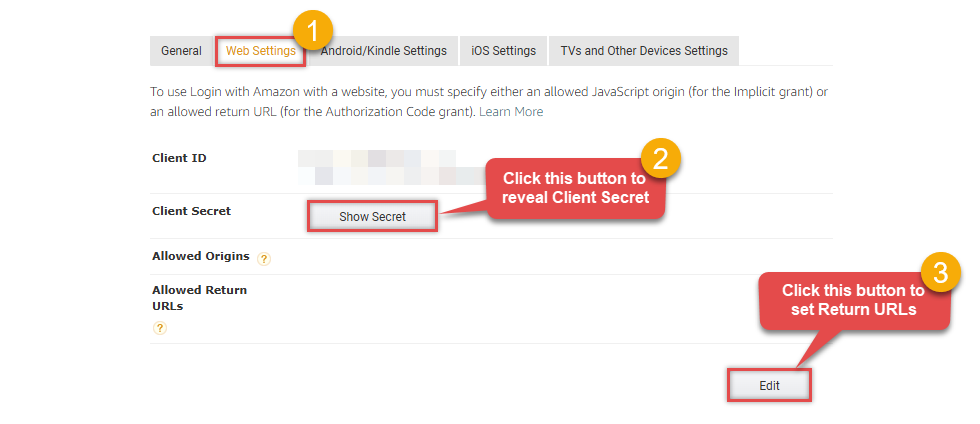
After that, click Web Settings subtab, then hit Show Secret button to reveal the Client Secret (you will need it later), and click Edit to add a Redirect URL:
-
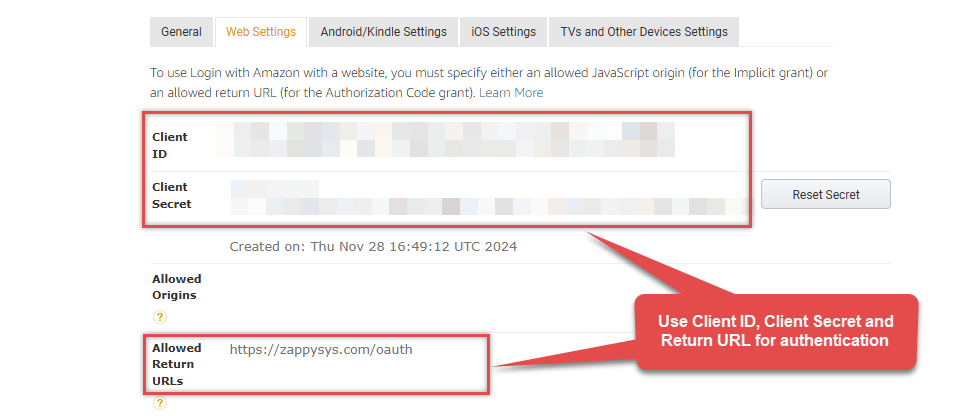
Continue by setting Allowed Return URLs (you can have your own or use
https://zappysys.com/oauth):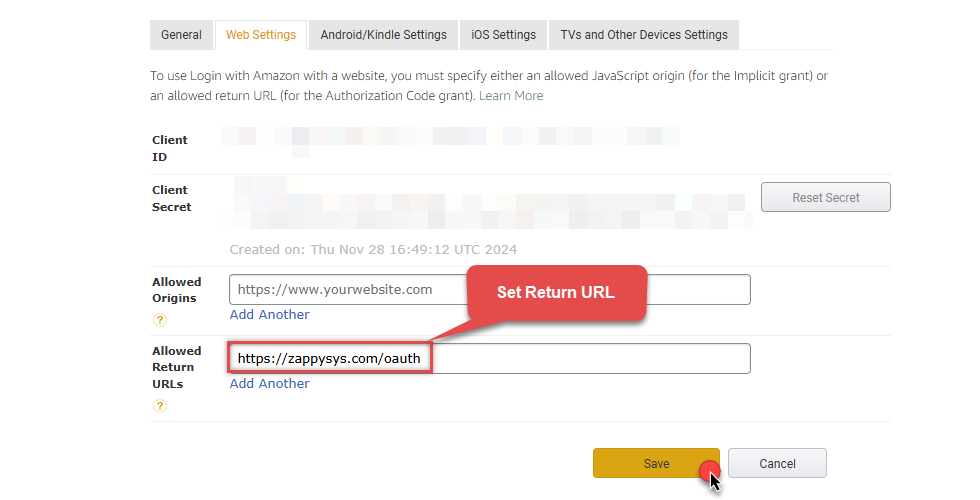
-
Done! Now you can use Client ID, Client Secret, and Redirect URL when configuring OAuth Authentication parameters:
API Connection Manager configuration
Just perform these simple steps to finish authentication configuration:
-
Set Authentication Type to
OAuth Authentication [OAuth] - Optional step. Modify API Base URL if needed (in most cases default will work).
- Fill in all the required parameters and set optional parameters if needed.
- Press Generate Token button to generate the tokens.
- Finally, hit OK button:
AmazonAdsDSNAmazon AdsOAuth Authentication [OAuth]https://advertising-api.amazon.com/v2Required Parameters ClientId Fill-in the parameter... ClientSecret Fill-in the parameter... AuthorizationUrl Fill-in the parameter... ReturnUrl Fill-in the parameter... Scope Fill-in the parameter... Profile (click 'Generate Token' before this) Fill-in the parameter... Optional Parameters RetryMode RetryWhenStatusCodeMatch RetryStatusCodeList 429 RetryCountMax 5 RetryMultiplyWaitTime True 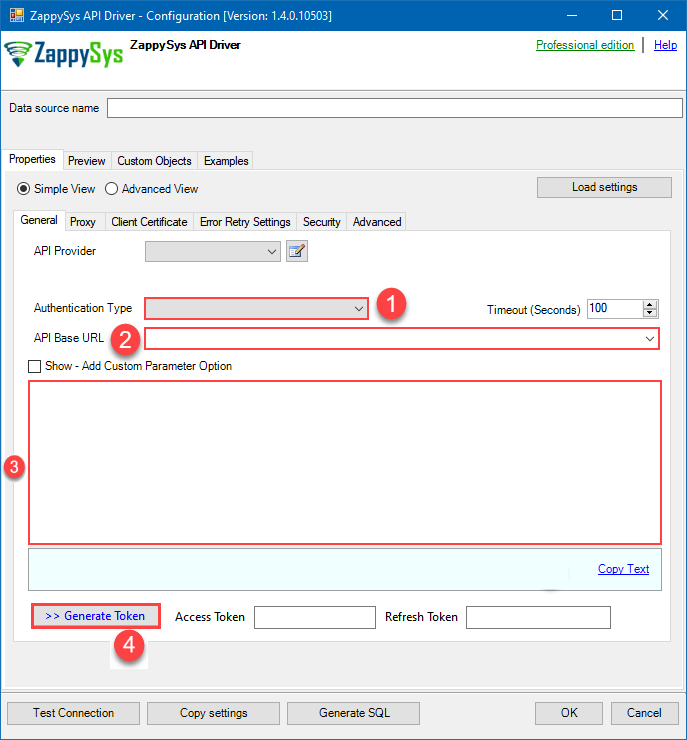 Find full details in the Amazon Ads Connector authentication reference.
 -
Once the data source connection has been configured, it's time to configure the SQL query. Select the Preview tab and then click Query Builder button to configure the SQL query:
 ZappySys API Driver - Amazon AdsRead and write Amazon Ads data effortlessly. Integrate, manage, and automate campaigns, ad groups, and performance metrics — almost no coding required.AmazonAdsDSN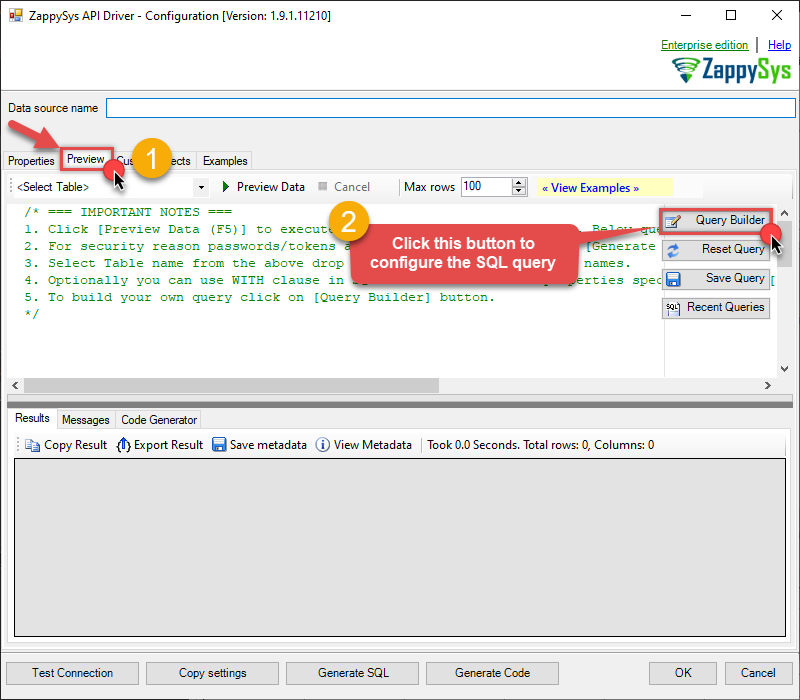
-
Start by selecting the Table or Endpoint you are interested in and then configure the parameters. This will generate a query that we will use in SQL Server to retrieve data from Amazon Ads. Hit OK button to use this query in the next step.
SELECT * FROM Profiles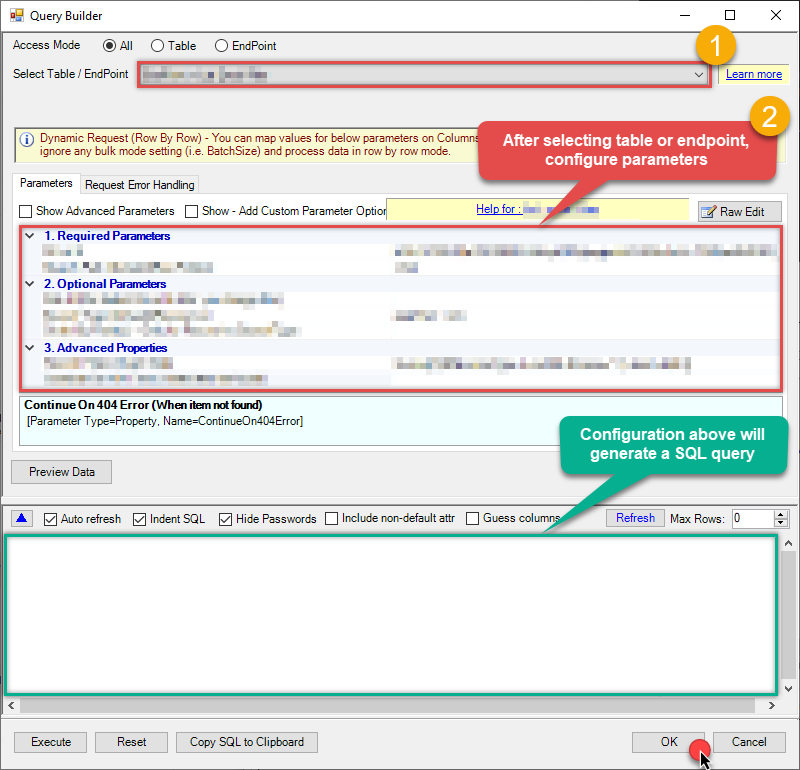 Some parameters configured in this window will be passed to the Amazon Ads API, e.g. filtering parameters. It means that filtering will be done on the server side (instead of the client side), enabling you to get only the meaningful data
much faster . -
Now hit Preview Data button to preview the data using the generated SQL query. If you are satisfied with the result, use this query in SQL Server:
ZappySys API Driver - Amazon AdsRead and write Amazon Ads data effortlessly. Integrate, manage, and automate campaigns, ad groups, and performance metrics — almost no coding required.AmazonAdsDSNSELECT * FROM Profiles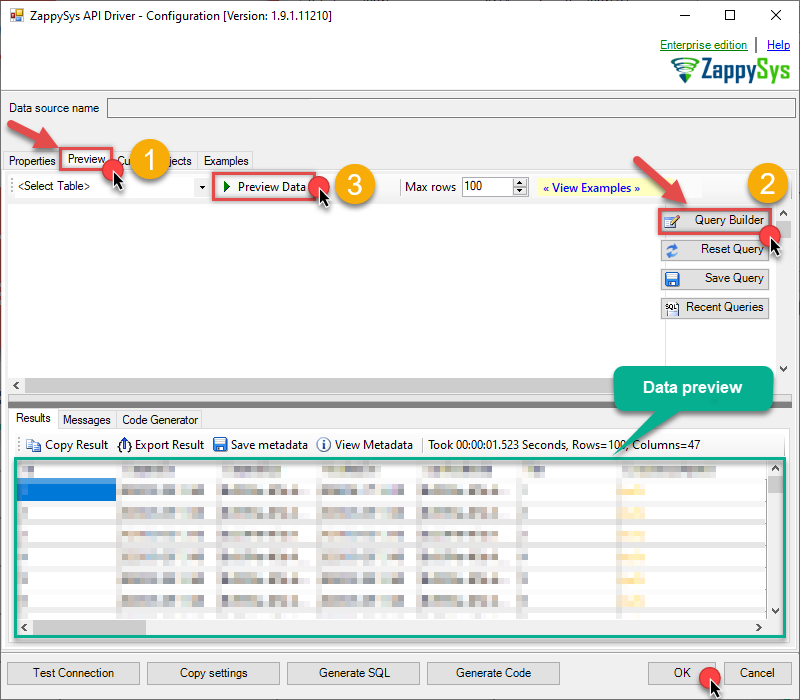 You can also access data quickly from the tables dropdown by selecting <Select table>.A
WHEREclause,LIMITkeyword will be performed on the client side, meaning that thewhole result set will be retrieved from the Amazon Ads API first, and only then the filtering will be applied to the data. If possible, it is recommended to use parameters in Query Builder to filter the data on the server side (in Amazon Ads servers). -
Click OK to finish creating the data source.
-
Once done, go to the Network Settings tab and Add a firewall rule for inbound traffic:
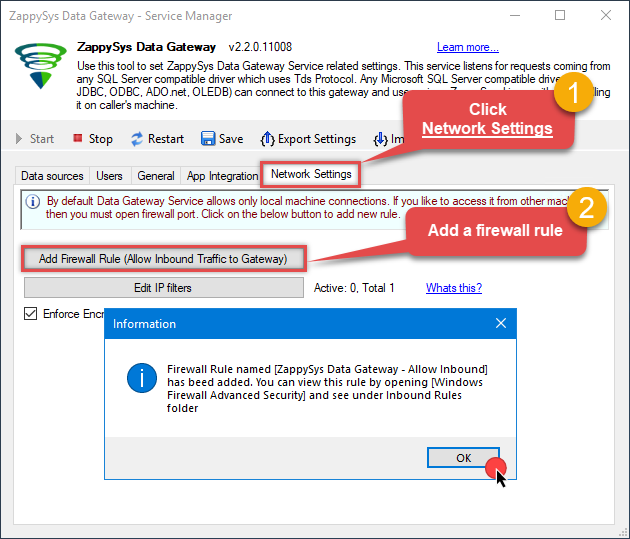
- This will initially allow all inbound traffic.
- Click Edit IP filters to restrict access to specific IP addresses or ranges.
-
Crucial Step: After creating or modifying the data source, you must:
- Click the Save button to persist your changes.
- Hit Yes when prompted to restart the Data Gateway service.
This ensures all changes are properly applied:
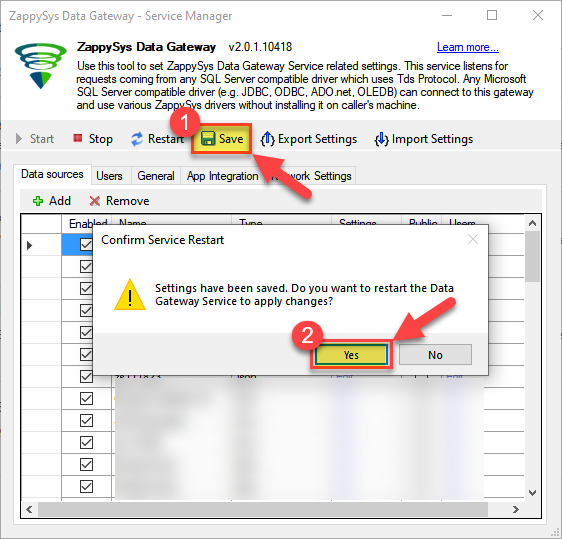 Skipping this step may cause the new settings to fail, preventing you from connecting to the data source.
Read data in SQL Server via Data Gateway
After configuring your data source using the ZappySys ODBC Driver, the next mandatory step to read that data in SQL Server is to create a Linked Server. SQL Server requires a Linked Server definition to access any ODBC-based source through the ZappySys Data Gateway, allowing the source driver data to be queried using standard T-SQL.
There are two ways to create the Linked Server:- Method 1: Using a SQL Script automatically generated by the Data Gateway
- Method 2: Using SQL Server UI (SSMS) to manually configure the Linked Server
Method 1: Using a SQL Script automatically generated by the Data Gateway
The fastest and most reliable way to create the Linked Server is to use the SQL Script generated by the Data Gateway. This ensures all settings are applied correctly with minimal manual steps.
In the Data Gateway, open the App Integration tab.
Update the prefilled Linked Server Name if you want to use a custom name.
Select the AmazonAdsDSN data source which we created earlier as the Database.
-
Choose the correct SQL Server version for your environment.
- SQL 2019 or Lower (
@provider='SQLNCLI11') - SQL 2022 or Higher (
@provider='MSOLEDBSQL')
- SQL 2019 or Lower (
Click Generate Code.
-
In the generated script scroll down to 4. Attach Gateway login with linked server step, enter your Data Gateway admin username and password.
'LS_TO_AMAZON_ADS_IN_GATEWAY'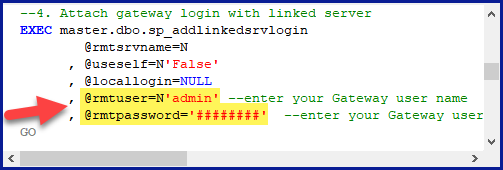
-
Press Ctrl + A and Ctrl + C to copy the entire script.
LS_TO_AMAZON_ADS_IN_GATEWAYAmazonAdsDSN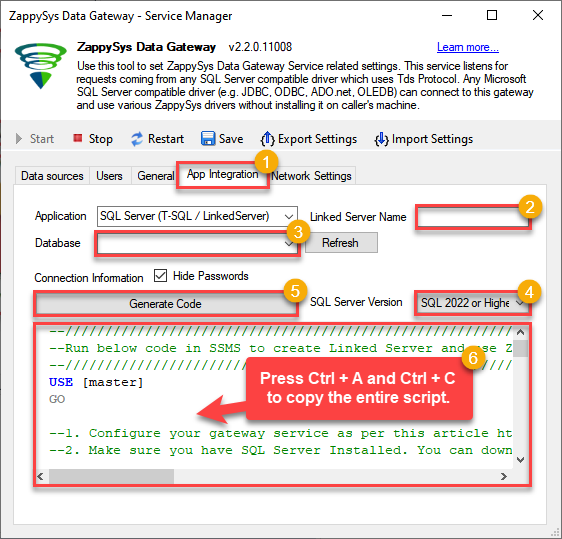
-
Paste the script into SQL Server Management Studio (SSMS) and run it.
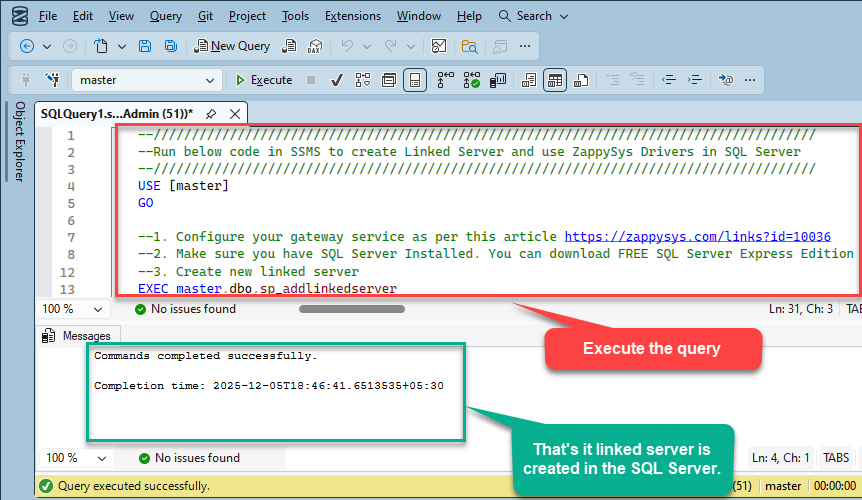
That's it linked server is created in the SQL Server.
-
Finally, open a new query and execute a query we saved in one of the previous steps:
SELECT * FROM OPENQUERY([LS_TO_AMAZON_ADS_IN_GATEWAY], 'SELECT * FROM Profiles')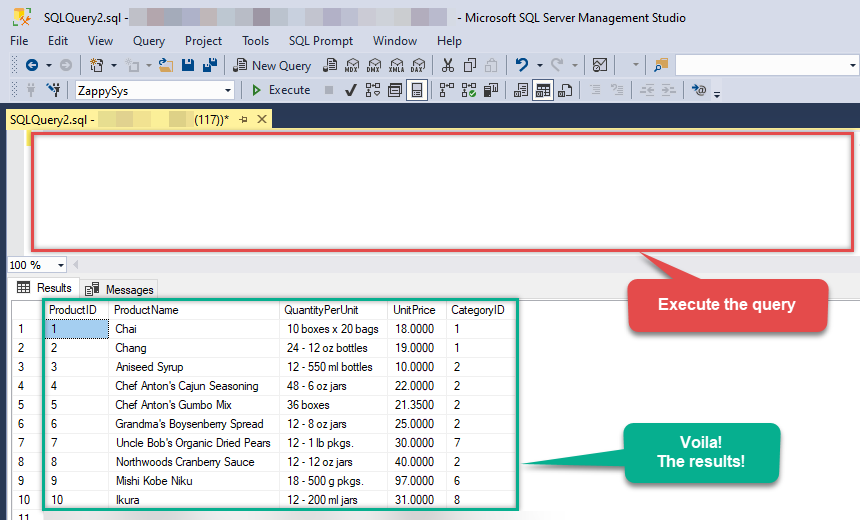
SELECT * FROM OPENQUERY([LS_TO_AMAZON_ADS_IN_GATEWAY], 'SELECT * FROM Profiles')
Sample SQL Script for Creating a Linked Server in SQL Server
USE [master]
GO
--///////////////////////////////////////////////////////////////////////////////////////
--Run below code in SSMS to create Linked Server and use ZappySys Drivers in SQL Server
--///////////////////////////////////////////////////////////////////////////////////////

-- Replace YOUR_GATEWAY_USER, YOUR_GATEWAY_PASSWORD
-- Replace localhost with IP/Machine name if ZappySys Gateway Running on different machine other than SQL Server
-- Replace Port 5000 if you configured gateway on a different port


--1. Configure your gateway service as per this article https://zappysys.com/links?id=10036

--2. Make sure you have SQL Server Installed. You can download FREE SQL Server Express Edition from here if you dont want to buy Paid version https://www.microsoft.com/en-us/sql-server/sql-server-editions-express

--Uncomment below if you like to drop linked server if it already exists
--EXEC master.dbo.sp_dropserver @server=N'LS_TO_AMAZON_ADS_IN_GATEWAY', @droplogins='droplogins'

--3. Create new linked server

EXEC master.dbo.sp_addlinkedserver
    @server = N'LS_TO_AMAZON_ADS_IN_GATEWAY'  --Linked server name (this will be used in OPENQUERY sql
, @srvproduct=N''
---- For MSSQL 2012, 2014, 2016, 2017, and 2019 use below (SQL Server Native Client 11.0)---
, @provider=N'SQLNCLI11'
---- For MSSQL 2022 or higher use below (Microsoft OLE DB Driver for SQL Server)---
--, @provider=N'MSOLEDBSQL'
, @datasrc=N'localhost,5000' --//Machine / Port where Gateway service is running
, @provstr=N'Network Library=DBMSSOCN;'
, @catalog=N'AmazonAdsDSN' --Data source name you gave on Gateway service settings

--4. Attach gateway login with linked server

EXEC master.dbo.sp_addlinkedsrvlogin
@rmtsrvname=N'LS_TO_AMAZON_ADS_IN_GATEWAY'  --linked server name
, @useself=N'False'
, @locallogin=NULL
, @rmtuser=N'YOUR_GATEWAY_USER' --enter your Gateway user name
, @rmtpassword='YOUR_GATEWAY_PASSWORD'  --enter your Gateway user's password
GO

--5. Enable RPC OUT (This is Optional - Only needed if you plan to use EXEC(...) AT YourLinkedServerName rather than OPENQUERY
EXEC sp_serveroption 'LS_TO_AMAZON_ADS_IN_GATEWAY', 'rpc', true;
EXEC sp_serveroption 'LS_TO_AMAZON_ADS_IN_GATEWAY', 'rpc out', true;

--Disable MSDTC - Below needed to support INSERT INTO from EXEC AT statement
EXEC sp_serveroption 'LS_TO_AMAZON_ADS_IN_GATEWAY', 'remote proc transaction promotion', false;

--Increase query timeout if query is going to take longer than 10 mins (Default timeout is 600 seconds)
--EXEC sp_serveroption 'LS_TO_AMAZON_ADS_IN_GATEWAY', 'query timeout', 1200;
GO
Method 2: Using SQL Server UI (SSMS) to manually configure the Linked Server
You can also create the Linked Server manually through SSMS if you prefer a visual setup. This method lets you configure the provider, data source, and security interactively.
-
First, let's open SQL Server Management Studio, create a new Linked Server, and start configuring it:
LS_TO_AMAZON_ADS_IN_GATEWAYMicrosoft OLE DB Driver for SQL Serverlocalhost,5000AmazonAdsDSNAmazonAdsDSN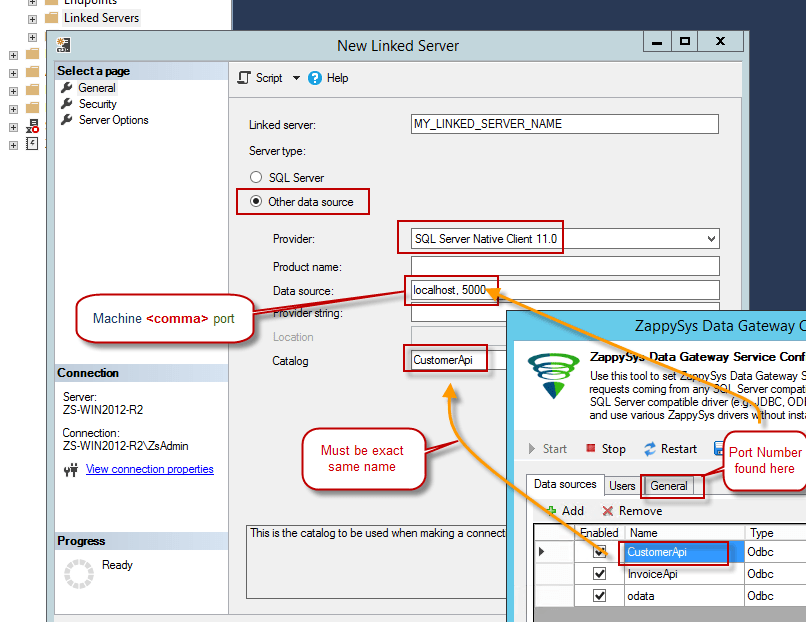
- For SQL Server 2012, 2014, 2016, 2017, and 2019, choose SQL Server Native Client 11.0 as the provider.
- For SQL Server 2022 or higher, choose Microsoft OLE DB Driver for SQL Server as the provider.
-
Then click on Security option and configure username we created in ZappySys Data Gateway in one of the previous steps, e.g.
john: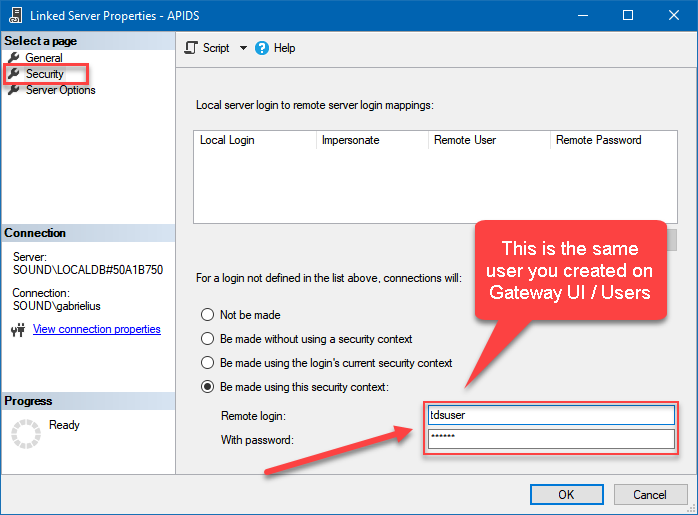
-
Optional step. Under the Server Options, Enable RPC and RPC Out and Disable Promotion of Distributed Transactions(MSDTC).
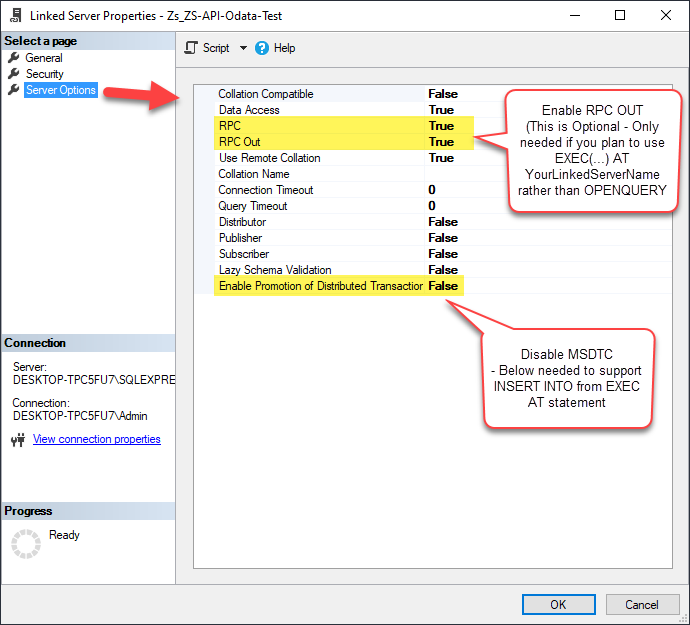
You need to enable RPC Out if you plan to use
EXEC(...) AT [LS_TO_AMAZON_ADS_IN_GATEWAY]rather than OPENQUERY.
If don't enabled it, you will encounter theServer 'LS_TO_AMAZON_ADS_IN_GATEWAY' is not configured for RPCerror.Query Example:
DECLARE @MyQuery NVARCHAR(MAX) = 'SELECT * FROM Profiles';

EXEC (@MyQuery) AT [LS_TO_AMAZON_ADS_IN_GATEWAY];
If you plan to use
'INSERT INTO <TABLE> EXEC(...) AT [LS_TO_AMAZON_ADS_IN_GATEWAY]'in that case you need to Disable Promotion of Distributed Transactions(MSDTC).
If don't disabled it, you will encounter theThe operation could not be performed because OLE DB provider "SQLNCLI11" for linked server "MY_LINKED_SERVER_NAME" was unable to begin a distributed transaction.error.Query Example:
INSERT INTO dbo.Products DECLARE @MyQuery NVARCHAR(MAX) = 'SELECT * FROM Profiles'; EXEC (@MyQuery) AT [LS_TO_AMAZON_ADS_IN_GATEWAY]; -
Finally, open a new query and execute a query we saved in one of the previous steps:
SELECT * FROM OPENQUERY([LS_TO_AMAZON_ADS_IN_GATEWAY], 'SELECT * FROM Profiles')
SELECT * FROM OPENQUERY([LS_TO_AMAZON_ADS_IN_GATEWAY], 'SELECT * FROM Profiles')
Amazon Ads Connector Examples
The ZappySys API Driver is a user-friendly interface designed to facilitate the seamless integration of various applications with the Amazon Ads API. With its intuitive design and robust functionality, the ZappySys API Driver simplifies the process of configuring specific API endpoints to efficiently read or write data from Amazon Ads.
Click here to find more Amazon Ads Connector examples designed for seamless integration with the ZappySys API ODBC Driver under ODBC Data Source (36/64) or ZappySys Data Gateway, enhancing your ability to connect and interact with Prebuilt Connectors effectively.
Consume Data inside your App / Programming Language
Once you know how to load data from Amazon Ads Connector, you can click on one of the below links to learn the steps how to consume data inside your App / Programming Language from Amazon Ads Connector.ODBC inside ETL / Reporting / BI Tools
- Power BI
- Tableau
- Excel
- Informatica PowerCenter
- QlikView
- SQL Server / Linked Server
- SSRS (SQL Server Reporting Services)
ODBC inside Programming Languages
Key features of the ZappySys API Driver include:
The API ODBC driver facilitates the reading and writing of data from numerous popular online services (refer to the complete list here) using familiar SQL language without learning complexity of REST API calls. The driver allows querying nested structure and output as a flat table. You can also create your own ODBC / Data Gateway API connector file and use it with this driver.
Intuitive Configuration: The interface is designed to be user-friendly, enabling users to easily set up the specific API endpoints within Amazon Ads without requiring extensive technical expertise or programming knowledge.
Customizable Endpoint Setup: Users can conveniently configure the API endpoint settings, including the HTTP request method, endpoint URL, and any necessary parameters, to precisely target the desired data within Amazon Ads.
Data Manipulation Capabilities: The ZappySys API Driver allows for seamless data retrieval and writing, enabling users to fetch data from Amazon Ads and perform various data manipulation operations as needed, all through an intuitive and straightforward interface.
Secure Authentication Integration: The driver provides secure authentication integration, allowing users to securely connect to the Amazon Ads API by inputting the necessary authentication credentials, such as API tokens or other authentication keys.
Error Handling Support: The interface is equipped with comprehensive error handling support, ensuring that any errors or exceptions encountered during the data retrieval or writing process are efficiently managed and appropriately communicated to users for prompt resolution.
Data Visualization and Reporting: The ZappySys API Driver facilitates the seamless processing and presentation of the retrieved data from Amazon Ads, enabling users to generate comprehensive reports and visualizations for further analysis and decision-making purposes.
Overall, the ZappySys API Driver serves as a powerful tool for streamlining the integration of applications with Amazon Ads, providing users with a convenient and efficient way to access and manage data, all through a user-friendly and intuitive interface.