

Table [Dynamic Table]
Description
No description available
Supported Operations
Below section contains supported CRUD operations. Each operation is executed by some EndPoint behind the scene.| Method | Supported | Reference EndPoint |
|---|---|---|
| SELECT | read_sheet_data | |
| INSERT | insert_sheet_data | |
| UPDATE | update_sheet_data | |
| UPSERT | ||
| DELETE | ||
| LOOKUP | read_sheet_data |
Examples
SSIS
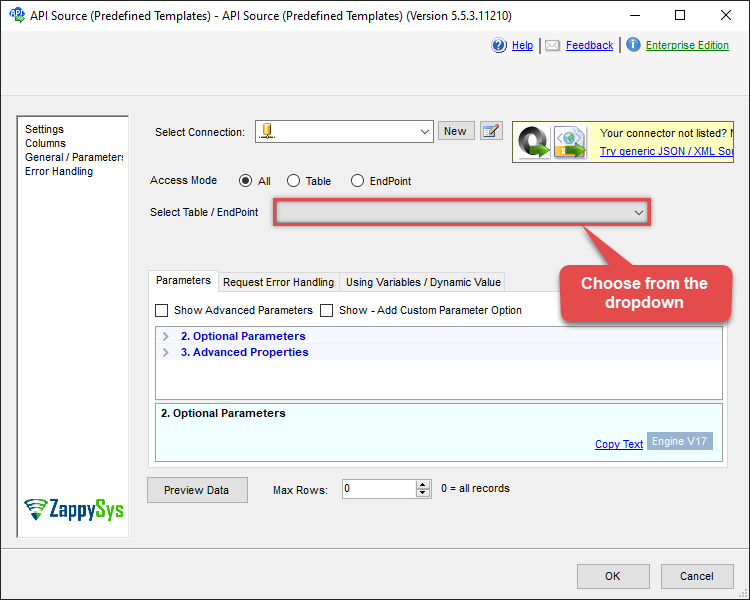
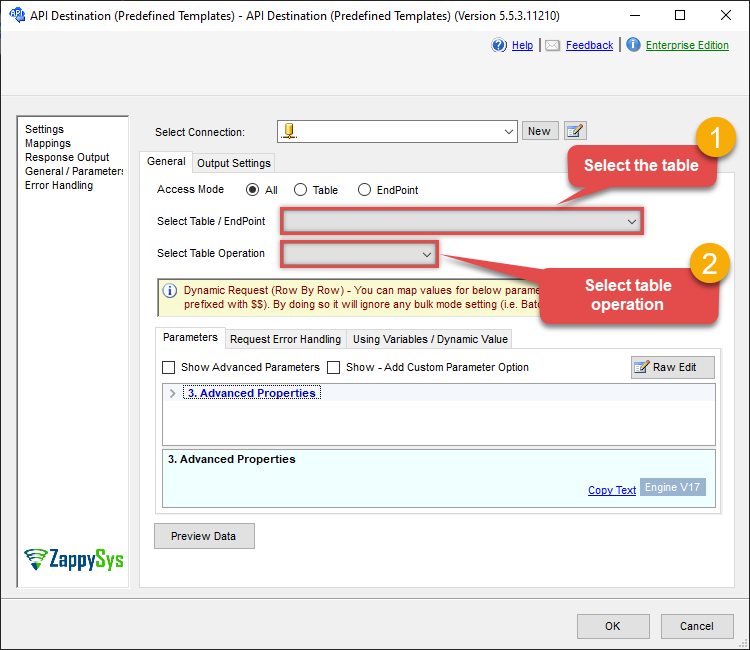
Use Google Sheets Connector in API Source component to read data or in API Destination component to read/write data:
Read from [Dynamic Table] table using API Source

| Required Parameters | |
|---|---|
| Range | Fill-in the parameter... |
| Optional Parameters | |
| IncludeParentColumns | False |
| ArrayTransformType | TransformColumnslessArray |
| First Row Has Column Names | True |
| ArrayTransCustomColumns | Col1,Col2,Col3 |
Read/write to [Dynamic Table] table using API Destination
| Required Parameters | |
|---|---|
| Range | Fill-in the parameter... |
| Optional Parameters | |
| IncludeParentColumns | False |
| ArrayTransformType | TransformColumnslessArray |
| First Row Has Column Names | True |
| ArrayTransCustomColumns | Col1,Col2,Col3 |
ODBC application
Use these SQL queries in your ODBC application data source:
Query from the default spreadsheet
<p>Returns data from the default spreadsheet and tab (for example <code>Sheet1</code>) configured in the connection.</p>
SELECT * FROM [Sheet1]Query from a spreadsheet by ID
<p>Returns data from a specific spreadsheet and tab by ID. Supply the spreadsheet ID in the <code>WITH</code> clause and reference the tab name as a table.</p>
SELECT * FROM [My sheet]
WITH(
  SpreadSheetId='1BxiMVs0XRA5nFMdKvBdBZjgmUUqptlbs74OgvE2upms'
)
Query from a custom cell range
<p>Reads a custom cell range from a tab (for example <code>My sheet</code>) in a spreadsheet. Supply the range (for example <code>A4:GR</code>) and the spreadsheet ID.</p>
SELECT * FROM [My sheet]
WITH(
  Range='A4:GR',
  ArrayTransEnableCustomColumns='False',
  SpreadSheetId='1BxiMVs0XRA5nFMdKvBdBZjgmUUqptlbs74OgvE2upms'
)
Write a row to a custom cell range
<p>Writes a single row starting at a specific cell in a spreadsheet (for example <code>G9</code> in <code>My sheet</code>). Values are written in the same order as supplied in the <code>SET</code> list.</p>
UPDATE [My sheet]
SET Column1='data-1', Column2=100, Column3='2020-01-31'
WITH(
  WriteRange='G9',
  SpreadSheetId='1az2H8ZYk7BvjddVTqPR-LfDjX9IRpIpjCDpFPe9EzkU'
)
Update multiple rows in a sheet from a CSV file
<p>Bulk updates multiple rows in a sheet using CSV data as the source. Reads rows from a CSV file via an ODBC connection (for example ZappySys CSV Driver) and writes them into the target sheet and range.</p>
UPDATE [My sheet]
SOURCE(
  'ODBC',
  'Driver={ZappySys CSV Driver};',
  'SELECT * FROM $ WITH (SRC=''c:\data\orders.csv'')'
)
WITH(
  WriteRange='G9',
  SpreadSheetId='1az2H8ZYk7BvjddVTqPR-LfDjX9IRpIpjCDpFPe9EzkU'
)
Update values vertically (column mode)
<p>Writes values vertically (by columns) instead of across a single row. Use <code>MajorDimension='COLUMNS'</code> so each column in the <code>SET</code> list becomes a column of values starting at the specified cell.</p>
UPDATE [My sheet]
SET Column1='Jan', Column2='Feb', Column3='Mar'
WITH(
  WriteRange='G9',
  SpreadSheetId='1az2H8ZYk7BvjddVTqPR-LfDjX9IRpIpjCDpFPe9EzkU',
  MajorDimension='COLUMNS'
)
Insert a row into a sheet
<p>Inserts a single row into the <code>My sheet</code> tab in the default spreadsheet. <code>Column1</code>–<code>Column4</code> represent your actual sheet columns.</p>
INSERT INTO "My sheet"(Column1, Column2, Column3, Column4)
VALUES('AAA', 100, '2020-01-01', 150.33)
Insert multiple rows into a sheet from a CSV file
<p>Bulk inserts multiple rows into a sheet using CSV data as the source. Reads rows from a CSV file using an ODBC connection and writes them into the specified range in the sheet.</p>
INSERT INTO [My sheet]
SOURCE(
  'ODBC',
  'Driver={ZappySys CSV Driver};',
  'SELECT * FROM $ WITH (SRC=''c:\data\orders.csv'')'
)
WITH(
  Range='G9',
  SpreadSheetId='1az2H8ZYk7BvjddVTqPR-LfDjX9IRpIpjCDpFPe9EzkU'
)
Write values vertically (column mode)
<p>Writes inserted values vertically starting at a specific cell. Uses <code>MajorDimension='COLUMNS'</code> so each value in the row becomes a column of values.</p>
INSERT INTO [My sheet](Column1, Column2, Column3)
VALUES('Jan','Feb','Mar')
WITH(
  Range='G9',
  SpreadSheetId='1az2H8ZYk7BvjddVTqPR-LfDjX9IRpIpjCDpFPe9EzkU',
  MajorDimension='COLUMNS'
)
SQL Server
Use these SQL queries in SQL Server after you create a data source in Data Gateway:
Query from the default spreadsheet
<p>Returns data from the default spreadsheet and tab (for example <code>Sheet1</code>) configured in the connection.</p>
DECLARE @MyQuery NVARCHAR(MAX) = 'SELECT * FROM [Sheet1]';

EXEC (@MyQuery) AT [LS_TO_GOOGLE_SHEETS_IN_GATEWAY];
Query from a spreadsheet by ID
<p>Returns data from a specific spreadsheet and tab by ID. Supply the spreadsheet ID in the <code>WITH</code> clause and reference the tab name as a table.</p>
DECLARE @MyQuery NVARCHAR(MAX) = 'SELECT * FROM [My sheet]
WITH(
  SpreadSheetId=''1BxiMVs0XRA5nFMdKvBdBZjgmUUqptlbs74OgvE2upms''
)';

EXEC (@MyQuery) AT [LS_TO_GOOGLE_SHEETS_IN_GATEWAY];
Query from a custom cell range
<p>Reads a custom cell range from a tab (for example <code>My sheet</code>) in a spreadsheet. Supply the range (for example <code>A4:GR</code>) and the spreadsheet ID.</p>
DECLARE @MyQuery NVARCHAR(MAX) = 'SELECT * FROM [My sheet]
WITH(
  Range=''A4:GR'',
  ArrayTransEnableCustomColumns=''False'',
  SpreadSheetId=''1BxiMVs0XRA5nFMdKvBdBZjgmUUqptlbs74OgvE2upms''
)';

EXEC (@MyQuery) AT [LS_TO_GOOGLE_SHEETS_IN_GATEWAY];
Write a row to a custom cell range
<p>Writes a single row starting at a specific cell in a spreadsheet (for example <code>G9</code> in <code>My sheet</code>). Values are written in the same order as supplied in the <code>SET</code> list.</p>
DECLARE @MyQuery NVARCHAR(MAX) = 'UPDATE [My sheet]
SET Column1=''data-1'', Column2=100, Column3=''2020-01-31''
WITH(
  WriteRange=''G9'',
  SpreadSheetId=''1az2H8ZYk7BvjddVTqPR-LfDjX9IRpIpjCDpFPe9EzkU''
)';

EXEC (@MyQuery) AT [LS_TO_GOOGLE_SHEETS_IN_GATEWAY];
Update multiple rows in a sheet from a CSV file
<p>Bulk updates multiple rows in a sheet using CSV data as the source. Reads rows from a CSV file via an ODBC connection (for example ZappySys CSV Driver) and writes them into the target sheet and range.</p>
DECLARE @MyQuery NVARCHAR(MAX) = 'UPDATE [My sheet]
SOURCE(
  ''ODBC'',
  ''Driver={ZappySys CSV Driver};'',
  ''SELECT * FROM $ WITH (SRC=''''c:\data\orders.csv'''')''
)
WITH(
  WriteRange=''G9'',
  SpreadSheetId=''1az2H8ZYk7BvjddVTqPR-LfDjX9IRpIpjCDpFPe9EzkU''
)';

EXEC (@MyQuery) AT [LS_TO_GOOGLE_SHEETS_IN_GATEWAY];
Update values vertically (column mode)
<p>Writes values vertically (by columns) instead of across a single row. Use <code>MajorDimension='COLUMNS'</code> so each column in the <code>SET</code> list becomes a column of values starting at the specified cell.</p>
DECLARE @MyQuery NVARCHAR(MAX) = 'UPDATE [My sheet]
SET Column1=''Jan'', Column2=''Feb'', Column3=''Mar''
WITH(
  WriteRange=''G9'',
  SpreadSheetId=''1az2H8ZYk7BvjddVTqPR-LfDjX9IRpIpjCDpFPe9EzkU'',
  MajorDimension=''COLUMNS''
)';

EXEC (@MyQuery) AT [LS_TO_GOOGLE_SHEETS_IN_GATEWAY];
Insert a row into a sheet
<p>Inserts a single row into the <code>My sheet</code> tab in the default spreadsheet. <code>Column1</code>–<code>Column4</code> represent your actual sheet columns.</p>
DECLARE @MyQuery NVARCHAR(MAX) = 'INSERT INTO "My sheet"(Column1, Column2, Column3, Column4)
VALUES(''AAA'', 100, ''2020-01-01'', 150.33)';

EXEC (@MyQuery) AT [LS_TO_GOOGLE_SHEETS_IN_GATEWAY];
Insert multiple rows into a sheet from a CSV file
<p>Bulk inserts multiple rows into a sheet using CSV data as the source. Reads rows from a CSV file using an ODBC connection and writes them into the specified range in the sheet.</p>
DECLARE @MyQuery NVARCHAR(MAX) = 'INSERT INTO [My sheet]
SOURCE(
  ''ODBC'',
  ''Driver={ZappySys CSV Driver};'',
  ''SELECT * FROM $ WITH (SRC=''''c:\data\orders.csv'''')''
)
WITH(
  Range=''G9'',
  SpreadSheetId=''1az2H8ZYk7BvjddVTqPR-LfDjX9IRpIpjCDpFPe9EzkU''
)';

EXEC (@MyQuery) AT [LS_TO_GOOGLE_SHEETS_IN_GATEWAY];
Write values vertically (column mode)
<p>Writes inserted values vertically starting at a specific cell. Uses <code>MajorDimension='COLUMNS'</code> so each value in the row becomes a column of values.</p>
DECLARE @MyQuery NVARCHAR(MAX) = 'INSERT INTO [My sheet](Column1, Column2, Column3)
VALUES(''Jan'',''Feb'',''Mar'')
WITH(
  Range=''G9'',
  SpreadSheetId=''1az2H8ZYk7BvjddVTqPR-LfDjX9IRpIpjCDpFPe9EzkU'',
  MajorDimension=''COLUMNS''
)';

EXEC (@MyQuery) AT [LS_TO_GOOGLE_SHEETS_IN_GATEWAY];