

Table [Dynamic Table]
Description
No description available
Supported Operations
Below section contains supported CRUD operations. Each operation is executed by some EndPoint behind the scene.| Method | Supported | Reference EndPoint |
|---|---|---|
| SELECT | get_documents | |
| INSERT | insert_documents | |
| UPDATE | update_documents | |
| UPSERT | upsert_documents | |
| DELETE | delete_documents | |
| LOOKUP | get_document |
Examples
SSIS
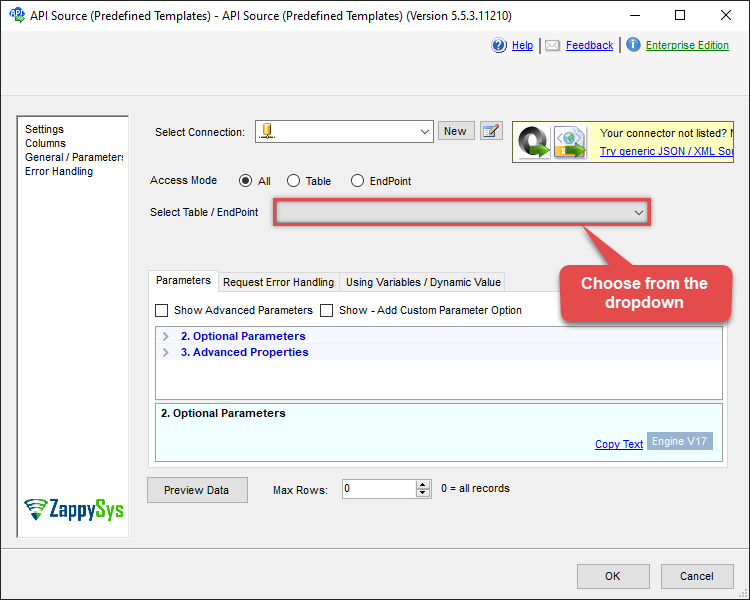
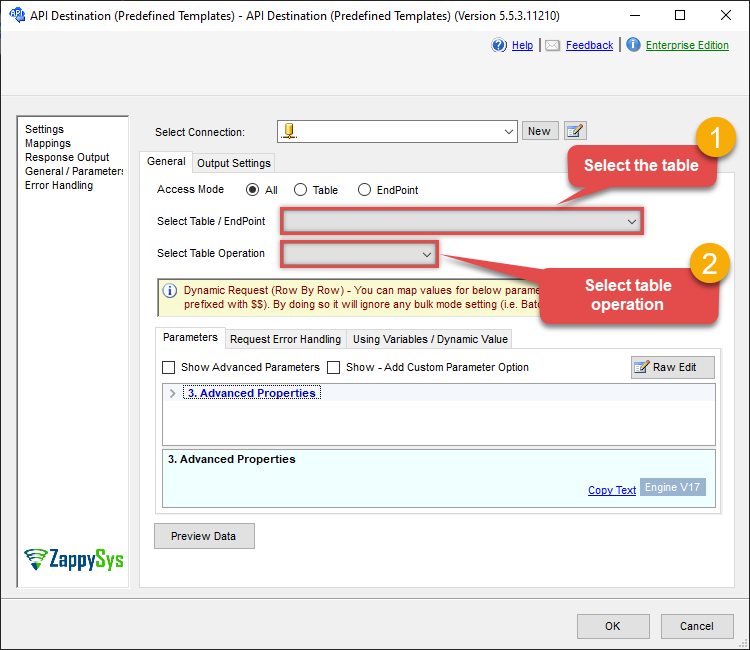
Use ElasticSearch Connector in API Source component to read data or in API Destination component to read/write data:
Read from [Dynamic Table] table using API Source

| There are no parameters to configure. |
Read/write to [Dynamic Table] table using API Destination
| There are no parameters to configure. |
ODBC application
Use these SQL queries in your ODBC application data source:
Read documents from index (all or with filter)
<p>Returns documents from an index (or alias) by using the index name as the table name. For server-side filtering use the <code>Query</code> parameter in the <code>WITH</code> clause; <code>WHERE</code> runs client-side and is slower.</p>
SELECT * FROM MyIndexOrAliasName --WITH(Query='{"match": { "PartNumber" : "P50" } }')Read documents from alias (all or with filter)
<p>Returns documents from an alias. Use the alias name as the table name. For server-side filtering pass a query in the <code>WITH</code> clause.</p>
SELECT * FROM MyIndexOrAliasName --WITH(Query='{"match": { "PartNumber" : "P50" } }')Search documents from index
<p>Runs a full-text search on an index (or alias) using the Elasticsearch query DSL. Pass the query JSON in the <code>WITH</code> clause (e.g. <code>Query='{"match": { "comment" : "TV" } }'</code>). For more options see the Elasticsearch <a href="https://www.elastic.co/guide/en/elasticsearch/reference/current/query-dsl-match-query.html">query DSL</a>.</p>
SELECT * FROM MyIndexOrAliasName WITH(Query='{"match": { "comment" : "TV" } }')

		--or use below - slight faster (avoids table / alias list validation)
		--SELECT * FROM search WITH(Index='MyIndexName', Query='{"match": { "comment" : "TV" } }')
		--SELECT * FROM search WITH(Index='MyIndexName', Alias='MyAliasName', Query='{"match": { "comment" : "TV" } }')
Search documents from alias
<p>Runs a search on an alias (like a view over one or more indexes). Use the alias name in the <code>FROM</code> clause and pass the query in the <code>WITH</code> clause. For query syntax see the Elasticsearch query DSL documentation.</p>
SELECT * FROM MyAliasName WITH(Query='{"match": { "comment" : "TV" } }')

		--or use search endpoint then you must supply both Index name and Alias name
		--calling /search endpoint in FROM clause is slight faster (avoids table / alias list validation)
		--SELECT * FROM search WITH(Index='MyIndexName',Index='MyAliasName', Query='{"match": { "comment" : "TV" } }')
Using JSON Array / Value functions
Below example shows how to select specific elements from value array or use JSON PATH expression to extract from document array
SELECT _id
        , JSON_ARRAY_FIRST(colors) as first_color
        , JSON_ARRAY_LAST(colors) as last_color
        , JSON_ARRAY_NTH(colors,3) as third_color
        , JSON_VALUE(locationList,'$.locationList[0].country') as first_preferred_country
        , JSON_VALUE(locationList,'$.locationList[?(@country=='India')].capital as capital_of_india
FROM shop WHERE _Id='1'
Insert documents into index with _id autogenerated
When you dont supply _id column value, ElasticSearch will generate it automatically for you.
INSERT INTO MyIndex([MyCol1], [MyCol2] ) VALUES (100, 'A1')Insert documents into index with your own _id
Inserts documents into index with _id column. _id is string datatype so can be
INSERT INTO MyIndex(_id, [MyCol1], [MyCol2] ) VALUES ('A1234', 100, 'A1')Insert documents using nested attribute and raw fragments (JSON sub-documents, arrays)
This example produces JSON document like this {"_id": "some_auto_generated_id" , "Location": { "City" : "Atlanta" , "ZipCode" : "30060" },"ColorsArray ": ["Red", "Blue", "Green"],"SomeNestedDoc": { "Col1" : "aaa" , "Col2" : "bbb" , "Col2" : "ccc" }} . Notice that how Column name with Dot translated into nested Columns (i.e. City, ZipCode) and Prefix raw:: allowed to treat value as array or sub document.
INSERT INTO MyIndexName ([Location.City], [Location.ZipCode], [raw::ColorsArray], [raw::SomeNestedDoc] )
--raw JSON must be in one line
VALUES ('Atlanta', '30060', '["red","green","blue"]', '{"Col1":"aaa","Col2":"bbb","Col3":"ccc"}' )
Insert documents using various data types
This example shows how to insert values for different datatype fields. Some fields can accept value as Raw JSON (e.g. nested, object, geo_point, geo_shape). Object field type can also accept value by nested field (e.g. [object_field.field1] )
INSERT INTO my_index (
	binary_field,
	boolean_field,
	byte_field,
	date_field,
	double_field,
	float_field,
	geo_point_field,  --raw
	--OR--
	--"geo_point_field.lat",
	--"geo_point_field.lon",

	geo_shape_field,  --raw
	--OR--
	--"geo_shape_field.type",
	--"geo_shape_field.coordinates",

	integer_field,
	ip_field,
	keyword_field,
	long_field,
	nested_field, --raw

	object_field, --raw
	--OR--
	--"object_field.field1",
	--"object_field.field2",

	short_field,
	text_field
)
VALUES(
	'SGVsbG8gd29ybGQ=', --binary_field  --base64 value of "Hello world"
	false, --bool
	117, --byte_field
	'2012-12-31T23:59:59.123', --date_field
	1.123456789, --double_field
	1.123456789, --float_field
	--raw JSON must be in one line
	'{ "lat": 40.7128, "lon": -74.0060 }', --geo_point_field
	--OR--
	-- 40.7128, -74.0060,

	'{ "type": "polygon", "coordinates": [[[-74.0060, 40.7128], [-73.9960, 40.7128], [-73.9960, 40.7028], [-74.0060, 40.7028], [-74.0060, 40.7128]]] }', --geo_shape_field
	--OR--
	--'polygon',
	--'[[[-74.0060, 40.7128], [-73.9960, 40.7128], [-73.9960, 40.7028], [-74.0060, 40.7028], [-74.0060, 40.7128]]]',

	123, --integer_field
	'127.0.0.1', --ip_field
	'thhi is text', --keyword_field
	1234567890, --long_field
	--raw JSON must be in one line
	'[{"nested_property_1":"nested text 1", "nested_property_2":100}, {"nested_property_1":"nested text 2", "nested_property_2":101}]', --nested_field
	'{"field1":"A","field2":"B"}', --object_field (Raw Value)
	--OR--
	--'object field keyword 1', --object_field.field1
	--123,                       --object_field.field2
	1, --short_field
	'text field ' --text_field

)
Update documents using various data types
This example shows how to update values for different datatype fields. Some fields can accept value as Raw JSON (e.g. nested, object, geo_point, geo_shape). Object field type can also accept value by nested field (e.g. [object_field.field1] )
UPDATE my_index
SET
	binary_field='SGVsbG8gd29ybGQ=', --base64 value of "Hello world"
	boolean_field=false,
	byte_field=117,
	date_field='2012-12-31T23:59:59.123',
	double_field=1.123456789,
	float_field=1.123456789,
	--raw JSON must be in one line
	geo_point_field='{ "lat": 40.7128, "lon": -74.0060 }',
	--OR--
	--"geo_point_field.lat"=40.7128,
	--"geo_point_field.lon"=-74.0060,

	--raw JSON must be in one line
	geo_shape_field='{ "type": "polygon", "coordinates": [[[-74.0060, 40.7128], [-73.9960, 40.7128], [-73.9960, 40.7028], [-74.0060, 40.7028], [-74.0060, 40.7128]]] }',

	integer_field=123,
	ip_field='127.0.0.1',
	keyword_field='thhi is text',
	long_field=1234567890,

	--raw JSON must be in one line
	nested_field='[{"nested_property_1":"nested text 1", "nested_property_2":100}, {"nested_property_1":"nested text 2", "nested_property_2":101}]',

	--raw JSON must be in one line
	object_field='{"field1":"A","field2":"B"}',
	--OR--
	--[object_field.field1]='object field keyword 1',
	--[object_field.field1]=123,

	short_field=1,
	text_field='text field '
WHERE _id=2 --user defined key
--OR-- use auto-generated key
--WHERE _id='MtsicZQBuOa42vmvEtWJ'
Upsert (Update or Insert) documents using various data types (supply _id)
This example shows how to update or insert document for different datatype fields. _id is optional. If _id column is supplied then it does UPSERT action (Update or Insert) if _id not supplied then does only insert (auto generate new _id) Some fields can accept value as Raw JSON (e.g. nested, object, geo_point, geo_shape). Object field type can also accept value by nested field (e.g. [object_field.field1] ). Look at the Result column in the output to see if document was created or updated.
UPSERT INTO datatype_test (
    _id,
	binary_field,
	boolean_field,
	byte_field,
	date_field,
	double_field,
	float_field,
	geo_point_field,  --raw
	--OR--
	--"geo_point_field.lat",
	--"geo_point_field.lon",

	geo_shape_field,  --raw
	--OR--
	--"geo_shape_field.type",
	--"geo_shape_field.coordinates",

	integer_field,
	ip_field,
	keyword_field,
	long_field,
	nested_field, --raw

	object_field, --raw
	--OR--
	--"object_field.field1",
	--"object_field.field2",

	short_field,
	text_field
)
VALUES(
    2, -- _id (Optional - if not supplied then it inserts with auto-generated _id)
	'SGVsbG8gd29ybGQ=', --binary_field  --base64 value of "Hello world"
	false, --bool
	117, --byte_field
	'2012-12-31T23:59:59.123', --date_field
	1.123456789, --double_field
	1.123456789, --float_field
	--raw JSON must be in one line
	'{ "lat": 40.7128, "lon": -74.0060 }', --geo_point_field
	--OR--
	-- 40.7128, -74.0060,

	'{ "type": "polygon", "coordinates": [[[-74.0060, 40.7128], [-73.9960, 40.7128], [-73.9960, 40.7028], [-74.0060, 40.7028], [-74.0060, 40.7128]]] }', --geo_shape_field
	--OR--
	--'polygon',
	--'[[[-74.0060, 40.7128], [-73.9960, 40.7128], [-73.9960, 40.7028], [-74.0060, 40.7028], [-74.0060, 40.7128]]]',

	123, --integer_field
	'127.0.0.1', --ip_field
	'thhi is text', --keyword_field
	1234567890, --long_field
	--raw JSON must be in one line
	'[{"nested_property_1":"nested text 1", "nested_property_2":100}, {"nested_property_1":"nested text 2", "nested_property_2":101}]', --nested_field
	'{"field1":"A","field2":"B"}', --object_field (Raw Value)
	--OR--
	--'object field keyword 1', --object_field.field1
	--123,                       --object_field.field2
	1, --short_field
	'text field ' --text_field

)
Insert raw document (_rawdoc_ usage)
This example shows how to insert document(s) in a raw format. When you use column name _rawdoc_ then its treated as RAW body. Notice that we use @ before string literal in value. This allow to use escape sequence (in this case \n for new line).
INSERT INTO shop(_RAWDOC_)
--raw JSON must be in one line
VALUES(@'{"create":{"_index":"shop","_id":"1"}}\n{"name":"record-1","colors":["yellow","orange"]}\n{"create":{"_index":"shop","_id":"2"}}\n{"name":"record-2","colors":["red","blue"]}\n')
Update documents in index
Updates documents in index
UPDATE MyIndex
  SET Col1 = 'NewValue-1', Col2 = 'NewValue-2'
  WHERE _Id = 'A1234'
Update raw document (_rawdoc_ usage)
This example shows how to update document(s) in a raw format. When you use column name _rawdoc_ then its treated as RAW body. Notice that we use @ before string literal in value. This allow to use escape sequence (in this case \n for new line).
UPDATE shop
		--raw JSON must be in one line
		SET _rawdoc_ = @'{"update": {"_index": "shop", "_id": "1"}}\n{ "doc": {"colors":["yellow","orange"] } }\n{"update": {"_index": "shop", "_id": "2"}}\n{ "doc": {"colors":["yellow","blue"] } }\n'
Update array or sub document
This example shows how to update Array / nested Sub-document by adding raw:: prefix infront of column name to treat column as json fragment
UPDATE MyIndex
  --raw JSON must be in one line
  SET name = 'abcd', [raw::colors]='["yellow","red"]', [raw::location]='{x:10, y:20}'
  WHERE _id='1'
Delete documents from index
Deletes documents from index
DELETE MyIndex WHERE _id = 'A1234'SQL Server
Use these SQL queries in SQL Server after you create a data source in Data Gateway:
Read documents from index (all or with filter)
<p>Returns documents from an index (or alias) by using the index name as the table name. For server-side filtering use the <code>Query</code> parameter in the <code>WITH</code> clause; <code>WHERE</code> runs client-side and is slower.</p>
DECLARE @MyQuery NVARCHAR(MAX) = 'SELECT * FROM MyIndexOrAliasName --WITH(Query=''{"match": { "PartNumber" : "P50" } }'')';

EXEC (@MyQuery) AT [LS_TO_ELASTICSEARCH_IN_GATEWAY];
Read documents from alias (all or with filter)
<p>Returns documents from an alias. Use the alias name as the table name. For server-side filtering pass a query in the <code>WITH</code> clause.</p>
DECLARE @MyQuery NVARCHAR(MAX) = 'SELECT * FROM MyIndexOrAliasName --WITH(Query=''{"match": { "PartNumber" : "P50" } }'')';

EXEC (@MyQuery) AT [LS_TO_ELASTICSEARCH_IN_GATEWAY];
Search documents from index
<p>Runs a full-text search on an index (or alias) using the Elasticsearch query DSL. Pass the query JSON in the <code>WITH</code> clause (e.g. <code>Query='{"match": { "comment" : "TV" } }'</code>). For more options see the Elasticsearch <a href="https://www.elastic.co/guide/en/elasticsearch/reference/current/query-dsl-match-query.html">query DSL</a>.</p>
DECLARE @MyQuery NVARCHAR(MAX) = 'SELECT * FROM MyIndexOrAliasName WITH(Query=''{"match": { "comment" : "TV" } }'')

		--or use below - slight faster (avoids table / alias list validation)
		--SELECT * FROM search WITH(Index=''MyIndexName'', Query=''{"match": { "comment" : "TV" } }'')
		--SELECT * FROM search WITH(Index=''MyIndexName'', Alias=''MyAliasName'', Query=''{"match": { "comment" : "TV" } }'')';

EXEC (@MyQuery) AT [LS_TO_ELASTICSEARCH_IN_GATEWAY];
Search documents from alias
<p>Runs a search on an alias (like a view over one or more indexes). Use the alias name in the <code>FROM</code> clause and pass the query in the <code>WITH</code> clause. For query syntax see the Elasticsearch query DSL documentation.</p>
DECLARE @MyQuery NVARCHAR(MAX) = 'SELECT * FROM MyAliasName WITH(Query=''{"match": { "comment" : "TV" } }'')

		--or use search endpoint then you must supply both Index name and Alias name
		--calling /search endpoint in FROM clause is slight faster (avoids table / alias list validation)
		--SELECT * FROM search WITH(Index=''MyIndexName'',Index=''MyAliasName'', Query=''{"match": { "comment" : "TV" } }'')';

EXEC (@MyQuery) AT [LS_TO_ELASTICSEARCH_IN_GATEWAY];
Using JSON Array / Value functions
Below example shows how to select specific elements from value array or use JSON PATH expression to extract from document array
DECLARE @MyQuery NVARCHAR(MAX) = 'SELECT _id
        , JSON_ARRAY_FIRST(colors) as first_color
        , JSON_ARRAY_LAST(colors) as last_color
        , JSON_ARRAY_NTH(colors,3) as third_color
        , JSON_VALUE(locationList,''$.locationList[0].country'') as first_preferred_country
        , JSON_VALUE(locationList,''$.locationList[?(@country==''India'')].capital as capital_of_india
FROM shop WHERE _Id=''1''';

EXEC (@MyQuery) AT [LS_TO_ELASTICSEARCH_IN_GATEWAY];
Insert documents into index with _id autogenerated
When you dont supply _id column value, ElasticSearch will generate it automatically for you.
DECLARE @MyQuery NVARCHAR(MAX) = 'INSERT INTO MyIndex([MyCol1], [MyCol2] ) VALUES (100, ''A1'')';

EXEC (@MyQuery) AT [LS_TO_ELASTICSEARCH_IN_GATEWAY];
Insert documents into index with your own _id
Inserts documents into index with _id column. _id is string datatype so can be
DECLARE @MyQuery NVARCHAR(MAX) = 'INSERT INTO MyIndex(_id, [MyCol1], [MyCol2] ) VALUES (''A1234'', 100, ''A1'')';

EXEC (@MyQuery) AT [LS_TO_ELASTICSEARCH_IN_GATEWAY];
Insert documents using nested attribute and raw fragments (JSON sub-documents, arrays)
This example produces JSON document like this {"_id": "some_auto_generated_id" , "Location": { "City" : "Atlanta" , "ZipCode" : "30060" },"ColorsArray ": ["Red", "Blue", "Green"],"SomeNestedDoc": { "Col1" : "aaa" , "Col2" : "bbb" , "Col2" : "ccc" }} . Notice that how Column name with Dot translated into nested Columns (i.e. City, ZipCode) and Prefix raw:: allowed to treat value as array or sub document.
DECLARE @MyQuery NVARCHAR(MAX) = 'INSERT INTO MyIndexName ([Location.City], [Location.ZipCode], [raw::ColorsArray], [raw::SomeNestedDoc] )
--raw JSON must be in one line
VALUES (''Atlanta'', ''30060'', ''["red","green","blue"]'', ''{"Col1":"aaa","Col2":"bbb","Col3":"ccc"}'' )';

EXEC (@MyQuery) AT [LS_TO_ELASTICSEARCH_IN_GATEWAY];
Insert documents using various data types
This example shows how to insert values for different datatype fields. Some fields can accept value as Raw JSON (e.g. nested, object, geo_point, geo_shape). Object field type can also accept value by nested field (e.g. [object_field.field1] )
DECLARE @MyQuery NVARCHAR(MAX) = 'INSERT INTO my_index (
	binary_field,
	boolean_field,
	byte_field,
	date_field,
	double_field,
	float_field,
	geo_point_field,  --raw
	--OR--
	--"geo_point_field.lat",
	--"geo_point_field.lon",

	geo_shape_field,  --raw
	--OR--
	--"geo_shape_field.type",
	--"geo_shape_field.coordinates",

	integer_field,
	ip_field,
	keyword_field,
	long_field,
	nested_field, --raw

	object_field, --raw
	--OR--
	--"object_field.field1",
	--"object_field.field2",

	short_field,
	text_field
)
VALUES(
	''SGVsbG8gd29ybGQ='', --binary_field  --base64 value of "Hello world"
	false, --bool
	117, --byte_field
	''2012-12-31T23:59:59.123'', --date_field
	1.123456789, --double_field
	1.123456789, --float_field
	--raw JSON must be in one line
	''{ "lat": 40.7128, "lon": -74.0060 }'', --geo_point_field
	--OR--
	-- 40.7128, -74.0060,

	''{ "type": "polygon", "coordinates": [[[-74.0060, 40.7128], [-73.9960, 40.7128], [-73.9960, 40.7028], [-74.0060, 40.7028], [-74.0060, 40.7128]]] }'', --geo_shape_field
	--OR--
	--''polygon'',
	--''[[[-74.0060, 40.7128], [-73.9960, 40.7128], [-73.9960, 40.7028], [-74.0060, 40.7028], [-74.0060, 40.7128]]]'',

	123, --integer_field
	''127.0.0.1'', --ip_field
	''thhi is text'', --keyword_field
	1234567890, --long_field
	--raw JSON must be in one line
	''[{"nested_property_1":"nested text 1", "nested_property_2":100}, {"nested_property_1":"nested text 2", "nested_property_2":101}]'', --nested_field
	''{"field1":"A","field2":"B"}'', --object_field (Raw Value)
	--OR--
	--''object field keyword 1'', --object_field.field1
	--123,                       --object_field.field2
	1, --short_field
	''text field '' --text_field

)';

EXEC (@MyQuery) AT [LS_TO_ELASTICSEARCH_IN_GATEWAY];
Update documents using various data types
This example shows how to update values for different datatype fields. Some fields can accept value as Raw JSON (e.g. nested, object, geo_point, geo_shape). Object field type can also accept value by nested field (e.g. [object_field.field1] )
DECLARE @MyQuery NVARCHAR(MAX) = 'UPDATE my_index
SET
	binary_field=''SGVsbG8gd29ybGQ='', --base64 value of "Hello world"
	boolean_field=false,
	byte_field=117,
	date_field=''2012-12-31T23:59:59.123'',
	double_field=1.123456789,
	float_field=1.123456789,
	--raw JSON must be in one line
	geo_point_field=''{ "lat": 40.7128, "lon": -74.0060 }'',
	--OR--
	--"geo_point_field.lat"=40.7128,
	--"geo_point_field.lon"=-74.0060,

	--raw JSON must be in one line
	geo_shape_field=''{ "type": "polygon", "coordinates": [[[-74.0060, 40.7128], [-73.9960, 40.7128], [-73.9960, 40.7028], [-74.0060, 40.7028], [-74.0060, 40.7128]]] }'',

	integer_field=123,
	ip_field=''127.0.0.1'',
	keyword_field=''thhi is text'',
	long_field=1234567890,

	--raw JSON must be in one line
	nested_field=''[{"nested_property_1":"nested text 1", "nested_property_2":100}, {"nested_property_1":"nested text 2", "nested_property_2":101}]'',

	--raw JSON must be in one line
	object_field=''{"field1":"A","field2":"B"}'',
	--OR--
	--[object_field.field1]=''object field keyword 1'',
	--[object_field.field1]=123,

	short_field=1,
	text_field=''text field ''
WHERE _id=2 --user defined key
--OR-- use auto-generated key
--WHERE _id=''MtsicZQBuOa42vmvEtWJ''';

EXEC (@MyQuery) AT [LS_TO_ELASTICSEARCH_IN_GATEWAY];
Upsert (Update or Insert) documents using various data types (supply _id)
This example shows how to update or insert document for different datatype fields. _id is optional. If _id column is supplied then it does UPSERT action (Update or Insert) if _id not supplied then does only insert (auto generate new _id) Some fields can accept value as Raw JSON (e.g. nested, object, geo_point, geo_shape). Object field type can also accept value by nested field (e.g. [object_field.field1] ). Look at the Result column in the output to see if document was created or updated.
DECLARE @MyQuery NVARCHAR(MAX) = 'UPSERT INTO datatype_test (
    _id,
	binary_field,
	boolean_field,
	byte_field,
	date_field,
	double_field,
	float_field,
	geo_point_field,  --raw
	--OR--
	--"geo_point_field.lat",
	--"geo_point_field.lon",

	geo_shape_field,  --raw
	--OR--
	--"geo_shape_field.type",
	--"geo_shape_field.coordinates",

	integer_field,
	ip_field,
	keyword_field,
	long_field,
	nested_field, --raw

	object_field, --raw
	--OR--
	--"object_field.field1",
	--"object_field.field2",

	short_field,
	text_field
)
VALUES(
    2, -- _id (Optional - if not supplied then it inserts with auto-generated _id)
	''SGVsbG8gd29ybGQ='', --binary_field  --base64 value of "Hello world"
	false, --bool
	117, --byte_field
	''2012-12-31T23:59:59.123'', --date_field
	1.123456789, --double_field
	1.123456789, --float_field
	--raw JSON must be in one line
	''{ "lat": 40.7128, "lon": -74.0060 }'', --geo_point_field
	--OR--
	-- 40.7128, -74.0060,

	''{ "type": "polygon", "coordinates": [[[-74.0060, 40.7128], [-73.9960, 40.7128], [-73.9960, 40.7028], [-74.0060, 40.7028], [-74.0060, 40.7128]]] }'', --geo_shape_field
	--OR--
	--''polygon'',
	--''[[[-74.0060, 40.7128], [-73.9960, 40.7128], [-73.9960, 40.7028], [-74.0060, 40.7028], [-74.0060, 40.7128]]]'',

	123, --integer_field
	''127.0.0.1'', --ip_field
	''thhi is text'', --keyword_field
	1234567890, --long_field
	--raw JSON must be in one line
	''[{"nested_property_1":"nested text 1", "nested_property_2":100}, {"nested_property_1":"nested text 2", "nested_property_2":101}]'', --nested_field
	''{"field1":"A","field2":"B"}'', --object_field (Raw Value)
	--OR--
	--''object field keyword 1'', --object_field.field1
	--123,                       --object_field.field2
	1, --short_field
	''text field '' --text_field

)';

EXEC (@MyQuery) AT [LS_TO_ELASTICSEARCH_IN_GATEWAY];
Insert raw document (_rawdoc_ usage)
This example shows how to insert document(s) in a raw format. When you use column name _rawdoc_ then its treated as RAW body. Notice that we use @ before string literal in value. This allow to use escape sequence (in this case \n for new line).
DECLARE @MyQuery NVARCHAR(MAX) = 'INSERT INTO shop(_RAWDOC_)
--raw JSON must be in one line
VALUES(@''{"create":{"_index":"shop","_id":"1"}}\n{"name":"record-1","colors":["yellow","orange"]}\n{"create":{"_index":"shop","_id":"2"}}\n{"name":"record-2","colors":["red","blue"]}\n'')';

EXEC (@MyQuery) AT [LS_TO_ELASTICSEARCH_IN_GATEWAY];
Update documents in index
Updates documents in index
DECLARE @MyQuery NVARCHAR(MAX) = 'UPDATE MyIndex
  SET Col1 = ''NewValue-1'', Col2 = ''NewValue-2''
  WHERE _Id = ''A1234''';

EXEC (@MyQuery) AT [LS_TO_ELASTICSEARCH_IN_GATEWAY];
Update raw document (_rawdoc_ usage)
This example shows how to update document(s) in a raw format. When you use column name _rawdoc_ then its treated as RAW body. Notice that we use @ before string literal in value. This allow to use escape sequence (in this case \n for new line).
DECLARE @MyQuery NVARCHAR(MAX) = 'UPDATE shop
		--raw JSON must be in one line
		SET _rawdoc_ = @''{"update": {"_index": "shop", "_id": "1"}}\n{ "doc": {"colors":["yellow","orange"] } }\n{"update": {"_index": "shop", "_id": "2"}}\n{ "doc": {"colors":["yellow","blue"] } }\n''';

EXEC (@MyQuery) AT [LS_TO_ELASTICSEARCH_IN_GATEWAY];
Update array or sub document
This example shows how to update Array / nested Sub-document by adding raw:: prefix infront of column name to treat column as json fragment
DECLARE @MyQuery NVARCHAR(MAX) = 'UPDATE MyIndex
  --raw JSON must be in one line
  SET name = ''abcd'', [raw::colors]=''["yellow","red"]'', [raw::location]=''{x:10, y:20}''
  WHERE _id=''1''';

EXEC (@MyQuery) AT [LS_TO_ELASTICSEARCH_IN_GATEWAY];
Delete documents from index
Deletes documents from index
DECLARE @MyQuery NVARCHAR(MAX) = 'DELETE MyIndex WHERE _id = ''A1234''';

EXEC (@MyQuery) AT [LS_TO_ELASTICSEARCH_IN_GATEWAY];