

Table Products
Description
No description available
Supported Operations
Below section contains supported CRUD operations. Each operation is executed by some EndPoint behind the scene.| Method | Supported | Reference EndPoint |
|---|---|---|
| SELECT | get_products | |
| INSERT | post_product | |
| UPDATE | put_product | |
| UPSERT | ||
| DELETE | delete_product | |
| LOOKUP | get_products |
Examples
SSIS
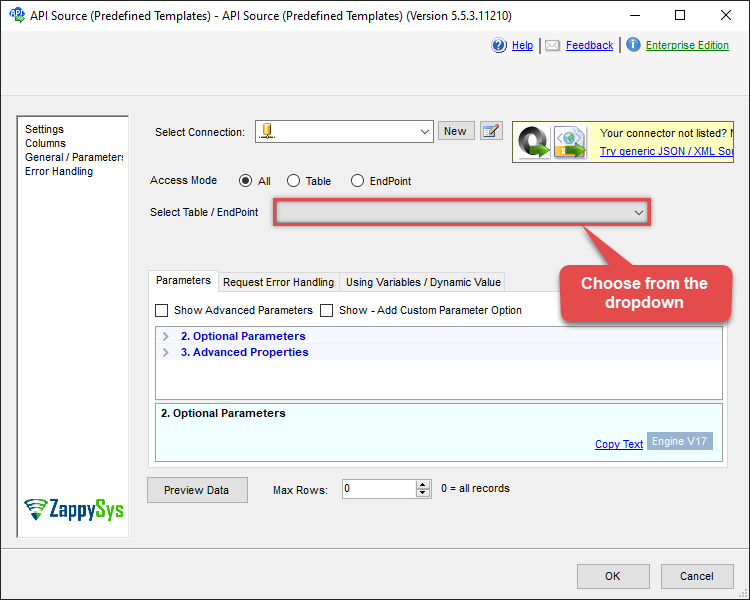
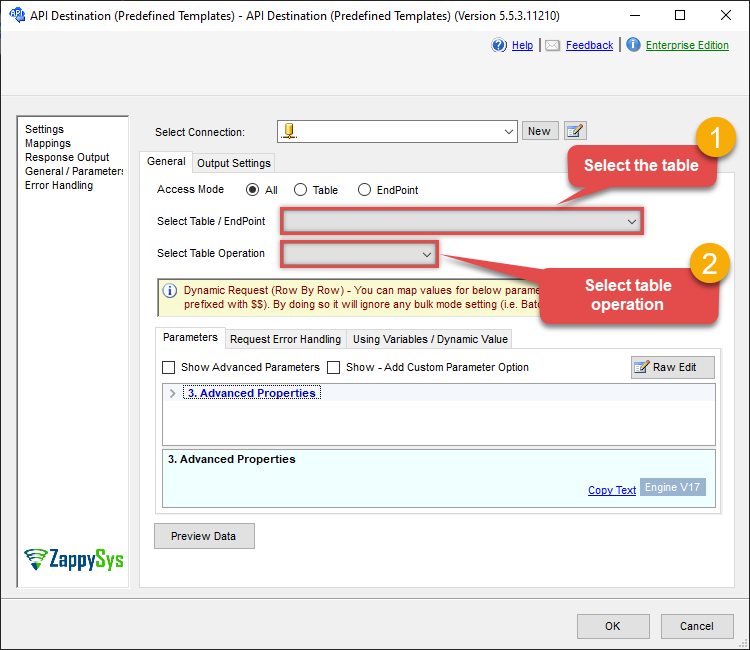
Use Shopify Connector in API Source component to read data or in API Destination component to read/write data:
Read from Products table using API Source

| Optional Parameters | |
|---|---|
| Product Id(s) - Comma separated | |
Read/write to Products table using API Destination
| Optional Parameters | |
|---|---|
| Product Id(s) - Comma separated | |
ODBC application
Use these SQL queries in your ODBC application data source:
Read products
<p>Gets a list of all products from the <code>Products</code> table. This table corresponds to the Shopify Products API.</p>
SELECT * FROM ProductsRead a product by ID
<p>Gets a specific product by its unique <code>Id</code>. Supply the product ID in the <code>WITH</code> clause or <code>WHERE</code> clause to filter the result.</p>
SELECT * FROM Products WITH Id=1111111111111Read multiple products by IDs
<p>Gets multiple products by supplying a comma-separated list of IDs in the <code>ids</code> parameter within the <code>WITH</code> clause.</p>
SELECT * FROM Products WITH(ids='1111111111111,2222222222222,3333333333333')Create a product
<p>Creates a new product in Shopify. You can specify various attributes such as <code>Title</code>, <code>BodyHtml</code>, <code>Vendor</code>, <code>ProductType</code>, <code>Tags</code>, and <code>Images</code>.</p> <p>This example also demonstrates how to create variants and options simultaneously by supplying JSON arrays for the <code>Variants</code> and <code>Options</code> columns.</p>
INSERT INTO Products
(
	 Title
	,Status
	,BodyHtml
	,UrlHandle
	,Vendor
	,ProductType
	,Variants
	,Options
	,Tags
	,Metafields
	,Images
	)
VALUES
('Ice Cream'
,'draft'
,'<strong>Very yummy ice cream!</strong>'
,'ice-cream'
,'Burton'
,'Snowboard'

,'[
	{"price":10.5, "option1":"Chocolate","option2":"Small","sku":"ICE-CHO-SML","inventory_quantity":100},
	{"price":10.5, "option1":"Chocolate","option2":"Medium","sku":"ICE-CHO-MED","inventory_quantity":100},
	{"price":11.5, "option1":"Vanilla","option2":"Small","sku":"ICE-VNL-MED","inventory_quantity":210}
  ]'

--you must set variants and use atlease one value from the below list in option1, option2 or option3 in any variant entry else it will fail.
,'[
	{"name":"Color","values":["Chocolate","Vanilla"]},
	{"name":"Size","values":["Small","Medium"]}
  ]'

,'["Frozen","Seasonal","Dad''s Fav"]'

--adding metadata (custom fields) - metadata fields must be created before setting it
--below are 2 system fields for SEO Title / SEO Description (you dont need to create them unlike custom metadata). These values appears on SEO section
,'[
	{"key":"title_tag","value":"Yum Ice Cream SEO Title", "namespace":"global","type":"single_line_text_field"},
	{"key":"description_tag","value":"Yum Ice Cream SEO description", "namespace":"global","type":"single_line_text_field"}
  ]'

--first image becomes main image if you supply multiple images
--upload multiple images from URL (set "src")
 , '[
	{"src":"https://zappysys.com/images/tech/google-analytics-logo.png"},
	{"src":"https://zappysys.com/images/tech/web-api-logo.png"}
  ]'
--OR upload multiple local image files (set "attachment")
--, '[
--	 {"attachment":"<<c:\temp\icecream_1.png,FUN_FILE_BASE64ENC>>"},
--	 {"attachment":"<<c:\temp\icecream_2.png,FUN_FILE_BASE64ENC>>"}
--  ]'

)
Update a product
<p>Updates an existing product identified by its <code>Id</code>. You can modify attributes like <code>Title</code>, <code>BodyHtml</code>, <code>Status</code>, and <code>Tags</code>.</p> <p>This example also shows how to update product images and variants by providing JSON data for the <code>Images</code> and <code>Variants</code> columns.</p>
UPDATE Products
SET Title='Ice Cream - Updated'
 , Status='draft' --active, archived, draft
 , BodyHtml='<strong>Very yummy ice cream - updated!</strong>'
--first image becomes main image if you supply multiple images
--upload multiple images from URL (set "src")
 , Images='[
	{"src":"https://zappysys.com/images/tech/google-analytics-logo.png"},
	{"src":"https://zappysys.com/images/tech/web-api-logo.png"}
  ]'
--OR upload multiple local image files (set "attachment")
--, Images='[
--	 {"attachment":"<<c:\temp\icecream_1.png,FUN_FILE_BASE64ENC>>"},
--	 {"attachment":"<<c:\temp\icecream_2.png,FUN_FILE_BASE64ENC>>"}
--  ]'

 , Variants='[
	{"price":20.5, "option1":"Chocolate","option2":"Small","sku":"ICE-CHO-SML","inventory_quantity":300},
	{"price":21.5, "option1":"Vanilla","option2":"Small","sku":"ICE-VNL-MED","inventory_quantity":110}
  ]'
, PublishedScope='global' --or web
, Vendor ='IceGlobal'
, ProductType ='Cold Food'
, Tags ='["Frozen","Seasonal","Dad''s Fav"]'
--Update SEO URL
 ,UrlHandle='ice-cream-51'
--Update SEO title / description
, SEOTitle='Yum Ice Cream SEO Title-update'
, SEODescription='Yum Ice Cream SEO description-update'
Where Id=7348335771748
Delete a product
<p>Deletes an existing product by its <code>Id</code>.</p>
DELETE FROM Products
Where Id=7348335771748
SQL Server
Use these SQL queries in SQL Server after you create a data source in Data Gateway:
Read products
<p>Gets a list of all products from the <code>Products</code> table. This table corresponds to the Shopify Products API.</p>
DECLARE @MyQuery NVARCHAR(MAX) = 'SELECT * FROM Products';

EXEC (@MyQuery) AT [LS_TO_SHOPIFY_IN_GATEWAY];
Read a product by ID
<p>Gets a specific product by its unique <code>Id</code>. Supply the product ID in the <code>WITH</code> clause or <code>WHERE</code> clause to filter the result.</p>
DECLARE @MyQuery NVARCHAR(MAX) = 'SELECT * FROM Products WITH Id=1111111111111';

EXEC (@MyQuery) AT [LS_TO_SHOPIFY_IN_GATEWAY];
Read multiple products by IDs
<p>Gets multiple products by supplying a comma-separated list of IDs in the <code>ids</code> parameter within the <code>WITH</code> clause.</p>
DECLARE @MyQuery NVARCHAR(MAX) = 'SELECT * FROM Products WITH(ids=''1111111111111,2222222222222,3333333333333'')';

EXEC (@MyQuery) AT [LS_TO_SHOPIFY_IN_GATEWAY];
Create a product
<p>Creates a new product in Shopify. You can specify various attributes such as <code>Title</code>, <code>BodyHtml</code>, <code>Vendor</code>, <code>ProductType</code>, <code>Tags</code>, and <code>Images</code>.</p> <p>This example also demonstrates how to create variants and options simultaneously by supplying JSON arrays for the <code>Variants</code> and <code>Options</code> columns.</p>
DECLARE @MyQuery NVARCHAR(MAX) = 'INSERT INTO Products
(
	 Title
	,Status
	,BodyHtml
	,UrlHandle
	,Vendor
	,ProductType
	,Variants
	,Options
	,Tags
	,Metafields
	,Images
	)
VALUES
(''Ice Cream''
,''draft''
,''<strong>Very yummy ice cream!</strong>''
,''ice-cream''
,''Burton''
,''Snowboard''

,''[
	{"price":10.5, "option1":"Chocolate","option2":"Small","sku":"ICE-CHO-SML","inventory_quantity":100},
	{"price":10.5, "option1":"Chocolate","option2":"Medium","sku":"ICE-CHO-MED","inventory_quantity":100},
	{"price":11.5, "option1":"Vanilla","option2":"Small","sku":"ICE-VNL-MED","inventory_quantity":210}
  ]''

--you must set variants and use atlease one value from the below list in option1, option2 or option3 in any variant entry else it will fail.
,''[
	{"name":"Color","values":["Chocolate","Vanilla"]},
	{"name":"Size","values":["Small","Medium"]}
  ]''

,''["Frozen","Seasonal","Dad''''s Fav"]''

--adding metadata (custom fields) - metadata fields must be created before setting it
--below are 2 system fields for SEO Title / SEO Description (you dont need to create them unlike custom metadata). These values appears on SEO section
,''[
	{"key":"title_tag","value":"Yum Ice Cream SEO Title", "namespace":"global","type":"single_line_text_field"},
	{"key":"description_tag","value":"Yum Ice Cream SEO description", "namespace":"global","type":"single_line_text_field"}
  ]''

--first image becomes main image if you supply multiple images
--upload multiple images from URL (set "src")
 , ''[
	{"src":"https://zappysys.com/images/tech/google-analytics-logo.png"},
	{"src":"https://zappysys.com/images/tech/web-api-logo.png"}
  ]''
--OR upload multiple local image files (set "attachment")
--, ''[
--	 {"attachment":"<<c:\temp\icecream_1.png,FUN_FILE_BASE64ENC>>"},
--	 {"attachment":"<<c:\temp\icecream_2.png,FUN_FILE_BASE64ENC>>"}
--  ]''

)';

EXEC (@MyQuery) AT [LS_TO_SHOPIFY_IN_GATEWAY];
Update a product
<p>Updates an existing product identified by its <code>Id</code>. You can modify attributes like <code>Title</code>, <code>BodyHtml</code>, <code>Status</code>, and <code>Tags</code>.</p> <p>This example also shows how to update product images and variants by providing JSON data for the <code>Images</code> and <code>Variants</code> columns.</p>
DECLARE @MyQuery NVARCHAR(MAX) = 'UPDATE Products
SET Title=''Ice Cream - Updated''
 , Status=''draft'' --active, archived, draft
 , BodyHtml=''<strong>Very yummy ice cream - updated!</strong>''
--first image becomes main image if you supply multiple images
--upload multiple images from URL (set "src")
 , Images=''[
	{"src":"https://zappysys.com/images/tech/google-analytics-logo.png"},
	{"src":"https://zappysys.com/images/tech/web-api-logo.png"}
  ]''
--OR upload multiple local image files (set "attachment")
--, Images=''[
--	 {"attachment":"<<c:\temp\icecream_1.png,FUN_FILE_BASE64ENC>>"},
--	 {"attachment":"<<c:\temp\icecream_2.png,FUN_FILE_BASE64ENC>>"}
--  ]''

 , Variants=''[
	{"price":20.5, "option1":"Chocolate","option2":"Small","sku":"ICE-CHO-SML","inventory_quantity":300},
	{"price":21.5, "option1":"Vanilla","option2":"Small","sku":"ICE-VNL-MED","inventory_quantity":110}
  ]''
, PublishedScope=''global'' --or web
, Vendor =''IceGlobal''
, ProductType =''Cold Food''
, Tags =''["Frozen","Seasonal","Dad''''s Fav"]''
--Update SEO URL
 ,UrlHandle=''ice-cream-51''
--Update SEO title / description
, SEOTitle=''Yum Ice Cream SEO Title-update''
, SEODescription=''Yum Ice Cream SEO description-update''
Where Id=7348335771748';

EXEC (@MyQuery) AT [LS_TO_SHOPIFY_IN_GATEWAY];
Delete a product
<p>Deletes an existing product by its <code>Id</code>.</p>
DECLARE @MyQuery NVARCHAR(MAX) = 'DELETE FROM Products
Where Id=7348335771748';

EXEC (@MyQuery) AT [LS_TO_SHOPIFY_IN_GATEWAY];