

Table WorkItems
Description
No description available
Supported Operations
Below section contains supported CRUD operations. Each operation is executed by some EndPoint behind the scene.| Method | Supported | Reference EndPoint |
|---|---|---|
| SELECT | query_workitems | |
| INSERT | add_workitem | |
| UPDATE | update_workitem | |
| UPSERT | ||
| DELETE | delete_workitem | |
| LOOKUP | get_workitems_by_ids |
Examples
SSIS
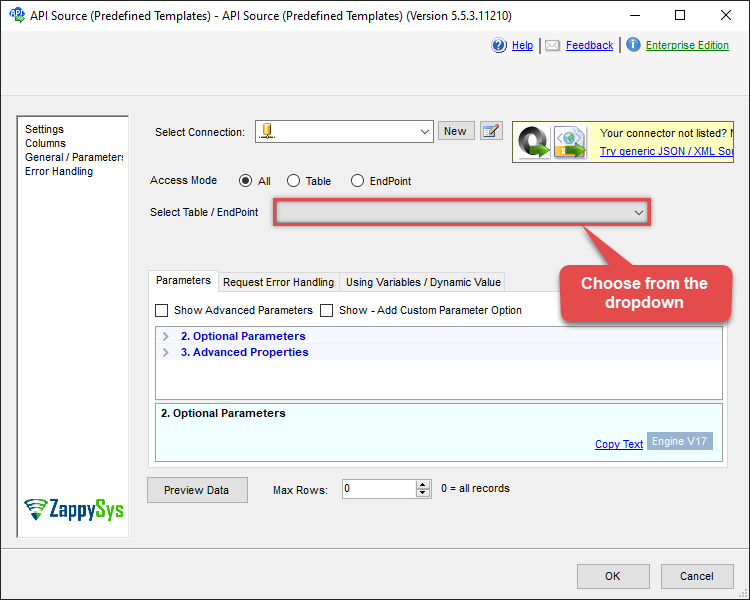
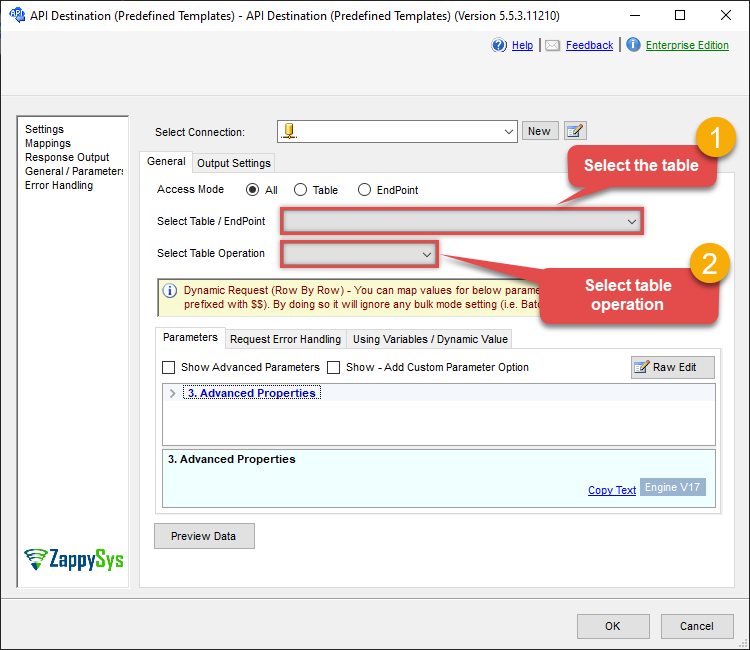
Use Azure DevOps Connector in API Source component to read data or in API Destination component to read/write data:
Read from WorkItems table using API Source

| Required Parameters | |
|---|---|
| Project Name | Fill-in the parameter... |
| Wiql Query | Fill-in the parameter... |
| Optional Parameters | |
| Team Id or Name | |
| Use time precision | |
| Expand Parameters (Set Blank for fast response) | Relations |
Read/write to WorkItems table using API Destination
| Required Parameters | |
|---|---|
| Project Name | Fill-in the parameter... |
| Wiql Query | Fill-in the parameter... |
| Optional Parameters | |
| Team Id or Name | |
| Use time precision | |
| Expand Parameters (Set Blank for fast response) | Relations |
ODBC application
Use these SQL queries in your ODBC application data source:
List work items (default project)
<p>Returns work items from the default project specified in the connection (or the project you set in the WITH clause). Use this as the baseline list; you can filter by ID, state, or other columns in the WHERE clause, or pass a WIQL query in WITH to filter on the server.</p>
SELECT * FROM WorkItems
-- This query requires a default project to be specified in the Connection UI,
-- or you can explicitly set the project by using the WITH clause:
-- Example: WITH(Project='MyProjectName')
List work items for a project
<p>Lists work items for a specific project by supplying the project name in the WITH clause. Use this when your connection default is one project but you need to query another. You can combine with a WHERE clause or a WIQL query in WITH to narrow results.</p>
SELECT * FROM WorkItems WITH (Project='ProductTesting')List work items with ParentId
<p>By default, relation fields such as ParentId are not returned so that list queries stay fast. When you need parent-child or other link information, set <code>Expand='Relations'</code> in the WITH clause. The result set will then include ParentId and other relation columns so you can join or filter by hierarchy.</p>
SELECT * FROM WorkItems WITH(Expand='Relations')Get work item by ID
<p>Returns a single work item by its numeric ID. Use the default project from the connection or ensure the work item exists in that project. Filter in a WHERE clause when you need one specific item for detail view or downstream logic.</p>
SELECT * FROM WorkItems WHERE Id=1001Get work item by ID (fail on 404)
<p>Same as getting a work item by ID, but the request fails immediately with an error if the work item is not found (404) instead of continuing. Use this when a missing work item should stop the process (e.g. in a script that expects the item to exist). By default the driver can continue on 404; set the option to False to get strict behavior.</p>
SELECT * FROM WorkItems WHERE Id='8563' WITH (ContineOn404Error='False')Query work items by WIQL (filters and date range)
<p>Use a WIQL (Work Item Query Language) query to filter work items by project, ID range, changed/created dates, work item type, state, priority, and more. The query runs on the server and returns only matching rows. This example shows typical filters: project, ID range, date variables like @Today and @StartOfYear, and ordering by changed date.</p><p>For full syntax and operators, see <a href="https://learn.microsoft.com/en-us/azure/devops/boards/queries/wiql-syntax?view=azure-devops">WIQL syntax</a> and <a href="https://learn.microsoft.com/en-us/azure/devops/boards/queries/query-operators-variables?view=azure-devops">query operators and variables</a>.</p>
SELECT * FROM WorkItems WITH (Query='SELECT * FROM WorkItems
WHERE [System.Id] > 2000 AND [System.Id] < 7050
	AND [System.TeamProject]=''ProductTesting''
	AND [System.ChangedDate] < @Today
	AND [System.CreatedDate] > @StartOfYear
	AND [System.WorkItemType]=''Task''
	AND [System.State]=''Resolved''
	AND [Microsoft.VSTS.Common.Priority] >= 1
	ORDER BY [System.ChangedDate] DESC
	')
Query work items modified after a date (dynamic)
<p>Use placeholder functions (e.g. monthstart, today, yearend) and arithmetic (e.g. monthstart-1d) to build dynamic dates in your WIQL query so the same statement always reflects the intended period without manual date changes. The placeholder is evaluated before the query is sent to Azure DevOps.</p><p>For placeholder syntax and options see <a href="https://zappysys.com/links/?id=10014">placeholder functions</a>. For WIQL see <a href="https://learn.microsoft.com/en-us/azure/devops/boards/queries/wiql-syntax?view=azure-devops">WIQL syntax</a>.</p>
SELECT * FROM WorkItems WITH (Query='SELECT * FROM WorkItems
WHERE [System.TeamProject]=''ProductTesting''
	AND [System.ChangedDate] >= ''<<monthstart-1d,FUN_TO_DATE>>''
ORDER BY [System.ChangedDate] DESC
	')
Query work items by WIQL in a project
<p>Runs a WIQL query in a specific project by passing both the project name and the query in the WITH clause. Use this when the connection default is different from the project you want to query, or when you need to target one project explicitly. The query can filter by ID, state, type, or any other WIQL criteria.</p>
SELECT * FROM WorkItems WITH (Project='PosProject', Query='SELECT * FROM WorkItems WHERE [System.Id] = 2819')Query work items by type (e.g. Task)
<p>Returns work items of a given type (e.g. Task, Bug, User Story) by filtering with a WIQL query on <code>System.WorkItemType</code>. Use this to list all tasks, all bugs, or any other type. You can combine with other WIQL conditions (state, project, dates) in the same query string.</p>
SELECT * FROM WorkItems WITH (Query='SELECT * FROM WorkItems WHERE [System.WorkItemType] = ''Task''')Create work item (default project)
<p>Creates a new work item in the default project. Specify at least work item type and title; you can add custom or system fields as columns and values. The example shows a task with a few custom fields. Use WITH to set project if the default is not the target project.</p>
INSERT INTO WorkItems (WorkItemType, Title, [CustomFieldText], [CustomFieldDate], [CustomFieldNumber])
VALUES ('task', 'Fix Issues in System', 'My Custom Text', '2021-01-01T23:59:59.123', 1000)
Create work item in a project
<p>Creates a new work item in a specific project by passing the project name in the WITH clause. Use this when the connection default project is not the one you want. Same columns and values as creating in the default project; only the target project changes.</p>
INSERT INTO WorkItems (WorkItemType, Title, [CustomFieldText], [CustomFieldDate], [CustomFieldNumber])
VALUES ('task', 'Fix Issues in System', 'My Custom Text', '2021-01-01T23:59:59.123', 1000)
WITH(Project='MyProject')
Create work item with many fields
<p>Creates a work item with a full set of common fields: type, title, description, tags, area and iteration path, assignee, priority, triage, task type, dates, estimates, story points, and more. Use this as a template when you need to set many fields at once. Omit or comment out columns you do not need; add custom fields with the Custom prefix as in the connector docs.</p>
INSERT INTO WorkItems  (
      [WorkItemType]
    , [Title]
	, [Description]
	, [Tags]
	, [AreaPath]
	, [IterationPath]
	, [AssignedTo]
	, [Priority]
    , [Triage]
  --, [StackRank]
	, [Blocked]
	, [TaskType]
	, [RequiresReview]
	, [RequiresTest]
	, [IntegrationBuild]
	, [FoundIn]
	, [OriginalEstimate]
	, [RemainingWork]
	, [CompletedWork]
	, [Size]
	, [Effort]
	, [TargetDate]
	, [StartDate]
	, [FinishDate]
	, [DueDate]
	, [StoryPoints]
  --, [Discipline]
	, [SystemInfo]
	, [Steps]
	, [ReproSteps]
	--, [CustomFieldText]  --custom field prefix with CustomYOUR_FIELD_NAME_WITHOUT_SPACE_OR_DASH_OR_DOT
	--, [CustomFieldDate]
	--, [CustomFieldNumber]
	--, [CustomFieldDecimal]
	--, [CustomFieldPickListString]
	--, [CustomFieldPickListNum]
)
VALUES (
      'Bug' -- Task, User Story -- WorkItemType
    , 'My Task Title - Created on <<FUN_NOW>>'  --Title
    , 'Some Description - Created on <<FUN_NOW>>' --Description
    , 'odata; api' --Tags
    , 'ProductTesting\SSISPowerPack' --AreaPath
    , 'ProductTesting\2021.6' --IterationPath
    , 'build@mycompany.com' --AssignedTo
    , 1 --Priority
    , 'Pending' --Triage
  --, ??? --[StackRank]
	, 'No' --Blocked
	, 'Planned' --TaskType
	, 'No' --RequiresReview
	, 'No' --RequiresTest
	, '101.1.2.3' --IntegrationBuild
	, '100.1.2.3' --FoundIn
	, 9999.111 --OriginalEstimate
	, 9999.222 --RemainingWork
	, 9999.333 --CompletedWork
	, 9999.444 --Size
	, 9999.555 --Effort
	, '2021-01-31' --TargetDate
	, '2022-01-31' --StartDate
	, '2023-01-31' --FinishDate
	, '2024-01-31' --DueDate
	, 100.5 --StoryPoints
  --, 'Some Discipline' --Discipline
	, 'Windows 10' --SystemInfo
	, 'Here are steps' --Steps
	, 'Here are steps to reproduce' --ReproSteps
	--, 'abcd'  --CustomFieldText
	--, '2021-01-31' --CustomFieldDate
	--, 9999  --CustomFieldNumber
	--, 9999.123 --CustomFieldDecimal
	--, 'BBB' --CustomFieldPickListString
	--, '2' --CustomFieldPickListNum
)
WITH(
	Project='ProductTesting'
-- ,BypassRules='true'  --Useful to set ReadOnly Fields like ResolvedBy, ClosedBy
-- ,SuppressNotifications='true'  --Avoids email notifications on change
-- ,ValidateOnly='true'  --Dont perform actual insert - just validate
)
Update work item by ID (basic fields)
<p>Updates a single work item by ID, changing only the columns you set in the SET clause. Use WHERE Id = ... to target the item. You can update title, description, custom fields, state, and other writable fields. For read-only fields (e.g. ResolvedBy) you must set BypassRules in WITH; see the "Update readonly fields" example.</p>
UPDATE WorkItems SET
Title = 'Renamed Work Item Title',
CustomMyField = 'New Custom Text'
WHERE Id = 7455
Update work item by ID (many columns)
<p>Updates many columns on a single work item in one statement: title, description, state, tags, area/iteration, assignee, priority, estimates, dates, and more. Use this when you need to apply a broad set of changes to one item. Optional WITH parameters can suppress notifications or validate without saving.</p>
UPDATE WorkItems
SET   [Title] = 'Update-QA Task <<FUN_NOW>>'
	, [Description] = 'Updated desc <<FUN_NOW>>'
  --, [WorkItemType]='Bug' -- Task
	, [State] = 'Active'
	, [Tags] = 'odata; api'
	, [Revision] = 1
	, [AreaPath] = 'ProductTesting\SSISPowerPack'
	, [TeamProject] = 'ProductTesting'
	, [IterationPath] = 'ProductTesting\2021.6'
	, [Reason] = 'Reactivated'
	, [AssignedTo] = 'build@mycompany.com'
	, [Priority] = 1
  --, [Triage] = 'Pending'
  --, [StackRank] = ???
	, [Blocked] = 'No'
	, [TaskType] = 'Planned'
	, [RequiresReview] = 'No'
	, [RequiresTest] = 'No'
	, [ActivatedDate] = '2021-01-31'
  --, [ResolvedReason] = 'Complete and Requires Review/Test'
  --, [ResolvedBy] = 'John Smith <jsmith@mycompany.com>' --or Just Name or Email (Must set ByPassRules='true' Param to set this readonly field)
	, [IntegrationBuild] = '101.1.2.3'
	, [FoundIn] = '100.1.2.3'
	, [OriginalEstimate] = 9999.123
	, [RemainingWork] = 9999.123
	, [CompletedWork] = 9999.123
	, [Size] = 9999.123
	, [Effort] = 9999.123
	, [TargetDate] = '2021-01-31'
	, [StartDate] = '2021-01-31'
	, [FinishDate] = '2021-01-31'
	, [DueDate] = '2021-01-31'
	, [StoryPoints] = 100.5
--	, [Discipline] = 'abcd'
	, [SystemInfo] = 'abcd'
	, [Steps] = 'abcd'
	, [ReproSteps] = 'abcd'
--	, [CustomFieldText] = 'abcd'
--	, [CustomFieldDate] = '2021-01-31'
--	, [CustomFieldNumber] = 9999
--	, [CustomFieldDecimal] = 9999.123
--	, [CustomFieldPickListString] = 'BBB'
--	, [CustomFieldPickListNum] = '2'
WHERE [Id] = 6455
--WITH(
--  BypassRules='true'  --Useful to Update ReadOnly Fields like ResolvedBy, ClosedBy
-- ,SuppressNotifications='true'  --Avoids email notifications on change
-- ,ValidateOnly='true'  --Dont perform actual update - just validate
--)
Add tags to an existing work item
<p>Adds or replaces tags on a work item by ID. Set the Tags column to a semicolon-separated list; use Operation='add' in WITH to append to existing tags instead of replacing. Optional WITH parameters can bypass rules, suppress email notifications, or validate without applying the update.</p>
UPDATE WorkItems
SET   Tags = 'newtag1; newtag2'
WHERE Id = 6455
WITH(
	   Project='ProductTesting'
	  ,Operation='add'
   -- ,BypassRules='true'  --Useful to Update ReadOnly Fields like ResolvedBy, ClosedBy
   -- ,SuppressNotifications='true'  --Avoids email notifications on change
   -- ,ValidateOnly='true'  --Dont perform actual update - just validate
)
Update readonly fields (e.g. ClosedBy, ResolvedBy)
<p>Some fields (e.g. ResolvedBy, ClosedBy) are read-only under normal rules. To update them you must set <code>BypassRules='true'</code> in the WITH clause. Use this only when you need to set system or audit fields; suppress notifications or validate-only options are also available in WITH for testing or reducing email noise.</p>
UPDATE WorkItems
SET   [Title] = 'Update-QA Task <<FUN_NOW>>'
	, [Description] = 'Updated desc <<FUN_NOW>>'
    , [WorkItemType]='Bug' -- Task
	, [State] = 'Resolved'
	, [Tags] = 'odata; api'
	, [ResolvedBy] = 'some.one@mycompany.com' --(Must set ByPassRules='true' Param to set this readonly field)
WHERE [Id] = 9626
WITH(
  BypassRules='true'  --Useful to Update ReadOnly Fields like ResolvedBy, ClosedBy
-- ,SuppressNotifications='true'  --Avoids email notifications on change
-- ,ValidateOnly='true'  --Dont perform actual update - just validate
)
Delete work item by ID
<p>Permanently deletes one work item by its ID. The item is removed from the project. Use with care; deletion is not reversible. Ensure the ID and project context are correct before running.</p>
DELETE FROM WorkItems WHERE Id = 7455Delete work items by WIQL query
<p>Deletes all work items that match a WIQL query. The query in WITH defines which items are removed (e.g. by project and a list of IDs). Run a SELECT with the same query first to confirm the set of items before deleting.</p>
DELETE FROM WorkItems
Where 1=1
WITH(Query='SELECT * FROM WorkItems Where [System.TeamProject]=''MyProject'' AND ([System.Id]=6469 OR [System.Id]=6468) ')
Update work items by WIQL query
<p>Updates the same column(s) on every work item that matches a WIQL query. The query in WITH selects the target items; the SET clause defines the new values. Use this to bulk-update title, state, or other fields for a set of items (e.g. all tasks in a sprint). Verify the query scope before running.</p>
UPDATE WorkItems
Set Title='New Title - Updated on <<FUN_NOW>>'
Where 1=1
WITH(Query='SELECT * FROM WorkItems Where [System.TeamProject]=''MyProject'' AND ([System.Id]=6469 OR [System.Id]=6468) ')
Query work items using WIQL
<p>Run a WIQL query to filter work items by project and criteria; the query is passed in the WITH clause and executed on the server. You can select specific columns (e.g. Id, Title, Description, CreatedDate, Url) or use * to return all columns. WIQL supports project, ID, state, work item type, dates, and more.</p><p>For syntax and operators see <a href="https://learn.microsoft.com/en-us/azure/devops/boards/queries/wiql-syntax?view=azure-devops">WIQL syntax</a>.</p>
SELECT
	  Id
	, Title
	, Description
	, CreatedDate
	, Url
FROM WorkItems
--WHERE Id=5283490 -- uncomment to get just one WorkItem
WITH(Query='SELECT * FROM WorkItems WHERE [System.TeamProject]=''ProductTesting'' and [System.Id]=6455 ORDER BY [System.Id] DESC')
Query work items using WIQL (#DirectSQL)
<p>Same as the previous example but the query is sent to the server as-is using the #DirectSQL preprocessor, so you can write simpler SQL without wrapping the WIQL in a WITH parameter. Use this when you prefer to author the full WIQL statement directly. Behavior and result columns are the same.</p><p>For WIQL syntax see <a href="https://learn.microsoft.com/en-us/azure/devops/boards/queries/wiql-syntax?view=azure-devops">WIQL syntax</a>.</p>
#DirectSQL SELECT * FROM WorkItems WHERE [System.TeamProject]=''ProductTesting'' and [System.Id]=6455 ORDER BY [System.Id] DESCQuery sprint hours by team member (estimated vs completed)
<p>Returns aggregated original estimate, remaining work, and completed work per team member for a sprint (iteration path). Useful for sprint burndown or capacity reporting. The query groups by iteration path and assignee; the WITH clause filters to a specific sprint and state (e.g. Resolved, Closed).</p><p>This only gives meaningful results if your team updates Original Estimate and Completed Work on work items as they progress. You can change the iteration path in the query to cover other sprints or the whole product.</p>
SELECT
	  IterationPath as Sprint
	, AssignedToUniqueName as AssignedTo
	, SUM(OriginalEstimate) as OriginalHours_Total
	, SUM(RemainingWork) as RemainingWork_Total
	, SUM(CompletedWork) as CompletedHours_Total
FROM WorkItems
GROUP BY IterationPath,AssignedToUniqueName
WITH(
	  Project='ProductTesting'

	  --//On Preview UI Change [Max Rows] to use more sample rows - else it will use only 100 rows
	  ,Query='SELECT * FROM WorkItems WHERE [System.IterationPath] UNDER ''ProductTesting\Sprint 1'' and State IN(''Resolved'', ''Closed'')'

	  --Use below to query all sprints for this Product
	  --,Query='SELECT * FROM WorkItems WHERE [System.IterationPath] UNDER ''ProductTesting\'' and State IN(''Resolved'', ''Closed'')'
)
Read more than 20000 work items (UNION ALL)
<p>The Azure DevOps API returns at most 20000 work items per request. To read more, run multiple queries that each request a different ID range (e.g. 1–19999, 20000–39999) and combine the results. This example uses temp tables and UNION ALL so you get one result set; you can add more ranges by adding more SELECT INTO and UNION ALL lines.</p><p>Run the full script at once. Adjust the ID ranges and the number of temp tables to match your data size.</p>
SELECT * INTO #t1 FROM WorkItems WITH(Project='ProductTesting', Query='SELECT * FROM WorkItems WHERE [System.Id]>=1 and [System.Id]<20000');
SELECT * INTO #t2 FROM WorkItems WITH(Project='ProductTesting', Query='SELECT * FROM WorkItems WHERE [System.Id]>=20000 and [System.Id]<40000');
SELECT * INTO #t3 FROM WorkItems WITH(Project='ProductTesting', Query='SELECT * FROM WorkItems WHERE [System.Id]>=40000 and [System.Id]<60000');
--//....
--//add more temp tables above and update UNION ALL too

SELECT * FROM #t1
UNION ALL
SELECT * FROM #t2
UNION ALL
SELECT * FROM #t3
;
SQL Server
Use these SQL queries in SQL Server after you create a data source in Data Gateway:
List work items (default project)
<p>Returns work items from the default project specified in the connection (or the project you set in the WITH clause). Use this as the baseline list; you can filter by ID, state, or other columns in the WHERE clause, or pass a WIQL query in WITH to filter on the server.</p>
DECLARE @MyQuery NVARCHAR(MAX) = 'SELECT * FROM WorkItems
-- This query requires a default project to be specified in the Connection UI,
-- or you can explicitly set the project by using the WITH clause:
-- Example: WITH(Project=''MyProjectName'')';

EXEC (@MyQuery) AT [LS_TO_AZURE_DEVOPS_IN_GATEWAY];
List work items for a project
<p>Lists work items for a specific project by supplying the project name in the WITH clause. Use this when your connection default is one project but you need to query another. You can combine with a WHERE clause or a WIQL query in WITH to narrow results.</p>
DECLARE @MyQuery NVARCHAR(MAX) = 'SELECT * FROM WorkItems WITH (Project=''ProductTesting'')';

EXEC (@MyQuery) AT [LS_TO_AZURE_DEVOPS_IN_GATEWAY];
List work items with ParentId
<p>By default, relation fields such as ParentId are not returned so that list queries stay fast. When you need parent-child or other link information, set <code>Expand='Relations'</code> in the WITH clause. The result set will then include ParentId and other relation columns so you can join or filter by hierarchy.</p>
DECLARE @MyQuery NVARCHAR(MAX) = 'SELECT * FROM WorkItems WITH(Expand=''Relations'')';

EXEC (@MyQuery) AT [LS_TO_AZURE_DEVOPS_IN_GATEWAY];
Get work item by ID
<p>Returns a single work item by its numeric ID. Use the default project from the connection or ensure the work item exists in that project. Filter in a WHERE clause when you need one specific item for detail view or downstream logic.</p>
DECLARE @MyQuery NVARCHAR(MAX) = 'SELECT * FROM WorkItems WHERE Id=1001';

EXEC (@MyQuery) AT [LS_TO_AZURE_DEVOPS_IN_GATEWAY];
Get work item by ID (fail on 404)
<p>Same as getting a work item by ID, but the request fails immediately with an error if the work item is not found (404) instead of continuing. Use this when a missing work item should stop the process (e.g. in a script that expects the item to exist). By default the driver can continue on 404; set the option to False to get strict behavior.</p>
DECLARE @MyQuery NVARCHAR(MAX) = 'SELECT * FROM WorkItems WHERE Id=''8563'' WITH (ContineOn404Error=''False'')';

EXEC (@MyQuery) AT [LS_TO_AZURE_DEVOPS_IN_GATEWAY];
Query work items by WIQL (filters and date range)
<p>Use a WIQL (Work Item Query Language) query to filter work items by project, ID range, changed/created dates, work item type, state, priority, and more. The query runs on the server and returns only matching rows. This example shows typical filters: project, ID range, date variables like @Today and @StartOfYear, and ordering by changed date.</p><p>For full syntax and operators, see <a href="https://learn.microsoft.com/en-us/azure/devops/boards/queries/wiql-syntax?view=azure-devops">WIQL syntax</a> and <a href="https://learn.microsoft.com/en-us/azure/devops/boards/queries/query-operators-variables?view=azure-devops">query operators and variables</a>.</p>
DECLARE @MyQuery NVARCHAR(MAX) = 'SELECT * FROM WorkItems WITH (Query=''SELECT * FROM WorkItems
WHERE [System.Id] > 2000 AND [System.Id] < 7050
	AND [System.TeamProject]=''''ProductTesting''''
	AND [System.ChangedDate] < @Today
	AND [System.CreatedDate] > @StartOfYear
	AND [System.WorkItemType]=''''Task''''
	AND [System.State]=''''Resolved''''
	AND [Microsoft.VSTS.Common.Priority] >= 1
	ORDER BY [System.ChangedDate] DESC
	'')';

EXEC (@MyQuery) AT [LS_TO_AZURE_DEVOPS_IN_GATEWAY];
Query work items modified after a date (dynamic)
<p>Use placeholder functions (e.g. monthstart, today, yearend) and arithmetic (e.g. monthstart-1d) to build dynamic dates in your WIQL query so the same statement always reflects the intended period without manual date changes. The placeholder is evaluated before the query is sent to Azure DevOps.</p><p>For placeholder syntax and options see <a href="https://zappysys.com/links/?id=10014">placeholder functions</a>. For WIQL see <a href="https://learn.microsoft.com/en-us/azure/devops/boards/queries/wiql-syntax?view=azure-devops">WIQL syntax</a>.</p>
DECLARE @MyQuery NVARCHAR(MAX) = 'SELECT * FROM WorkItems WITH (Query=''SELECT * FROM WorkItems
WHERE [System.TeamProject]=''''ProductTesting''''
	AND [System.ChangedDate] >= ''''<<monthstart-1d,FUN_TO_DATE>>''''
ORDER BY [System.ChangedDate] DESC
	'')';

EXEC (@MyQuery) AT [LS_TO_AZURE_DEVOPS_IN_GATEWAY];
Query work items by WIQL in a project
<p>Runs a WIQL query in a specific project by passing both the project name and the query in the WITH clause. Use this when the connection default is different from the project you want to query, or when you need to target one project explicitly. The query can filter by ID, state, type, or any other WIQL criteria.</p>
DECLARE @MyQuery NVARCHAR(MAX) = 'SELECT * FROM WorkItems WITH (Project=''PosProject'', Query=''SELECT * FROM WorkItems WHERE [System.Id] = 2819'')';

EXEC (@MyQuery) AT [LS_TO_AZURE_DEVOPS_IN_GATEWAY];
Query work items by type (e.g. Task)
<p>Returns work items of a given type (e.g. Task, Bug, User Story) by filtering with a WIQL query on <code>System.WorkItemType</code>. Use this to list all tasks, all bugs, or any other type. You can combine with other WIQL conditions (state, project, dates) in the same query string.</p>
DECLARE @MyQuery NVARCHAR(MAX) = 'SELECT * FROM WorkItems WITH (Query=''SELECT * FROM WorkItems WHERE [System.WorkItemType] = ''''Task'''''')';

EXEC (@MyQuery) AT [LS_TO_AZURE_DEVOPS_IN_GATEWAY];
Create work item (default project)
<p>Creates a new work item in the default project. Specify at least work item type and title; you can add custom or system fields as columns and values. The example shows a task with a few custom fields. Use WITH to set project if the default is not the target project.</p>
DECLARE @MyQuery NVARCHAR(MAX) = 'INSERT INTO WorkItems (WorkItemType, Title, [CustomFieldText], [CustomFieldDate], [CustomFieldNumber])
VALUES (''task'', ''Fix Issues in System'', ''My Custom Text'', ''2021-01-01T23:59:59.123'', 1000)';

EXEC (@MyQuery) AT [LS_TO_AZURE_DEVOPS_IN_GATEWAY];
Create work item in a project
<p>Creates a new work item in a specific project by passing the project name in the WITH clause. Use this when the connection default project is not the one you want. Same columns and values as creating in the default project; only the target project changes.</p>
DECLARE @MyQuery NVARCHAR(MAX) = 'INSERT INTO WorkItems (WorkItemType, Title, [CustomFieldText], [CustomFieldDate], [CustomFieldNumber])
VALUES (''task'', ''Fix Issues in System'', ''My Custom Text'', ''2021-01-01T23:59:59.123'', 1000)
WITH(Project=''MyProject'')';

EXEC (@MyQuery) AT [LS_TO_AZURE_DEVOPS_IN_GATEWAY];
Create work item with many fields
<p>Creates a work item with a full set of common fields: type, title, description, tags, area and iteration path, assignee, priority, triage, task type, dates, estimates, story points, and more. Use this as a template when you need to set many fields at once. Omit or comment out columns you do not need; add custom fields with the Custom prefix as in the connector docs.</p>
DECLARE @MyQuery NVARCHAR(MAX) = 'INSERT INTO WorkItems  (
      [WorkItemType]
    , [Title]
	, [Description]
	, [Tags]
	, [AreaPath]
	, [IterationPath]
	, [AssignedTo]
	, [Priority]
    , [Triage]
  --, [StackRank]
	, [Blocked]
	, [TaskType]
	, [RequiresReview]
	, [RequiresTest]
	, [IntegrationBuild]
	, [FoundIn]
	, [OriginalEstimate]
	, [RemainingWork]
	, [CompletedWork]
	, [Size]
	, [Effort]
	, [TargetDate]
	, [StartDate]
	, [FinishDate]
	, [DueDate]
	, [StoryPoints]
  --, [Discipline]
	, [SystemInfo]
	, [Steps]
	, [ReproSteps]
	--, [CustomFieldText]  --custom field prefix with CustomYOUR_FIELD_NAME_WITHOUT_SPACE_OR_DASH_OR_DOT
	--, [CustomFieldDate]
	--, [CustomFieldNumber]
	--, [CustomFieldDecimal]
	--, [CustomFieldPickListString]
	--, [CustomFieldPickListNum]
)
VALUES (
      ''Bug'' -- Task, User Story -- WorkItemType
    , ''My Task Title - Created on <<FUN_NOW>>''  --Title
    , ''Some Description - Created on <<FUN_NOW>>'' --Description
    , ''odata; api'' --Tags
    , ''ProductTesting\SSISPowerPack'' --AreaPath
    , ''ProductTesting\2021.6'' --IterationPath
    , ''build@mycompany.com'' --AssignedTo
    , 1 --Priority
    , ''Pending'' --Triage
  --, ??? --[StackRank]
	, ''No'' --Blocked
	, ''Planned'' --TaskType
	, ''No'' --RequiresReview
	, ''No'' --RequiresTest
	, ''101.1.2.3'' --IntegrationBuild
	, ''100.1.2.3'' --FoundIn
	, 9999.111 --OriginalEstimate
	, 9999.222 --RemainingWork
	, 9999.333 --CompletedWork
	, 9999.444 --Size
	, 9999.555 --Effort
	, ''2021-01-31'' --TargetDate
	, ''2022-01-31'' --StartDate
	, ''2023-01-31'' --FinishDate
	, ''2024-01-31'' --DueDate
	, 100.5 --StoryPoints
  --, ''Some Discipline'' --Discipline
	, ''Windows 10'' --SystemInfo
	, ''Here are steps'' --Steps
	, ''Here are steps to reproduce'' --ReproSteps
	--, ''abcd''  --CustomFieldText
	--, ''2021-01-31'' --CustomFieldDate
	--, 9999  --CustomFieldNumber
	--, 9999.123 --CustomFieldDecimal
	--, ''BBB'' --CustomFieldPickListString
	--, ''2'' --CustomFieldPickListNum
)
WITH(
	Project=''ProductTesting''
-- ,BypassRules=''true''  --Useful to set ReadOnly Fields like ResolvedBy, ClosedBy
-- ,SuppressNotifications=''true''  --Avoids email notifications on change
-- ,ValidateOnly=''true''  --Dont perform actual insert - just validate
)';

EXEC (@MyQuery) AT [LS_TO_AZURE_DEVOPS_IN_GATEWAY];
Update work item by ID (basic fields)
<p>Updates a single work item by ID, changing only the columns you set in the SET clause. Use WHERE Id = ... to target the item. You can update title, description, custom fields, state, and other writable fields. For read-only fields (e.g. ResolvedBy) you must set BypassRules in WITH; see the "Update readonly fields" example.</p>
DECLARE @MyQuery NVARCHAR(MAX) = 'UPDATE WorkItems SET
Title = ''Renamed Work Item Title'',
CustomMyField = ''New Custom Text''
WHERE Id = 7455';

EXEC (@MyQuery) AT [LS_TO_AZURE_DEVOPS_IN_GATEWAY];
Update work item by ID (many columns)
<p>Updates many columns on a single work item in one statement: title, description, state, tags, area/iteration, assignee, priority, estimates, dates, and more. Use this when you need to apply a broad set of changes to one item. Optional WITH parameters can suppress notifications or validate without saving.</p>
DECLARE @MyQuery NVARCHAR(MAX) = 'UPDATE WorkItems
SET   [Title] = ''Update-QA Task <<FUN_NOW>>''
	, [Description] = ''Updated desc <<FUN_NOW>>''
  --, [WorkItemType]=''Bug'' -- Task
	, [State] = ''Active''
	, [Tags] = ''odata; api''
	, [Revision] = 1
	, [AreaPath] = ''ProductTesting\SSISPowerPack''
	, [TeamProject] = ''ProductTesting''
	, [IterationPath] = ''ProductTesting\2021.6''
	, [Reason] = ''Reactivated''
	, [AssignedTo] = ''build@mycompany.com''
	, [Priority] = 1
  --, [Triage] = ''Pending''
  --, [StackRank] = ???
	, [Blocked] = ''No''
	, [TaskType] = ''Planned''
	, [RequiresReview] = ''No''
	, [RequiresTest] = ''No''
	, [ActivatedDate] = ''2021-01-31''
  --, [ResolvedReason] = ''Complete and Requires Review/Test''
  --, [ResolvedBy] = ''John Smith <jsmith@mycompany.com>'' --or Just Name or Email (Must set ByPassRules=''true'' Param to set this readonly field)
	, [IntegrationBuild] = ''101.1.2.3''
	, [FoundIn] = ''100.1.2.3''
	, [OriginalEstimate] = 9999.123
	, [RemainingWork] = 9999.123
	, [CompletedWork] = 9999.123
	, [Size] = 9999.123
	, [Effort] = 9999.123
	, [TargetDate] = ''2021-01-31''
	, [StartDate] = ''2021-01-31''
	, [FinishDate] = ''2021-01-31''
	, [DueDate] = ''2021-01-31''
	, [StoryPoints] = 100.5
--	, [Discipline] = ''abcd''
	, [SystemInfo] = ''abcd''
	, [Steps] = ''abcd''
	, [ReproSteps] = ''abcd''
--	, [CustomFieldText] = ''abcd''
--	, [CustomFieldDate] = ''2021-01-31''
--	, [CustomFieldNumber] = 9999
--	, [CustomFieldDecimal] = 9999.123
--	, [CustomFieldPickListString] = ''BBB''
--	, [CustomFieldPickListNum] = ''2''
WHERE [Id] = 6455
--WITH(
--  BypassRules=''true''  --Useful to Update ReadOnly Fields like ResolvedBy, ClosedBy
-- ,SuppressNotifications=''true''  --Avoids email notifications on change
-- ,ValidateOnly=''true''  --Dont perform actual update - just validate
--)';

EXEC (@MyQuery) AT [LS_TO_AZURE_DEVOPS_IN_GATEWAY];
Add tags to an existing work item
<p>Adds or replaces tags on a work item by ID. Set the Tags column to a semicolon-separated list; use Operation='add' in WITH to append to existing tags instead of replacing. Optional WITH parameters can bypass rules, suppress email notifications, or validate without applying the update.</p>
DECLARE @MyQuery NVARCHAR(MAX) = 'UPDATE WorkItems
SET   Tags = ''newtag1; newtag2''
WHERE Id = 6455
WITH(
	   Project=''ProductTesting''
	  ,Operation=''add''
   -- ,BypassRules=''true''  --Useful to Update ReadOnly Fields like ResolvedBy, ClosedBy
   -- ,SuppressNotifications=''true''  --Avoids email notifications on change
   -- ,ValidateOnly=''true''  --Dont perform actual update - just validate
)';

EXEC (@MyQuery) AT [LS_TO_AZURE_DEVOPS_IN_GATEWAY];
Update readonly fields (e.g. ClosedBy, ResolvedBy)
<p>Some fields (e.g. ResolvedBy, ClosedBy) are read-only under normal rules. To update them you must set <code>BypassRules='true'</code> in the WITH clause. Use this only when you need to set system or audit fields; suppress notifications or validate-only options are also available in WITH for testing or reducing email noise.</p>
DECLARE @MyQuery NVARCHAR(MAX) = 'UPDATE WorkItems
SET   [Title] = ''Update-QA Task <<FUN_NOW>>''
	, [Description] = ''Updated desc <<FUN_NOW>>''
    , [WorkItemType]=''Bug'' -- Task
	, [State] = ''Resolved''
	, [Tags] = ''odata; api''
	, [ResolvedBy] = ''some.one@mycompany.com'' --(Must set ByPassRules=''true'' Param to set this readonly field)
WHERE [Id] = 9626
WITH(
  BypassRules=''true''  --Useful to Update ReadOnly Fields like ResolvedBy, ClosedBy
-- ,SuppressNotifications=''true''  --Avoids email notifications on change
-- ,ValidateOnly=''true''  --Dont perform actual update - just validate
)';

EXEC (@MyQuery) AT [LS_TO_AZURE_DEVOPS_IN_GATEWAY];
Delete work item by ID
<p>Permanently deletes one work item by its ID. The item is removed from the project. Use with care; deletion is not reversible. Ensure the ID and project context are correct before running.</p>
DECLARE @MyQuery NVARCHAR(MAX) = 'DELETE FROM WorkItems WHERE Id = 7455';

EXEC (@MyQuery) AT [LS_TO_AZURE_DEVOPS_IN_GATEWAY];
Delete work items by WIQL query
<p>Deletes all work items that match a WIQL query. The query in WITH defines which items are removed (e.g. by project and a list of IDs). Run a SELECT with the same query first to confirm the set of items before deleting.</p>
DECLARE @MyQuery NVARCHAR(MAX) = 'DELETE FROM WorkItems
Where 1=1
WITH(Query=''SELECT * FROM WorkItems Where [System.TeamProject]=''''MyProject'''' AND ([System.Id]=6469 OR [System.Id]=6468) '')';

EXEC (@MyQuery) AT [LS_TO_AZURE_DEVOPS_IN_GATEWAY];
Update work items by WIQL query
<p>Updates the same column(s) on every work item that matches a WIQL query. The query in WITH selects the target items; the SET clause defines the new values. Use this to bulk-update title, state, or other fields for a set of items (e.g. all tasks in a sprint). Verify the query scope before running.</p>
DECLARE @MyQuery NVARCHAR(MAX) = 'UPDATE WorkItems
Set Title=''New Title - Updated on <<FUN_NOW>>''
Where 1=1
WITH(Query=''SELECT * FROM WorkItems Where [System.TeamProject]=''''MyProject'''' AND ([System.Id]=6469 OR [System.Id]=6468) '')';

EXEC (@MyQuery) AT [LS_TO_AZURE_DEVOPS_IN_GATEWAY];
Query work items using WIQL
<p>Run a WIQL query to filter work items by project and criteria; the query is passed in the WITH clause and executed on the server. You can select specific columns (e.g. Id, Title, Description, CreatedDate, Url) or use * to return all columns. WIQL supports project, ID, state, work item type, dates, and more.</p><p>For syntax and operators see <a href="https://learn.microsoft.com/en-us/azure/devops/boards/queries/wiql-syntax?view=azure-devops">WIQL syntax</a>.</p>
DECLARE @MyQuery NVARCHAR(MAX) = 'SELECT
	  Id
	, Title
	, Description
	, CreatedDate
	, Url
FROM WorkItems
--WHERE Id=5283490 -- uncomment to get just one WorkItem
WITH(Query=''SELECT * FROM WorkItems WHERE [System.TeamProject]=''''ProductTesting'''' and [System.Id]=6455 ORDER BY [System.Id] DESC'')';

EXEC (@MyQuery) AT [LS_TO_AZURE_DEVOPS_IN_GATEWAY];
Query work items using WIQL (#DirectSQL)
<p>Same as the previous example but the query is sent to the server as-is using the #DirectSQL preprocessor, so you can write simpler SQL without wrapping the WIQL in a WITH parameter. Use this when you prefer to author the full WIQL statement directly. Behavior and result columns are the same.</p><p>For WIQL syntax see <a href="https://learn.microsoft.com/en-us/azure/devops/boards/queries/wiql-syntax?view=azure-devops">WIQL syntax</a>.</p>
DECLARE @MyQuery NVARCHAR(MAX) = '#DirectSQL SELECT * FROM WorkItems WHERE [System.TeamProject]=''''ProductTesting'''' and [System.Id]=6455 ORDER BY [System.Id] DESC';

EXEC (@MyQuery) AT [LS_TO_AZURE_DEVOPS_IN_GATEWAY];
Query sprint hours by team member (estimated vs completed)
<p>Returns aggregated original estimate, remaining work, and completed work per team member for a sprint (iteration path). Useful for sprint burndown or capacity reporting. The query groups by iteration path and assignee; the WITH clause filters to a specific sprint and state (e.g. Resolved, Closed).</p><p>This only gives meaningful results if your team updates Original Estimate and Completed Work on work items as they progress. You can change the iteration path in the query to cover other sprints or the whole product.</p>
DECLARE @MyQuery NVARCHAR(MAX) = 'SELECT
	  IterationPath as Sprint
	, AssignedToUniqueName as AssignedTo
	, SUM(OriginalEstimate) as OriginalHours_Total
	, SUM(RemainingWork) as RemainingWork_Total
	, SUM(CompletedWork) as CompletedHours_Total
FROM WorkItems
GROUP BY IterationPath,AssignedToUniqueName
WITH(
	  Project=''ProductTesting''

	  --//On Preview UI Change [Max Rows] to use more sample rows - else it will use only 100 rows
	  ,Query=''SELECT * FROM WorkItems WHERE [System.IterationPath] UNDER ''''ProductTesting\Sprint 1'''' and State IN(''''Resolved'''', ''''Closed'''')''

	  --Use below to query all sprints for this Product
	  --,Query=''SELECT * FROM WorkItems WHERE [System.IterationPath] UNDER ''''ProductTesting\'''' and State IN(''''Resolved'''', ''''Closed'''')''
)';

EXEC (@MyQuery) AT [LS_TO_AZURE_DEVOPS_IN_GATEWAY];
Read more than 20000 work items (UNION ALL)
<p>The Azure DevOps API returns at most 20000 work items per request. To read more, run multiple queries that each request a different ID range (e.g. 1–19999, 20000–39999) and combine the results. This example uses temp tables and UNION ALL so you get one result set; you can add more ranges by adding more SELECT INTO and UNION ALL lines.</p><p>Run the full script at once. Adjust the ID ranges and the number of temp tables to match your data size.</p>
DECLARE @MyQuery NVARCHAR(MAX) = 'SELECT * INTO #t1 FROM WorkItems WITH(Project=''ProductTesting'', Query=''SELECT * FROM WorkItems WHERE [System.Id]>=1 and [System.Id]<20000'');
SELECT * INTO #t2 FROM WorkItems WITH(Project=''ProductTesting'', Query=''SELECT * FROM WorkItems WHERE [System.Id]>=20000 and [System.Id]<40000'');
SELECT * INTO #t3 FROM WorkItems WITH(Project=''ProductTesting'', Query=''SELECT * FROM WorkItems WHERE [System.Id]>=40000 and [System.Id]<60000'');
--//....
--//add more temp tables above and update UNION ALL too

SELECT * FROM #t1
UNION ALL
SELECT * FROM #t2
UNION ALL
SELECT * FROM #t3
;';

EXEC (@MyQuery) AT [LS_TO_AZURE_DEVOPS_IN_GATEWAY];