

Table Teams
Description
No description available
Supported Operations
Below section contains supported CRUD operations. Each operation is executed by some EndPoint behind the scene.| Method | Supported | Reference EndPoint |
|---|---|---|
| SELECT | get_teams | |
| INSERT | add_team | |
| UPDATE | update_team | |
| UPSERT | ||
| DELETE | delete_team | |
| LOOKUP | get_team |
Examples
SSIS
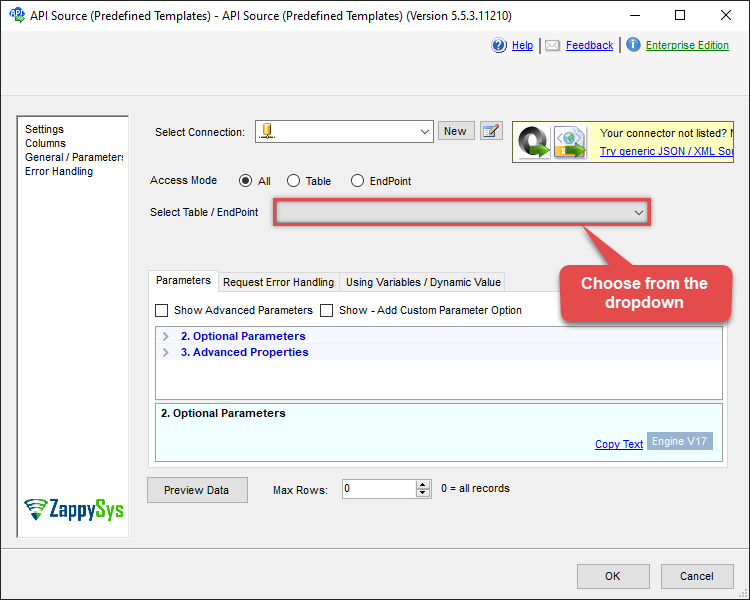
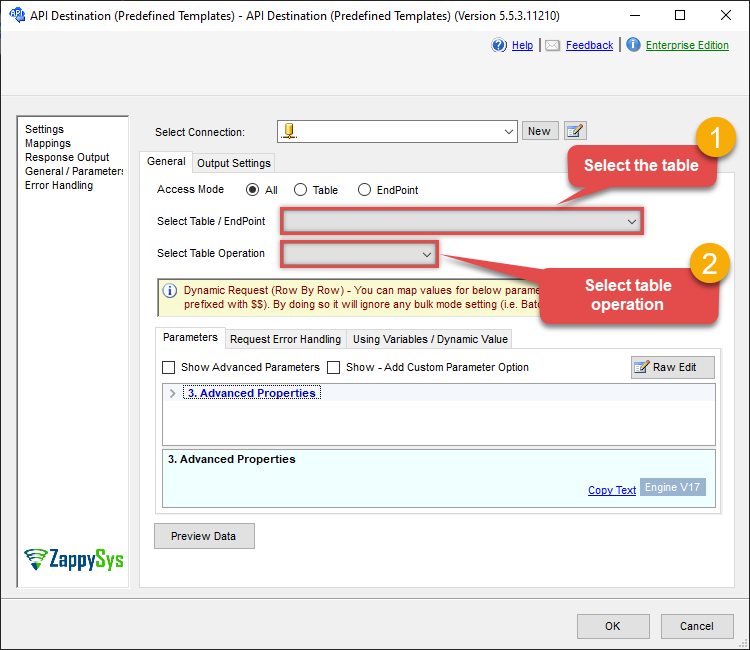
Use Azure DevOps Connector in API Source component to read data or in API Destination component to read/write data:
Read from Teams table using API Source

| Required Parameters | |
|---|---|
| Project Name | Fill-in the parameter... |
Read/write to Teams table using API Destination
| Required Parameters | |
|---|---|
| Project Name | Fill-in the parameter... |
ODBC application
Use these SQL queries in your ODBC application data source:
List teams (default project)
<p>Returns all teams in the default project from the connection. Use this to discover team names and IDs for use in queries or when creating work items. Columns include Id, Name, ProjectId, ProjectName, Url, and Description.</p>
SELECT * FROM TeamsList teams for a project
<p>Returns all teams in a specific project by passing the project ID (or name) in the WITH clause. Use when the default project is not the one you need or when you are iterating over multiple projects.</p>
SELECT * FROM Teams WITH (Project='841e1641-325d-49b1-9c5e-22c11a61d4c4')List teams (specific columns)
<p>Returns teams with only the columns you select (e.g. Id, Name, ProjectId, ProjectName, Url, Description, IdentityUrl). Use this to keep result sets small or to build pickers and reports that need a subset of team fields.</p>
SELECT Id, Name, ProjectId, ProjectName, Url, Description, IdentityUrl FROM TeamsGet team by ID
<p>Returns a single team by its GUID. Use the team Id from the list of teams when you need full details for one team (e.g. name, description, project, identity URL).</p>
SELECT * FROM Teams WHERE Id='a0aa750f-1550-44af-a056-223696077df6'Create team (default project)
<p>Creates a new team in the default project. Supply the team name and description. The team is created under the connection's default project. Use "Create team in a project" when you need to target a different project.</p>
INSERT INTO Teams (Name, Description) VALUES
('PosProject Team', 'This is the team who will be working on the Point of Service project.')
Create team in a project
<p>Creates a new team in a specific project by passing the project ID in the WITH clause. Supply the team name and description. Use when the default project is not the target project.</p>
INSERT INTO Teams (Name, Description) VALUES
('PosProject Team', 'This is the team who will be working on the Point of Service project.')
WITH (ProjectId='85kd1641-5555-49b1-9c5e-22c22a61d4c4')
Update team by ID
<p>Updates an existing team by its ID. Set the columns you want to change (e.g. Name, Description); the WHERE clause targets the team. Use when renaming a team or updating its description.</p>
UPDATE Teams SET Name = 'PointOfServiceProject Team' WHERE Id='8djr4d07-5555-5555-9552-0b6d7je99w7f'Delete team by ID
<p>Deletes a team by its ID. The team is removed from the project. Confirm the team ID before running; deletion is not reversible.</p>
DELETE FROM Teams WHERE Id='8djr4d07-5555-5555-9552-0b6d7je99w7f'SQL Server
Use these SQL queries in SQL Server after you create a data source in Data Gateway:
List teams (default project)
<p>Returns all teams in the default project from the connection. Use this to discover team names and IDs for use in queries or when creating work items. Columns include Id, Name, ProjectId, ProjectName, Url, and Description.</p>
DECLARE @MyQuery NVARCHAR(MAX) = 'SELECT * FROM Teams';

EXEC (@MyQuery) AT [LS_TO_AZURE_DEVOPS_IN_GATEWAY];
List teams for a project
<p>Returns all teams in a specific project by passing the project ID (or name) in the WITH clause. Use when the default project is not the one you need or when you are iterating over multiple projects.</p>
DECLARE @MyQuery NVARCHAR(MAX) = 'SELECT * FROM Teams WITH (Project=''841e1641-325d-49b1-9c5e-22c11a61d4c4'')';

EXEC (@MyQuery) AT [LS_TO_AZURE_DEVOPS_IN_GATEWAY];
List teams (specific columns)
<p>Returns teams with only the columns you select (e.g. Id, Name, ProjectId, ProjectName, Url, Description, IdentityUrl). Use this to keep result sets small or to build pickers and reports that need a subset of team fields.</p>
DECLARE @MyQuery NVARCHAR(MAX) = 'SELECT Id, Name, ProjectId, ProjectName, Url, Description, IdentityUrl FROM Teams';

EXEC (@MyQuery) AT [LS_TO_AZURE_DEVOPS_IN_GATEWAY];
Get team by ID
<p>Returns a single team by its GUID. Use the team Id from the list of teams when you need full details for one team (e.g. name, description, project, identity URL).</p>
DECLARE @MyQuery NVARCHAR(MAX) = 'SELECT * FROM Teams WHERE Id=''a0aa750f-1550-44af-a056-223696077df6''';

EXEC (@MyQuery) AT [LS_TO_AZURE_DEVOPS_IN_GATEWAY];
Create team (default project)
<p>Creates a new team in the default project. Supply the team name and description. The team is created under the connection's default project. Use "Create team in a project" when you need to target a different project.</p>
DECLARE @MyQuery NVARCHAR(MAX) = 'INSERT INTO Teams (Name, Description) VALUES
(''PosProject Team'', ''This is the team who will be working on the Point of Service project.'')';

EXEC (@MyQuery) AT [LS_TO_AZURE_DEVOPS_IN_GATEWAY];
Create team in a project
<p>Creates a new team in a specific project by passing the project ID in the WITH clause. Supply the team name and description. Use when the default project is not the target project.</p>
DECLARE @MyQuery NVARCHAR(MAX) = 'INSERT INTO Teams (Name, Description) VALUES
(''PosProject Team'', ''This is the team who will be working on the Point of Service project.'')
WITH (ProjectId=''85kd1641-5555-49b1-9c5e-22c22a61d4c4'')';

EXEC (@MyQuery) AT [LS_TO_AZURE_DEVOPS_IN_GATEWAY];
Update team by ID
<p>Updates an existing team by its ID. Set the columns you want to change (e.g. Name, Description); the WHERE clause targets the team. Use when renaming a team or updating its description.</p>
DECLARE @MyQuery NVARCHAR(MAX) = 'UPDATE Teams SET	Name = ''PointOfServiceProject Team'' WHERE Id=''8djr4d07-5555-5555-9552-0b6d7je99w7f''';

EXEC (@MyQuery) AT [LS_TO_AZURE_DEVOPS_IN_GATEWAY];
Delete team by ID
<p>Deletes a team by its ID. The team is removed from the project. Confirm the team ID before running; deletion is not reversible.</p>
DECLARE @MyQuery NVARCHAR(MAX) = 'DELETE FROM Teams WHERE Id=''8djr4d07-5555-5555-9552-0b6d7je99w7f''';

EXEC (@MyQuery) AT [LS_TO_AZURE_DEVOPS_IN_GATEWAY];