

Endpoint Create Team
Name
add_team
Description
Creates a new team in the default project within the organization. [API reference]
Related Tables
Parameters
| Parameter | Required | Options |
|---|---|---|
|
Name:
Label: Team Name The name of the team. |
YES | |
|
Name:
Label: Team Description The description of the team. |
YES |
Output Columns
| Label | Data Type (SSIS) | Data Type (SQL) | Length | Description |
|---|---|---|---|---|
| Id |
DT_WSTR
|
nvarchar(200)
|
200 | |
| PluginId |
DT_WSTR
|
nvarchar(200)
|
200 | |
| Status |
DT_WSTR
|
nvarchar(100)
|
100 | |
| Url |
DT_WSTR
|
nvarchar(2048)
|
2048 |
Input Columns
| Label | Data Type (SSIS) | Data Type (SQL) | Length | Description |
|---|---|---|---|---|
| Name |
DT_WSTR
|
nvarchar(200)
|
200 | The name of the team. |
| Description |
DT_WSTR
|
nvarchar(500)
|
500 | The description of the team. |
Examples
SSIS
Use Azure DevOps Connector in API Source or in API Destination SSIS Data Flow components to read or write data.
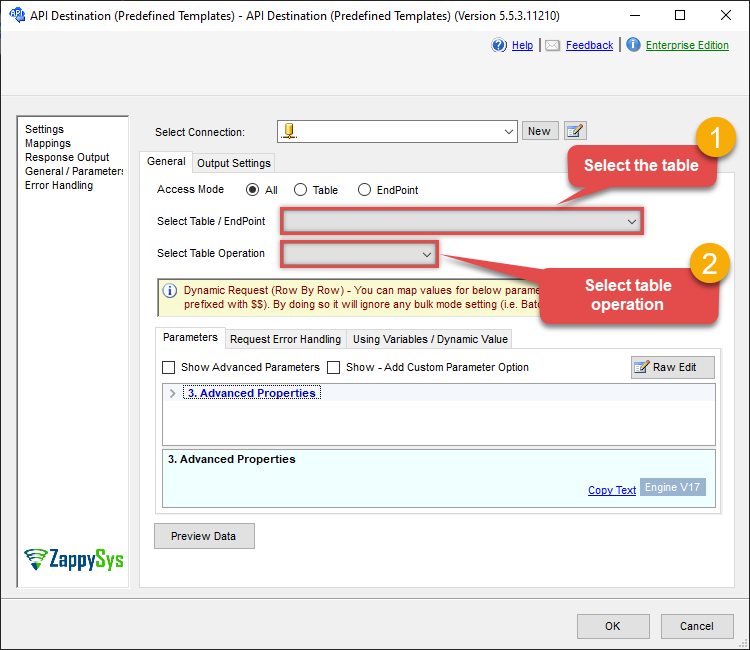
API Destination
This Endpoint belongs to the Teams table, therefore it is better to use it, instead of accessing the endpoint directly. Use this table and table-operation pair to create team:

| There are no parameters to configure. |
ODBC application
Use these SQL queries in your ODBC application data source:
Create team (default project)
<p>Creates a new team in the default project. Supply the team name and description. The team is created under the connection's default project. Use "Create team in a project" when you need to target a different project.</p>
INSERT INTO Teams (Name, Description) VALUES
('PosProject Team', 'This is the team who will be working on the Point of Service project.')
Create team in a project
<p>Creates a new team in a specific project by passing the project ID in the WITH clause. Supply the team name and description. Use when the default project is not the target project.</p>
INSERT INTO Teams (Name, Description) VALUES
('PosProject Team', 'This is the team who will be working on the Point of Service project.')
WITH (ProjectId='85kd1641-5555-49b1-9c5e-22c22a61d4c4')
add_team endpoint belongs to
Teams
table(s), and can therefore be used via those table(s).
SQL Server
Use these SQL queries in SQL Server after you create a data source in Data Gateway:
Create team (default project)
<p>Creates a new team in the default project. Supply the team name and description. The team is created under the connection's default project. Use "Create team in a project" when you need to target a different project.</p>
DECLARE @MyQuery NVARCHAR(MAX) = 'INSERT INTO Teams (Name, Description) VALUES
(''PosProject Team'', ''This is the team who will be working on the Point of Service project.'')';

EXEC (@MyQuery) AT [LS_TO_AZURE_DEVOPS_IN_GATEWAY];
Create team in a project
<p>Creates a new team in a specific project by passing the project ID in the WITH clause. Supply the team name and description. Use when the default project is not the target project.</p>
DECLARE @MyQuery NVARCHAR(MAX) = 'INSERT INTO Teams (Name, Description) VALUES
(''PosProject Team'', ''This is the team who will be working on the Point of Service project.'')
WITH (ProjectId=''85kd1641-5555-49b1-9c5e-22c22a61d4c4'')';

EXEC (@MyQuery) AT [LS_TO_AZURE_DEVOPS_IN_GATEWAY];
add_team endpoint belongs to
Teams
table(s), and can therefore be used via those table(s).